
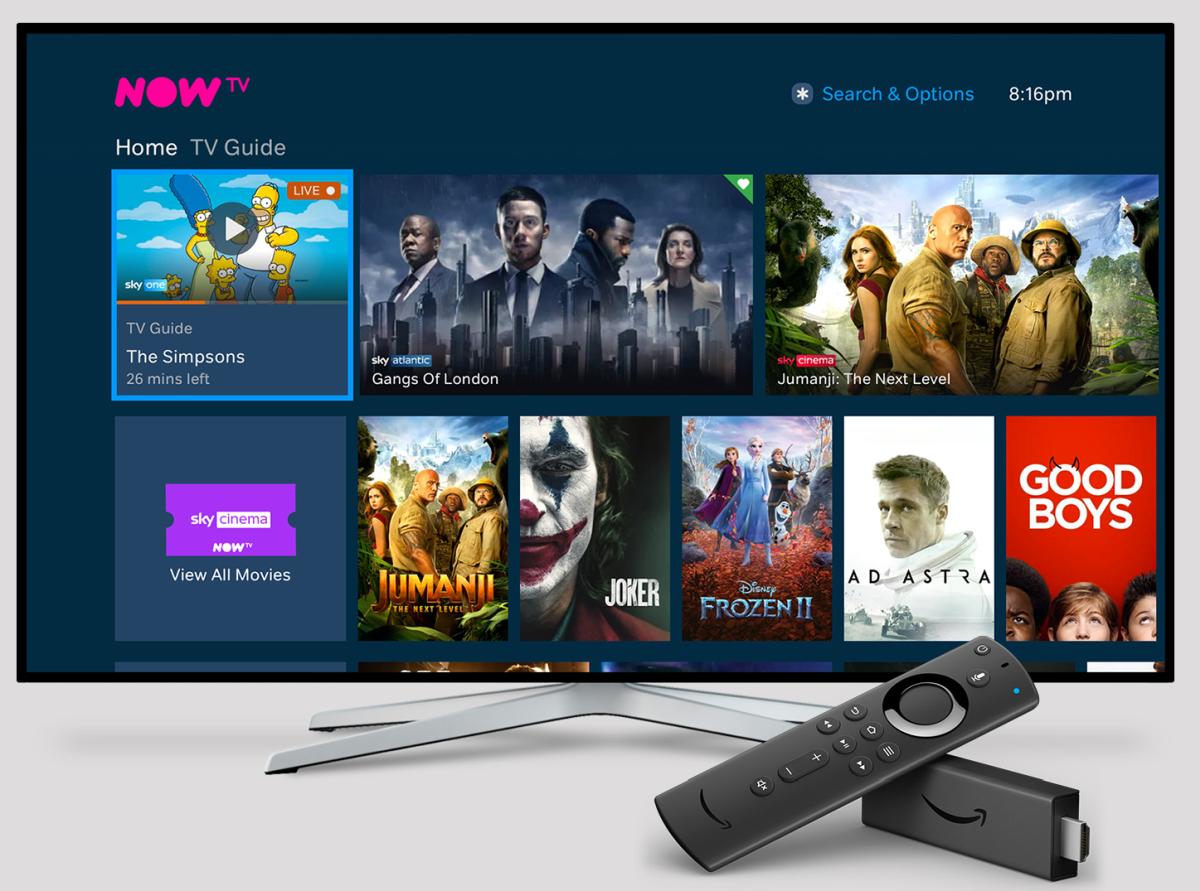
How to Download Now TV on Fire Stick: A Step-by-step Guide
Are you tired of missing out on your favorite Sky shows and events? Do you want to access them on demand, without a satellite dish or contractual obligations? Look no further! In this article, we’ll show you how to download NOW TV on your Fire Stick, so you can enjoy all the content you love.
Can I Download Now TV on Fire Stick?
Yes, you can! The good news is that your Fire Stick is compatible with NOW TV. This means you can download and install the app directly from your device’s store, or use your Amazon account to access it on multiple devices.
How to Download Now TV on Fire Stick
To start, make sure you have a valid Amazon account linked to your Fire Stick. If not, create an account or sign in using your existing credentials.
Next, follow these steps:
- Access The Store: Go to the home screen of your Fire Stick and select the “Applications” option from the menu.
- Find Now TV: Scroll through the list of available apps until you find NOW TV. Select it and press the central button on your remote control.
- Download Now TV: The app will initiate downloading, which should only take a few seconds to complete.
Alternative Method: Downloading Now TV From Amazon Website
If you prefer to download NOW TV from the Amazon website instead of directly from your Fire Stick, follow these steps:
- Access The Amazon Website: Open a web browser on your computer or mobile device and navigate to the Amazon website.
- Sign in to Your Account: Ensure you’re logged into your Amazon account using the same credentials as your Fire Stick.
- Find Now TV: Search for “NOW TV” in the search bar, then select the app from the results.
- Download Now TV on Fire Stick: Once you’ve selected the app, follow the instructions to initiate downloading and installation on your Fire Stick.
Troubleshooting: If You Encounter Problems
If you encounter any issues during the download or installation process, try restarting your Fire Stick or checking your internet connection. If the problem persists, don’t hesitate to contact Amazon’s customer service for assistance.
Using Now TV on Your Fire Stick
Now that you’ve successfully downloaded and installed NOW TV, you’re ready to enjoy all the content you love! Simply launch the app, sign in with your credentials, and start watching your favorite shows and events.
Conclusion
Downloading NOW TV on your Fire Stick is a straightforward process that can be completed in just a few minutes. With this guide, you should have no trouble accessing your favorite Sky content on demand. Don’t forget to explore more features and settings within the app to get the most out of your viewing experience!
Frequently Asked Questions
- Q: Can I Download Now TV on Multiple Devices?
A: Yes! Using your Amazon account, you can access NOW TV on multiple devices, including Fire Stick, computer, smartphone, or tablet. - Q: Do I Need a Subscription to Watch Content on Now Tv?
A: Yes, you’ll need a valid subscription to access and view content on NOW TV. - Q: Can I Create a New Account or Purchase a Ticket Within The App?
A: No, creating a new account or purchasing a ticket is not possible within the NOW TV app. You must do this through your browser on your computer, smartphone, or tablet. - Q: How do I Access Customer Support if I Encounter Problems?
A: If you need assistance with downloading or using NOW TV on your Fire Stick, contact Amazon’s customer service for help.
System Requirements
- Fire Stick ( compatible device)
- Amazon account
- Internet connection
Compatibility
NOW TV is compatible with the following devices:
- Fire Stick (compatible device)
- Computer (via web browser)
- Smartphone (via mobile app)
- Tablet (via tablet app)
Subscription And Account Information
To access content on NOW TV, you’ll need a valid subscription. You can create an account or sign in using your existing credentials to access the service.
I hope this article has been helpful! If you have any further questions or concerns, feel free to ask.


