
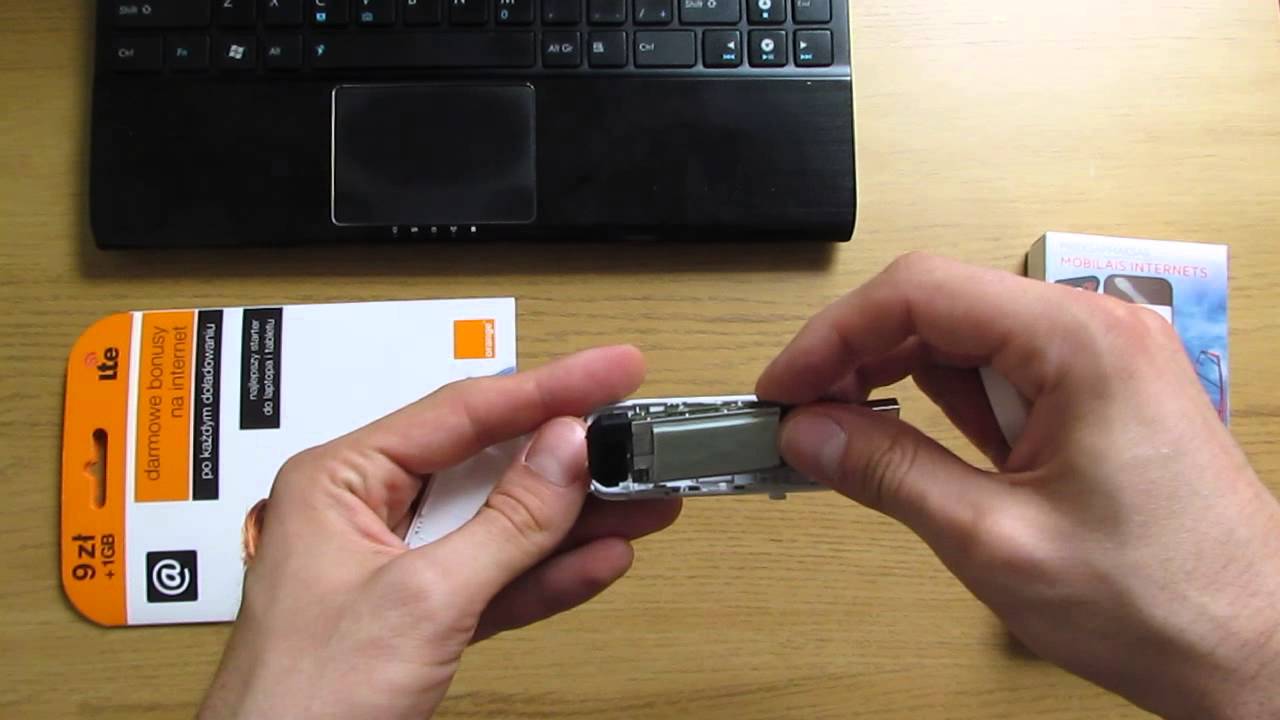
How to Insert a Sim Card in Your Huawei Smartphone: A Step-by-step Guide
Are you struggling to insert a SIM card into your new Huawei smartphone? Don’t worry, we’ve got you covered! In this article, we’ll walk you through the process of inserting a SIM card in your Huawei device, and provide some helpful tips and tricks along the way.
Understanding Different Types of Sim Cards
Before we dive into the instructions, it’s essential to understand that there are different types of SIM cards available. The most common ones are:
- Nano-sim (4FF): This is the smallest type of SIM card, measuring 12.3Mm x 8.8Mm x 0.67Mm.
- Micro-sim (3FF): This type of SIM card measures 15mm x 12mm x 0.76Mm.
- Mini-sim (2FF): Also known as the standard SIM card, this type measures 25mm x 15mm x 0.76Mm.
How to Insert a Sim Card in Your Huawei Smartphone
To insert a SIM card into your Huawei device, follow these simple steps:
- Locate The Sim Slot: The SIM slot is usually located on the side of the phone, and it’s marked with an icon of a phone or a SIM card.
- Extract The Sim Slot: Use the metal pin provided in the box to extract the SIM slot from the body of the phone. Apply a slight pressure on the slot to release it.
- Insert The Sim Card: Take your SIM card and insert it into the SIM slot, making sure that the golden contacts face downwards.
- Push The Sim Slot Back In: Once the SIM card is inserted, push the SIM slot back into the phone until you hear a click.
Disabling Pin Request For The Sim Card
After inserting the SIM card, your phone may ask you to enter a PIN code to unlock it. To disable this feature, follow these steps:
- Go to Settings: Open the settings app on your phone.
- Advanced Settings: Scroll down and select “Safety” and then “SIM Settings”.
- Disable Pin Request: Switch off the “Block SIM” option.
Troubleshooting Tips
If you’re having trouble inserting a SIM card into your Huawei device, here are some troubleshooting tips:
- Make sure that the SIM card is compatible with your phone.
- Check if the SIM slot is damaged or dirty.
- Try using a different SIM card to see if it works.
- If none of these solutions work, contact your carrier for assistance.
Adapting a Sim Card For Your Huawei Smartphone
What if you have a SIM card that’s not compatible with your Huawei device? Don’t worry! You can adapt a SIM card by following these steps:
- Contact Your Carrier: Visit your carrier’s store and ask them to change the format of your SIM card.
- Use an Adapter: If you don’t want to visit your carrier, you can use a SIM adapter to make your existing SIM card compatible with your Huawei device.
Conclusion
Inserting a SIM card into your Huawei smartphone is a straightforward process that requires some basic knowledge and tools. By following the steps outlined in this article, you should be able to insert a SIM card successfully and enjoy uninterrupted internet connectivity on your device. Remember to disable PIN request for the SIM card if you don’t want to enter a code every time you restart your phone.
Frequently Asked Questions (FAQs)
- What Type of Sim Card do I Need For my Huawei Smartphone?
You can use any type of SIM card that’s compatible with your phone, but we recommend using a Nano-SIM or Micro-SIM for optimal performance. - How do I Insert a Sim Card Into my Huawei Device?
To insert a SIM card, locate the SIM slot on the side of the phone and extract it using the metal pin provided in the box. Then, insert your SIM card into the slot, making sure that the golden contacts face downwards. - Why is my Phone Asking me to Enter a Pin Code For The Sim Card?
Your phone may ask you to enter a PIN code if you’re using a SIM card with a PIN lock. To disable this feature, go to Settings > Advanced Settings > Safety > SIM Settings and switch off the “Block SIM” option. - Can I Adapt my Existing Sim Card to Use in my Huawei Smartphone?
Yes, you can adapt your existing SIM card by visiting your carrier’s store or using a SIM adapter to make it compatible with your phone. - What if I’m Having Trouble Inserting a Sim Card Into my Huawei Device?
If you’re experiencing issues inserting a SIM card, try restarting your phone and checking the SIM slot for any obstructions or damage. If none of these solutions work, contact your carrier for assistance. - Can I Use a Nano-sim in a Micro-sim Slot?
No, you cannot use a Nano-SIM in a Micro-SIM slot. You’ll need to use a SIM adapter or visit your carrier’s store to change the format of your SIM card. - How do I Prevent my Phone From Asking me to Enter a Pin Code For The Sim Card Every Time I Restart It?
To disable PIN request, go to Settings > Advanced Settings > Safety > SIM Settings and switch off the “Block SIM” option.
Sources
- [1] Huawei Support
- [2] Google Support
- [3] Amazon
Note: This article is intended for informational purposes only and may not reflect the views or opinions of Huawei, Google, or Amazon.


