
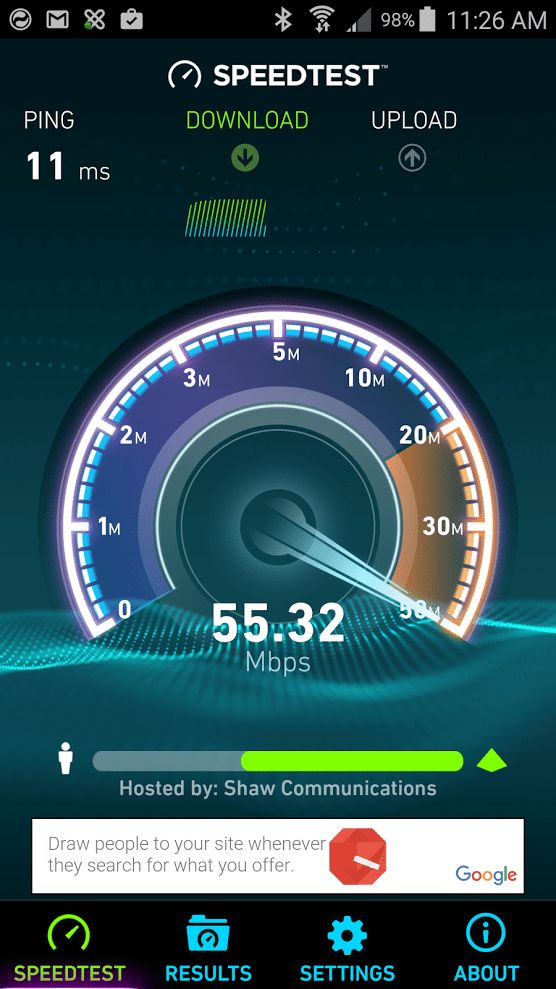
Speed Test Infostrada: How to Check Your Internet Connection Speed
Are you curious about the speed of your internet connection? Do you want to know if it’s meeting the expectations outlined in your contract with Infostrada? Look no further! In this article, we’ll guide you through the process of conducting a speed test using various tools and services.
Why Conduct a Speed Test?
Conducting a speed test is essential to ensure that your internet connection is performing as expected. This test will help you determine if there are any issues with your line, such as slow speeds or packet loss. By identifying these problems early on, you can take corrective action and prevent frustration down the line.
Tools For Conducting a Speed Test
There are several tools available that allow you to conduct a speed test, including:
- Sostariffe: This service not only helps you compare internet plans but also provides a speed test tool.
- Ookla Speedtest: This is one of the most widely used speed test tools globally and is available in two versions: Classic (requires Flash Player) and HTML5-based.
- Speedofme: A simple, browser-based speed test tool that’s easy to use and provides reliable results.
- In.Me.*Sys. : This software, provided by AGCOM, monitors your internet connection speed over a 24-hour period and generates official reports.
Conducting The Speed Test With Sostariffe
To conduct a speed test using SOSTariffe:
- Go to the SOSTariffe website.
- Click on the “Speed Test” tab.
- Select your provider (Infostrada) from the dropdown menu.
- Fill in your city and address details.
- Click the “Continue” button.
- Enter your email address, phone number (optional), CAP code, and monthly expenses for your ADSL plan.
- Check the box to accept the general conditions and click on the “Start Test” button.
Conducting The Speed Test With Ookla Speedtest
To conduct a speed test using Ookla Speedtest:
- Go to the Ookla Speedtest website.
- Choose between the classic version (requires Flash Player) or the HTML5-based version.
- If using the classic version, select your preferred unit of measurement for the test results.
- Click on the “Save” button and then click on the “Start Test” button to initiate the speed test.
Conducting The Speed Test With Speedofme
To conduct a speed test using SpeedOfMe:
- Go to the SpeedOfMe website.
- Click on the “Start Test” button.
- Wait for the test results, which will display your connection’s download, upload, and ping speeds.
Conducting The Speed Test With In.Me.*Sys.
To conduct a speed test using In.Me.*Sys.:
- Go to the In.Me.*Sys. Website.
- Click on the “Form” link.
- Fill in your personal details (name, address, email, phone number).
- Select Wind as your provider from the dropdown menu and choose your profile (e.G., Infostrada All Included).
- Click on the “Check” button to initiate the download process.
- Once downloaded, run the software and enter your login credentials.
Troubleshooting Tips
If your speed test results are less than satisfactory:
- Try restarting your modem/router and re-running the speed test.
- Contact Infostrada’s technical support for assistance.
- Call the free phone number 155 (Infostrada or TIM) for further guidance.
By following these steps and using one of the tools mentioned above, you’ll be able to determine if your internet connection is meeting its expected speeds. Remember to troubleshoot any issues that may arise, and don’t hesitate to reach out to Infostrada’s technical support team for assistance.
Conclusion
Conducting a speed test is a straightforward process that can help ensure your internet connection is performing optimally. By using one of the tools mentioned in this article, you’ll be able to determine if there are any issues with your line and take corrective action as needed.
Frequently Asked Questions (FAQs)
- Q: Why Conduct a Speed Test?
A: Conducting a speed test ensures that your internet connection is performing as expected. - Q: Which Tool Should I Use to Conduct a Speed Test?
A: You can choose from SOSTariffe, Ookla Speedtest, SpeedOfMe, or In.Me.*Sys., Depending on your preferences and needs. - Q: How do I Troubleshoot Issues With my Internet Connection?
A: Try restarting your modem/router, contact Infostrada’s technical support team, or call the free phone number 155 (Infostrada or TIM) for assistance.


