
How to See Your Reviews on Google
As a user of Google services, you may have wondered how to see your reviews on Google Maps or Google Play. This article will guide you through the process of viewing your reviews on both platforms.
Why See My Reviews on Google?
Seeing your reviews on Google can be helpful in several ways:
- You can view the feedback and ratings left by other users, which can help you understand how well your business or service is performing.
- You can respond to negative reviews and resolve any issues that may have been raised.
- You can use the data from your reviews to improve your business or service.
How to See My Reviews on Google Maps
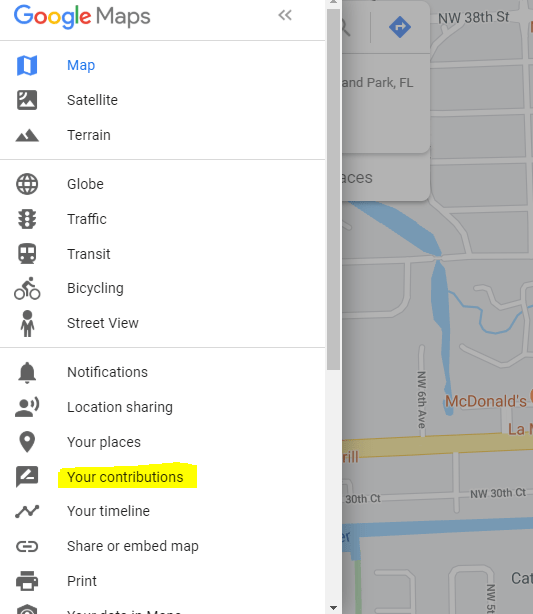
To see your reviews on Google Maps, follow these steps:
- Open Google Maps: Open the Google Maps app on your smartphone or tablet, or access it through a web browser on your computer.
- Tap on Your Profile Picture: Tap on your profile picture in the top right corner of the screen.
- Select “Your Profile”: Select “Your profile” from the menu that appears.
- Scroll Down to “Reviews”: Scroll down to the “Reviews” section, which should display some of your recent reviews and ratings.
- Tap on “All Reviews”: Tap on “All reviews” to view all of your reviews.
How to See My Reviews on Google Play
To see your reviews on Google Play, follow these steps:
- Open The Google Play Store: Open the Google Play Store app on your smartphone or tablet, or access it through a web browser on your computer.
- Tap on Your Profile Picture: Tap on your profile picture in the top right corner of the screen.
- Select “Account”: Select “Account” from the menu that appears.
- Scroll Down to “Reviews”: Scroll down to the “Reviews” section, which should display some of your recent reviews and ratings.
- Tap on “All Reviews”: Tap on “All reviews” to view all of your reviews.
How to See My Activity’s Reviews on Google
If you have created a profile for your business or activity on Google My Business, you can see the reviews left by your clients through the following steps:
- Open Google Maps: Open the Google Maps app on your smartphone or tablet, or access it through a web browser on your computer.
- Tap on Your Profile Picture: Tap on your profile picture in the top right corner of the screen.
- Select “I Profiles”: Select “I profiles” from the menu that appears.
- Choose Your Business’ Name: Choose your business’ name to view its profile.
- Scroll Down to “Reviews”: Scroll down to the “Reviews” section, which should display all of the reviews left by your clients.
Conclusion
Seeing your reviews on Google can be a valuable tool for improving your business or service. By following these steps, you can view your reviews on both Google Maps and Google Play, as well as through the Google My Business platform.
Frequently Asked Questions (FAQs)
Here are some frequently asked questions related to seeing your reviews on Google:
- Q: How do I See my Reviews on Google Maps?
A: To see your reviews on Google Maps, tap on your profile picture in the top right corner of the screen and select “Your profile.” - Q: How do I See my Reviews on Google Play?
A: To see your reviews on Google Play, open the Google Play Store app on your smartphone or tablet, or access it through a web browser on your computer. - Q: Can I Respond to Negative Reviews on Google Maps?
A: Yes, you can respond to negative reviews on Google Maps by tapping on the review and selecting “Respond.” - Q: How do I See my Activity’s Reviews on Google My Business?
A: To see your activity’s reviews on Google My Business, open the Google Maps app on your smartphone or tablet, or access it through a web browser on your computer. - Q: Can I Edit or Delete a Review on Google Maps?
A: Yes, you can edit or delete a review on Google Maps by tapping on the three dots next to the review and selecting “Edit” or “Delete.” - Q: How do I See All of my Reviews at Once?
A: To see all of your reviews at once, tap on the “All Reviews” button in the top right corner of the screen. - Q: Can I Add a Photo to a Review on Google Maps?
A: Yes, you can add a photo to a review on Google Maps by tapping on the camera icon next to the text box. - Q: How do I Report an Inappropriate Review on Google My Business?
A: To report an inappropriate review on Google My Business, tap on the three dots next to the review and select “Report.”


