
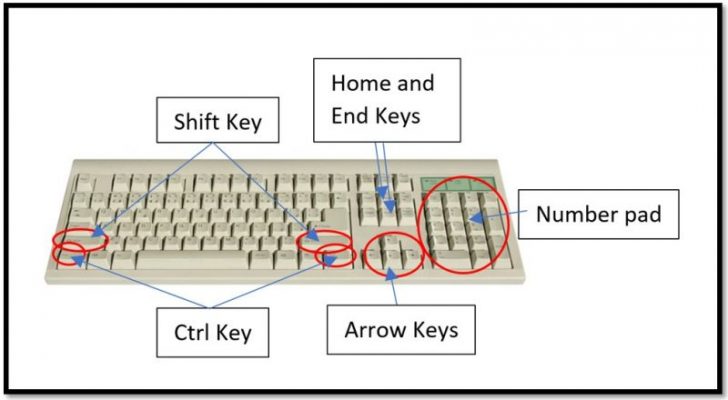
How to Select Files With The Keyboard: A Guide For PC And Mac Users
Are you tired of using your mouse or trackpad to select files on your computer? Look no further! In this article, we will show you how to select files with the keyboard, making it easier and faster to manage your documents.
Why Use The Keyboard?
Using the keyboard to select files can be more comfortable than using the mouse or trackpad, especially for those who spend long hours working on their computers. By mastering some basic keyboard shortcuts, you can improve your productivity and efficiency.
Selecting Files With The Keyboard on PC
To start selecting files with the keyboard on a Windows PC, follow these steps:
- Navigate to The Folder: Use the directional arrows (↑, ↓, ←, →) to navigate through the folders and find the one you need.
- Select The First File: Press the spacebar to select the first file in the folder.
- Select Multiple Files: Hold down the Ctrl key while selecting multiple files using the mouse or trackpad.
Using Keyboard Shortcuts
Here are some essential keyboard shortcuts for selecting files on a PC:
- Ctrl+a: Select all files and folders in the current directory.
- Shift+arrow Keys: Select multiple files by holding down the Shift key and using the arrow keys to highlight the desired files.
- Ctrl+c: Copy selected files.
- Ctrl+x: Cut selected files.
- Ctrl+v: Paste copied or cut files.
Selecting Files With The Keyboard on Mac
On a Mac, selecting files with the keyboard is also possible. Here’s how:
- Navigate to The Folder: Use the directional arrows (↑, ↓, ←, →) to navigate through the folders and find the one you need.
- Select The First File: Press the spacebar to select the first file in the folder.
- Select Multiple Files: Hold down the Command key while selecting multiple files using the mouse or trackpad.
Using Keyboard Shortcuts on Mac
Here are some essential keyboard shortcuts for selecting files on a Mac:
- Cmd+a: Select all files and folders in the current directory.
- Shift+arrow Keys: Select multiple files by holding down the Shift key and using the arrow keys to highlight the desired files.
- Cmd+c: Copy selected files.
- Cmd+x: Cut selected files.
- Cmd+v: Paste copied or cut files.
Advanced Keyboard Shortcuts
For more advanced users, here are some additional keyboard shortcuts for selecting files on a PC and Mac:
- Ctrl+shift+f8: Select a rectangle of text (only in Microsoft Word).
- Cmd+shift+f10: Open the contextual menu of a file.
- Alt+f10: Also opens the contextual menu of a file.
Tips And Tricks
Here are some tips and tricks to help you master selecting files with the keyboard:
- Practice Makes Perfect: Spend some time practicing these shortcuts to become more comfortable using them.
- Use The Keyboard For Repetitive Tasks: If you find yourself performing the same task multiple times, try using the keyboard to streamline your workflow.
- Experiment With Different Shortcuts: Don’t be afraid to try out new shortcuts and see what works best for you.
Conclusion
Selecting files with the keyboard can save you time and improve your productivity. By mastering these basic shortcuts, you can become more efficient in managing your documents and stay organized. Whether you’re a PC or Mac user, we hope this article has been helpful in showing you how to select files with the keyboard. Happy computing!
Frequently Asked Questions
- Q: Can I Use The Keyboard to Select Files on a Mac?
A: Yes, selecting files with the keyboard is also possible on a Mac. - Q: What Are Some Essential Keyboard Shortcuts For Selecting Files?
A: Some essential keyboard shortcuts include Ctrl+A (PC) or Cmd+A (Mac), Shift+arrow keys, and Ctrl+C/Cmd+C (copy), Ctrl+X/Cmd+X (cut), and Ctrl+V/Cmd+V (paste). - Q: Can I Use The Keyboard to Select Files in a Specific Folder?
A: Yes, you can navigate to a specific folder using the directional arrows and then select the desired files. - Q: Are There Any Advanced Keyboard Shortcuts For Selecting Files?
A: Yes, some advanced keyboard shortcuts include Ctrl+Shift+F8 (select a rectangle of text) and Alt+F10/Cmd+Shift+F10 (open the contextual menu of a file). - Q: Can I Use The Keyboard to Select Multiple Files at Once?
A: Yes, you can hold down the Shift key while selecting multiple files using the arrow keys.
I hope this helps! Let me know if you have any other questions.


