
How to Do a Backup of Your Email on Various Clients And Services
Are you worried about losing your precious emails in case something happens to your computer or account? Don’t worry, we’ve got you covered! In this article, we’ll show you how to do a backup of your email on various clients and services.
Why Backing Up Your Email is Important
Before we dive into the nitty-gritty of backing up your email, let’s quickly talk about why it’s so important. Losing your emails can be a real pain, especially if they contain important information or sentimental value. By backing up your email, you’ll have a copy of all your messages in case something happens to your account or computer.
Outlook: Exporting And Backing Up Emails
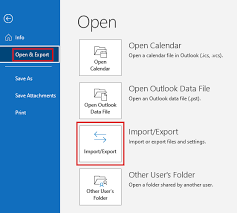
Let’s start with Microsoft Outlook, one of the most popular email clients out there. To export and back up your emails in Outlook:
- Open Outlook and go to File > Options > Advanced.
- Click on the “Export” button and select “Export to a file”.
- Choose the format you want to use (e.G., CSV, PST) and select the folders you want to export.
- Follow the prompts to complete the export process.
Windows/macos: Using Mailstore
If you’re using Windows or MacOS and don’t have Outlook installed, you can use a third-party tool called MailStore. Here’s how:
- Download and install MailStore from their website.
- Open MailStore and follow the prompts to connect it to your email account.
- Select the folders you want to back up and choose the format you want to use (e.G., CSV, PST).
- Follow the prompts to complete the backup process.
Thunderbird: Backing Up Emails
If you’re using Thunderbird as your email client:
- Go to Tools > Options > Advanced.
- Click on the “ImportExport” button and select “Export”.
- Choose the format you want to use (e.G., CSV, PST) and select the folders you want to export.
- Follow the prompts to complete the export process.
Gmail: Backing Up Emails
If you’re using Gmail as your email service:
- Use a third-party tool like Backupify or MailStore to back up your emails.
- Configure the tool to connect to your Gmail account and select the folders you want to back up.
- Follow the prompts to complete the backup process.
Mac: Using Time Machine
If you’re using a Mac, you can use Apple’s built-in Time Machine feature to back up your entire computer, including your emails:
- Go to System Preferences > Time Machine.
- Select the disk you want to use for backing up and choose how often you want to create backups.
- Follow the prompts to complete the setup process.
Aruba: Backing Up Emails
If you’re using Aruba’s email service:
- Use a third-party tool like MailStore or Backupify to back up your emails.
- Configure the tool to connect to your Aruba account and select the folders you want to back up.
- Follow the prompts to complete the backup process.
Alice: Backing Up Emails
If you’re using TIM Mail (formerly Alice) as your email service:
- Use a third-party tool like MailStore or Backupify to back up your emails.
- Configure the tool to connect to your TIM Mail account and select the folders you want to back up.
- Follow the prompts to complete the backup process.
Libero: Backing Up Emails
If you’re using Libero’s email service:
- Use a third-party tool like MailStore or Backupify to back up your emails.
- Configure the tool to connect to your Libero account and select the folders you want to back up.
- Follow the prompts to complete the backup process.
Conclusion
Backing up your email is an essential step in protecting yourself from losing important information or sentimental value. By following these simple steps, you can ensure that all your emails are safely backed up, regardless of which client or service you use.
Frequently Asked Questions (FAQs)
Q: Why should I back up my email?
A: Backing up your email ensures that you won’t lose important information or sentimental value in case something happens to your account or computer.
Q: Which clients and services can I back up using MailStore?
A: You can use MailStore to back up emails from various clients, including Outlook, Thunderbird, Gmail, Aruba, Alice, and Libero.
Q: Can I use Time Machine to back up my email on a Mac?
A: Yes, you can use Apple’s built-in Time Machine feature to back up your entire computer, including your emails.
Q: How often should I create backups of my email?
A: It’s recommended to create backups regularly, such as daily or weekly, depending on how frequently you send and receive emails.
Q: Can I use a third-party tool to back up my email?
A: Yes, there are several third-party tools available that can help you back up your email, including MailStore, Backupify, and more.
Q: Will backing up my email take up too much space on my computer or external drive?
A: The amount of space required will depend on the number of emails you have and the format used for backup. However, most modern computers and external drives have sufficient storage capacity to accommodate backups.
Q: Is it safe to back up my email using a third-party tool?
A: Yes, reputable third-party tools like MailStore and Backupify are designed with security in mind and can be trusted to keep your emails safe.
Q: Can I restore my backed-up email if something happens to my account or computer?
A: Yes, most backup tools allow you to restore your backed-up email in case of an emergency.


