
How to Change Your Spotify Password: A Step-by-step Guide
Are you tired of using the same old password on your Spotify account? Do you want to add an extra layer of security to your streaming experience? Look no further! In this article, we’ll guide you through the simple process of changing your Spotify password.
Why Change Your Spotify Password?
Changing your Spotify password is essential for maintaining the security and integrity of your account. With millions of users worldwide, it’s not uncommon for accounts to be compromised or hacked. By regularly updating your password, you can prevent unauthorized access to your account and protect your personal data.
How to Change Your Spotify Password on Computer
To change your Spotify password on computer, follow these steps:
- Log in to Your Spotify Account: Go to the Spotify website and log in with your current username and password.
- Click on Your Profile Picture: Located at the top right corner of the screen, click on your profile picture to access your account settings.
- Select “Account” From The Dropdown Menu: Click on the dropdown menu next to your profile picture and select “Account”.
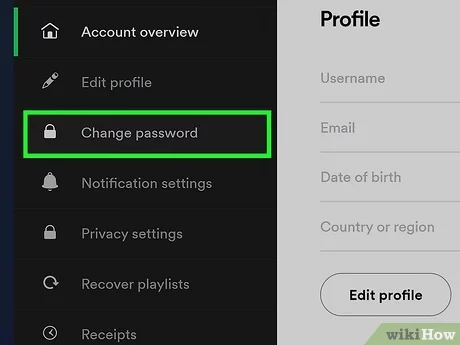
- Click on “Change Password”: In the Account section, click on the “Change Password” button.
- Enter Your Current Password: Type in your current Spotify password in the designated field.
- Create a New Password: Enter a new password that meets Spotify’s requirements (at least 8 characters, including uppercase and lowercase letters, numbers, and special characters).
- Confirm Your New Password: Re-enter your new password to confirm.
How to Change Your Spotify Password on App
Changing your Spotify password on the app is just as easy! Follow these steps:
- Open The Spotify App: Launch the Spotify app on your mobile device.
- Tap on Your Profile Picture: Located at the top right corner of the screen, tap on your profile picture to access your account settings.
- Select “Settings” From The Dropdown Menu: Tap on the dropdown menu next to your profile picture and select “Settings”.
- Scroll Down to “Account”: Scroll down to the “Account” section.
- Tap on “Change Password”: Tap on the “Change Password” button.
- Enter Your Current Password: Type in your current Spotify password in the designated field.
- Create a New Password: Enter a new password that meets Spotify’s requirements (at least 8 characters, including uppercase and lowercase letters, numbers, and special characters).
- Confirm Your New Password: Re-enter your new password to confirm.
How to Change Your Spotify Password on TV
While it’s not possible to change your Spotify password directly on the TV app, you can use a computer or mobile device to update your password and then access your account on your TV device.
How to Change Your Spotify Email And Password
Changing your Spotify email and password is a straightforward process. Follow these steps:
- Log in to Your Spotify Account: Go to the Spotify website and log in with your current username and password.
- Click on Your Profile Picture: Located at the top right corner of the screen, click on your profile picture to access your account settings.
- Select “Account” From The Dropdown Menu: Click on the dropdown menu next to your profile picture and select “Account”.
- Click on “Change Email”: In the Account section, click on the “Change Email” button.
- Enter Your New Email Address: Type in your new email address in the designated field.
- Confirm Your New Email Address: Re-enter your new email address to confirm.
- Create a New Password: Enter a new password that meets Spotify’s requirements (at least 8 characters, including uppercase and lowercase letters, numbers, and special characters).
- Confirm Your New Password: Re-enter your new password to confirm.
Can I Change My Spotify Password Without Email?
Yes, you can change your Spotify password without email! Follow the steps outlined in this article to update your password using your account settings on computer or mobile device.
Frequently Asked Questions (FAQs)
- Q: How Often Should I Change my Spotify Password?
A: It’s recommended to change your Spotify password every 3-6 months to maintain maximum security. - Q: What if I Forget my Spotify Password?
A: Don’t worry! You can easily recover your password by following the steps outlined in our guide on recovering a lost Spotify password. - Q: Can I Use The Same Password For Multiple Accounts?
A: No, it’s not recommended to use the same password across multiple accounts. Use unique passwords for each account to maintain maximum security.
Conclusion
Changing your Spotify password is a simple and essential process that ensures the security and integrity of your account. By following the steps outlined in this article, you can update your password on computer, mobile device, or TV with ease. Remember to change your password regularly and use unique passwords for each account to maintain maximum security.


