
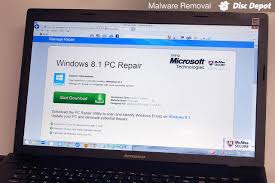
How to Remove Reimage Repair From Your Pc: A Step-by-step Guide
Are you tired of dealing with pesky software like Reimage Repair that’s taking over your computer? Look no further! In this article, we’ll guide you through a step-by-step process on how to remove Reimage Repair and its associated malware from your PC.
What is Reimage Repair?
Reimage Repair is a program that claims to repair and optimize your system. However, many users have reported it as a scareware program that displays false errors and problems in the system to convince you to purchase a license. In reality, this software can be invasive and cause more harm than good.
The Problem With Reimage Repair
Reimage Repair has been known to install unwanted components on your computer, such as the Reimage Smartbar, which slows down your browser and shows ads. Moreover, it can also open pop-up windows during web browsing, redirecting you to download pages for its own benefit.
Why You Should Remove Reimage Repair
Removing Reimage Repair is crucial to protect your computer from its invasive components and malware. By following the steps outlined in this guide, you’ll be able to delete this software and its associated malware, ensuring a smoother and safer browsing experience.
Step 1: Uninstall Reimage Repair
To uninstall Reimage Repair, follow these steps:
- If you’re using Windows 10, click on the Start button and select the Settings app. Go to Apps & features and find Reimage Repair in the list.
- Click on the three dots next to Reimage Repair and select Uninstall.
- Confirm your choice by clicking Uninstall again.
Step 2: Remove The Reimage Smartbar
If you’ve installed the Reimage Smartbar, follow these steps:
- Open Windows Explorer and navigate to C:\Program Files (x86)\Reimage Smartbar.
- Right-click on the Reimage Smartbar folder and select Delete.
- Confirm your choice by clicking Yes.
Step 3: Remove Malware
To remove malware associated with Reimage Repair, follow these steps:
- Download and install AdwCleaner from the official website.
- Run the program and select Clean in the scan results to delete any detected malware.
- Restart your computer after cleaning up the malware.
Step 4: Restore Your Browser
To restore your browser settings and remove unwanted extensions, follow these steps:
- Open your preferred web browser (e.G., Google Chrome) and click on the three dots next to the address bar.
- Select Settings and navigate to Extensions. Remove any unwanted extensions related to Reimage Repair.
Step 5: Check Your Desktop
To check for any modified links on your desktop, follow these steps:
- Right-click on the link you want to check and select Properties.
- In the Properties window, ensure that the Destination field doesn’t contain any suspicious URLs or parameters.
Step 6: Reset Browser Settings
To reset browser settings, follow these steps:
- For Google Chrome, click on the three dots next to the address bar, select Settings, and navigate to Advanced. Click on the Reset button.
- For Mozilla Firefox, click on the three dots next to the address bar, select Options, and navigate to General. Click on the Restore Defaults button.
Conclusion
By following these steps, you’ll be able to remove Reimage Repair and its associated malware from your PC. Remember to always be cautious when installing new software and keep an eye out for suspicious activity. If you’re unsure about any of the steps or need further assistance, don’t hesitate to reach out to a trusted IT professional.
Frequently Asked Questions (FAQs)
- Q: Is Reimage Repair safe?
A: No, Reimage Repair is considered a scareware program that can be invasive and cause more harm than good. - Q: How do I uninstall Reimage Repair?
A: To uninstall Reimage Repair, follow the steps outlined in Step 1 of this guide. - Q: What’s the difference between AdwCleaner and Malwarebytes?
A: AdwCleaner is a free program designed to remove browser hijackers, while Malwarebytes is an anti-malware software that detects and removes malware from your system.
By following these steps and understanding the potential risks associated with Reimage Repair, you’ll be able to protect your PC and enjoy a smoother browsing experience.


