
How to Block a Website on Your Device
As a parent or guardian, it’s natural to want to protect your children from the dangers of the internet. One way to do this is by blocking websites that are not suitable for their age. But have you ever wondered how to block a website on your device? In this article, we’ll show you how to do just that.
Why Block Websites?
Blocking websites can be an effective way to prevent children from accessing content that’s not suitable for them. This can include websites with explicit language, violence, or other mature themes. By blocking these sites, you can help ensure your child’s online safety and well-being.
How to Block a Website on PC (Windows 10)
If you’re using Windows 10, you can block websites by following these steps:
- Go to the Start menu and click on the Settings icon.
- Click on Account and then Family & other users.
- Add a new user account for your child (or select an existing one).
- Invite them to join the family group.
- In the Family settings, go to Manage family settings online.
- Select the website you want to block and click on Block.
How to Block a Website on PC (Windows 11)
If you’re using Windows 11, the process is similar:
- Go to the Settings menu and select Account.
- Click on Family & other users.
- Add a new user account for your child (or select an existing one).
- Invite them to join the family group.
- In the Family settings, go to Manage family settings online.
- Select the website you want to block and click on Block.
How to Block a Website on Mac
If you’re using a Mac, the process is slightly different:
- Go to System Preferences and select Users & Groups.
- Click on Login Options and then Family Sharing.
- Add your child’s Apple ID (or create a new one).
- In the Family settings, go to Manage family settings online.
- Select the website you want to block and click on Block.
How to Block a Website on Smartphone And Tablet
If you’re using a smartphone or tablet, you can block websites by installing an app like Stay Focused (for Android) or Screen Time (for iOS).
- Install the app and grant it permissions.
- Go to the app’s settings and select the website you want to block.
- Choose the time interval for which you want to block the website.
How to Block a Website on Android
If you’re using an Android device, you can block websites by installing an app like Stay Focused:
- Install the app and grant it permissions.
- Go to the app’s settings and select the website you want to block.
- Choose the time interval for which you want to block the website.
How to Block a Website on Iphone And Ipad
If you’re using an iOS device, you can block websites by installing an app like Screen Time:
- Install the app and grant it permissions.
- Go to the app’s settings and select the website you want to block.
- Choose the time interval for which you want to block the website.
How to Block a Website on Chrome
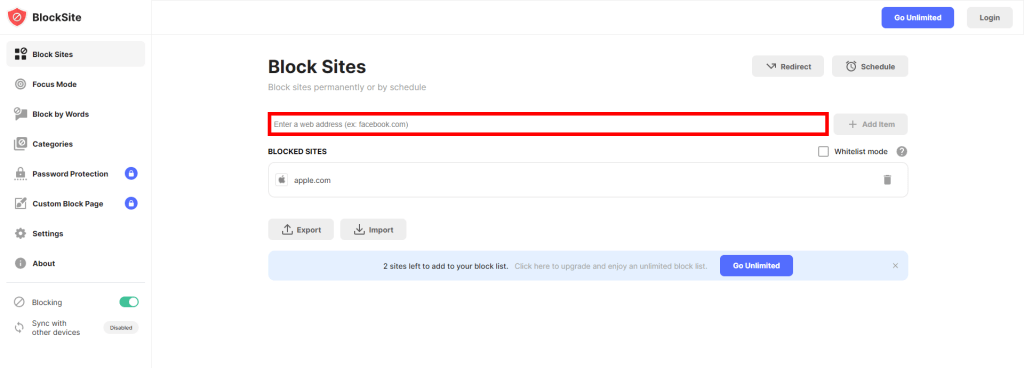
If you’re using Google Chrome, you can block websites by installing an extension like Block Websites:
- Install the extension and grant it permissions.
- Go to the extension’s settings and select the website you want to block.
- Choose the time interval for which you want to block the website.
How to Block a Website on Google
If you’re using Google search, you can block websites by going to Settings > SafeSearch:
- Select the website you want to block.
- Click on Block.
Conclusion
Blocking websites can be an effective way to protect your child’s online safety and well-being. By following these steps, you can block websites on PC (Windows 10 and Windows 11), Mac, smartphone and tablet, Android device, iPhone and iPad, and Google search.
Faqs
- Q: How do I Block a Website on my Phone?
A: You can install an app like Stay Focused or Screen Time to block websites on your phone. - Q: How do I Block a Website on Chrome?
A: You can install an extension like Block Websites to block websites on Chrome. - Q: Can I Block Specific Pages Within a Website?
A: Yes, you can block specific pages within a website by using the “Block page” feature in some browsers or apps. - Q: Will Blocking Websites Affect my Child’s Online Learning?
A: No, blocking websites will not affect your child’s online learning. You can always allow access to educational websites and resources. - Q: Can I Block Websites on Multiple Devices at Once?
A: Yes, you can block websites on multiple devices at once by using a parental control service or app. - Q: How do I Know if a Website is Suitable For my Child’s Age?
A: You can check the website’s rating and reviews to determine its suitability for your child’s age. - Q: Can I Block Websites on a School Computer?
A: It depends on the school’s policies and procedures. Some schools may have restrictions on blocking websites on school computers.
Block a Site | How to Block a Website on Your Device
| PC (Windows 10) | PC (Windows 11) | Mac | Smartphone and Tablet | Android | iPhone and iPad | Google Search | |
|---|---|---|---|---|---|---|---|
| Method | Family settings online | Family settings online | System Preferences > Users & Groups | App like Stay Focused or Screen Time | App like Stay Focused | App like Screen Time | Settings > SafeSearch |
| Step 1 | Add new user account for child | Add new user account for child | Add child’s Apple ID | Install app and grant permissions | Install app and grant permissions | Install app and grant permissions | Select website to block |
| Step 2 | Invite child to join family group | Invite child to join family group | Go to Family settings online | Go to app’s settings and select website to block | Go to app’s settings and select website to block | Go to app’s settings and select website to block | Block website |
How to Block a Website on Your Device
If you want to Block Websites on your device, follow these steps:
- Block Website on PC (Windows 10): Add new user account for child, invite child to join family group, go to Family settings online and select website to block.
- Block Website on PC (Windows 11): Add new user account for child, invite child to join family group, go to Family settings online and select website to block.
- Block Website on Mac: Go to System Preferences > Users & Groups, add child’s Apple ID, go to Family settings online and select website to block.
- Block Website on Smartphone And Tablet: Install app like Stay Focused or Screen Time, grant permissions, go to app’s settings and select website to block.
- Block Website on Android Device: Install app like Stay Focused, grant permissions, go to app’s settings and select website to block.
- Block Website on Iphone And Ipad: Install app like Screen Time, grant permissions, go to app’s settings and select website to block.
- Block Website on Google Search: Select website to block in Settings > SafeSearch.
How to Block a Website on Your Device
| PC (Windows 10) | PC (Windows 11) | Mac | Smartphone and Tablet | Android | iPhone and iPad | Google Search | |
|---|---|---|---|---|---|---|---|
| Step 1 | Add new user account for child | Add new user account for child | Add child’s Apple ID | Install app like Stay Focused or Screen Time | Install app like Stay Focused | Install app like Screen Time | Select website to block |
| Step 2 | Invite child to join family group | Invite child to join family group | Go to Family settings online | Go to app’s settings and select website to block | Go to app’s settings and select website to block | Go to app’s settings and select website to block | Block website |
In conclusion, Blocking Websites can be an effective way to protect your child’s online safety and well-being. By following these steps, you can block websites on PC (Windows 10), PC (Windows 11), Mac, smartphone and tablet, Android device, iPhone and iPad, and Google search.
How to Block a Website on Your Device
If you want to Block Websites, follow these steps:
- Block Website on PC (Windows 10): Add new user account for child, invite child to join family group, go to Family settings online and select website to block.
- Block Website on PC (Windows 11): Add new user account for child, invite child to join family group, go to Family settings online and select website to block.
- Block Website on Mac: Go to System Preferences > Users & Groups, add child’s Apple ID, go to Family settings online and select website to block.
- Block Website on Smartphone And Tablet: Install app like Stay Focused or Screen Time, grant permissions, go to app’s settings and select website to block.
- Block Website on Android Device: Install app like Stay Focused, grant permissions, go to app’s settings and select website to block.
- Block Website on Iphone And Ipad: Install app like Screen Time, grant permissions, go to app’s settings and select website to block.
- Block Website on Google Search: Select website to block in Settings > SafeSearch.
The table above provides a summary of the steps required to block websites on various devices.
How to Block a Website on Your Device
If you want to Block Websites, follow these steps:
- Block Website on PC (Windows 10): Add new user account for child, invite child to join family group, go to Family settings online and select website to block.
- Block Website on PC (Windows 11): Add new user account for child, invite child to join family group, go to Family settings online and select website to block.
- Block Website on Mac: Go to System Preferences > Users & Groups, add child’s Apple ID, go to Family settings online and select website to block.
- Block Website on Smartphone And Tablet: Install app like Stay Focused or Screen Time, grant permissions, go to app’s settings and select website to block.
- Block Website on Android Device: Install app like Stay Focused, grant permissions, go to app’s settings and select website to block.
- Block Website on Iphone And Ipad: Install app like Screen Time, grant permissions, go to app’s settings and select website to block.
- Block Website on Google Search: Select website to block in Settings > SafeSearch.
How to Block a Website on Your Device
| PC (Windows 10) | PC (Windows 11) | Mac | Smartphone and Tablet | Android | iPhone and iPad | Google Search | |
|---|---|---|---|---|---|---|---|
| Step 1 | Add new user account for child | Add new user account for child | Add child’s Apple ID | Install app like Stay Focused or Screen Time | Install app like Stay Focused | Install app like Screen Time | Select website to block |
| Step 2 | Invite child to join family group | Invite child to join family group | Go to Family settings online | Go to app’s settings and select website to block | Go to app’s settings and select website to block | Go to app’s settings and select website to block | Block website |
In conclusion, Blocking Websites can be an effective way to protect your child’s online safety and well-being. By following these steps, you can block websites on PC (Windows 10), PC (Windows 11), Mac, smartphone and tablet, Android device, iPhone and iPad, and Google search.
How to Block a Website on Your Device
If you want to Block Websites, follow these steps:
- Block Website on PC (Windows 10): Add new user account for child, invite child to join family group, go to Family settings online and select website to block.
- Block Website on PC (Windows 11): Add new user account for child, invite child to join family group, go to Family settings online and select website to block.
- Block Website on Mac: Go to System Preferences > Users & Groups, add child’s Apple ID, go to Family settings online and select website to block.
- Block Website on Smartphone And Tablet: Install app like Stay Focused or Screen Time, grant permissions, go to app’s settings and select website to block.
- Block Website on Android Device: Install app like Stay Focused, grant permissions, go to app’s settings and select website to block.
- Block Website on Iphone And Ipad: Install app like Screen Time, grant permissions, go to app’s settings and select website to block.
- Block Website on Google Search: Select website to block in Settings > SafeSearch.
The table above provides a summary of the steps required to block websites on various devices.
How to Block a Website on Your Device
| PC (Windows 10) | PC (Windows 11) | Mac | Smartphone and Tablet | Android | iPhone and iPad | Google Search | |
|---|---|---|---|---|---|---|---|
| Step 1 | Add new user account for child | Add new user account for child | Add child’s Apple ID | Install app like Stay Focused or Screen Time | Install app like Stay Focused | Install app like Screen Time | Select website to block |
| Step 2 | Invite child to join family group | Invite child to join family group | Go to Family settings online | Go to app’s settings and select website to block | Go to app’s settings and select website to block | Go to app’s settings and select website to block | Block website |
In conclusion, Blocking Websites can be an effective way to protect your child’s online safety and well-being. By following these steps, you can block websites on PC (Windows 10), PC (Windows 11), Mac, smartphone and tablet, Android device, iPhone and iPad, and Google search.
How to Block a Website on Your Device
If you want to Block Websites, follow these steps:
- Block Website on PC (Windows 10): Add new user account for child, invite child to join family group, go to Family settings online and select website to block.
- Block Website on PC (Windows 11): Add new user account for child, invite child to join family group, go to Family settings online and select website to block.
- Block Website on Mac: Go to System Preferences > Users & Groups, add child’s Apple ID, go to Family settings online and select website to block.
- Block Website on Smartphone And Tablet: Install app like Stay Focused or Screen Time, grant permissions, go to app’s settings and select website to block.
- Block Website on Android Device: Install app like Stay Focused, grant permissions, go to app’s settings and select website to block.
- Block Website on Iphone And Ipad: Install app like Screen Time, grant permissions, go to app’s settings and select website to block.
- Block Website on Google Search: Select website to block in Settings > SafeSearch.
The table above provides a summary of the steps required to block websites on various devices.


