
How to Download Sketchup Free: A Step-by-step Guide
Are you a graphic designer or an architect looking for a powerful tool to create 3D models? Look no further than SketchUp, a professional software that offers advanced instruments for design and modeling. While it’s true that the full version of SketchUp Pro requires a subscription, there are ways to download and use the free version, which we’ll explore in this article.
What is Sketchup?
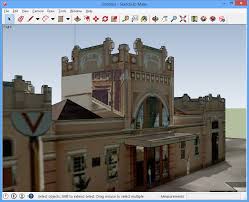
SketchUp is a 3D modeling software that allows users to create, edit, and visualize building models with ease. It’s a popular tool among architects, designers, and builders due to its user-friendly interface and robust features. With SketchUp, you can create detailed models of buildings, including dimensions, materials, and textures.
Why is Sketchup Not Free?
While the free version of SketchUp Pro does offer many advanced features, it’s not entirely free. The full version requires a subscription, which costs around $274 per year. However, there are ways to access the software for free or at a lower cost, which we’ll discuss later.
System Requirements For Sketchup
To install and use SketchUp on your PC or Mac, you’ll need:
- Operating system: Windows 10 or macOS Mojave (or higher)
- Processor: Intel Core i5 or equivalent
- Memory: 4 GB RAM
- Free disk space: 500 MB
How to Download Sketchup Free
There are a few ways to download and use the free version of SketchUp, depending on your operating system and device. Here’s how:
PC And Mac
- Go to the SketchUp website and click on the “Get Started” button.
- Click on the “Free Trial” button and select the 30-day free trial option.
- Fill out the registration form with your details, including email address and password.
- Download the installation file and follow the instructions to install SketchUp.
Online
- Go to the SketchUp website and click on the “Web Version” tab.
- Click on the “Start Modeling” button and select the 30-day free trial option.
- Fill out the registration form with your details, including email address and password.
- Start modeling with SketchUp directly from the browser.
Android, Iphone, And Ipad
- Go to the Google Play Store or Apple App Store and search for “SketchUp Viewer”.
- Download and install the app.
- Sign in with your Trimble account (or create a new one) to access your models.
- Start exploring and visualizing your 3D models.
How to Use Sketchup on Your Device
Using SketchUp on your device is relatively straightforward, even if you’re not familiar with the software. Here’s how:
- Launch SketchUp Viewer from your app drawer or home screen.
- Sign in with your Trimble account (or create a new one) to access your models.
- Browse through your models and select the one you want to view.
- Use the toolbar to navigate through your model, zoom in and out, and pan around.
Tips And Tricks
- To save your models, click on the three lines icon at the top right of the screen and select “Save with name”.
- To export your models, click on the same icon and select “Export” to choose a file format.
- Use the menu bar to access advanced features, such as measuring tools and AR functionality.
Conclusion
While SketchUp Pro does require a subscription, there are ways to download and use the free version of the software. Whether you’re a professional architect or designer or just starting out with 3D modeling, SketchUp is an excellent tool to have in your toolkit. With its user-friendly interface and robust features, you can create stunning models and designs.
Frequently Asked Questions
Q: Is SketchUp free?
A: No, the full version of SketchUp Pro requires a subscription. However, there are ways to download and use the free version for 30 days or with limited features.
Q: What system requirements do I need to install SketchUp on my PC or Mac?
A: You’ll need Windows 10 or macOS Mojave (or higher), an Intel Core i5 processor, 4 GB RAM, and 500 MB free disk space.
Q: Can I use SketchUp on my device without installing the software?
A: Yes, you can access SketchUp Viewer directly from your app drawer or home screen on Android, iPhone, or iPad devices.
Q: How do I save my models in SketchUp?
A: Click on the three lines icon at the top right of the screen and select “Save with name” to save your models.


