
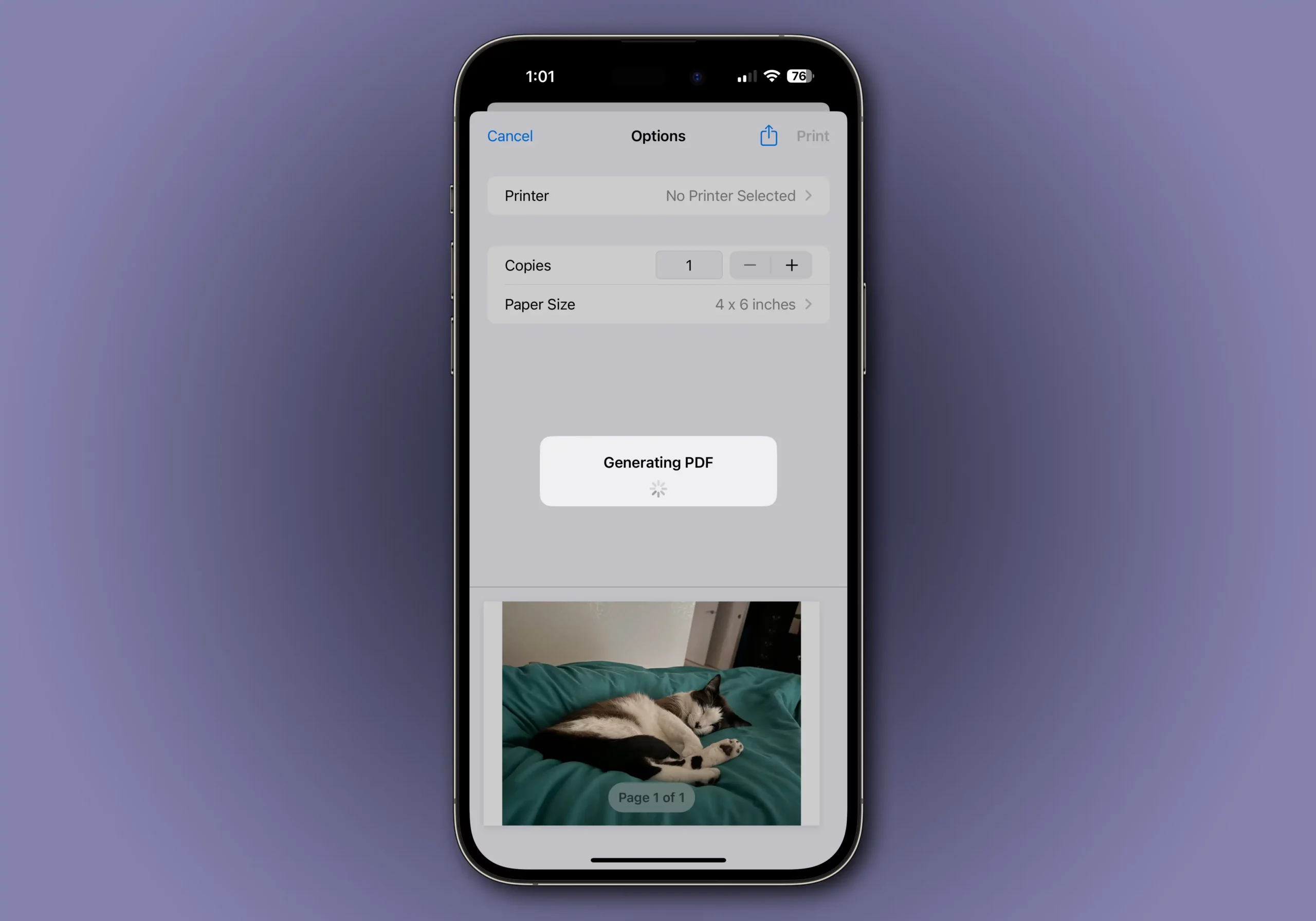
How to Open Pdf Files on Iphone: A Step-by-step Guide
Are you tired of waiting to open PDF files on your iPhone? Do you want to access them directly from your device without having to use a computer? Look no further! In this article, we will guide you through the process of opening and managing PDF files on your iPhone using various methods.
The Problem: Accessing Pdf Files on Iphone
Have you ever tried to open a PDF file on your iPhone only to find that it won’t open directly from your device? This can be frustrating, especially if you need to access the file urgently. The good news is that there are several solutions available to help you overcome this issue.
Solution 1: Using Safari
One of the simplest ways to open PDF files on your iPhone is by using the built-in browser app called Safari. To do this:
- Open Safari and navigate to the website where the PDF file is hosted
- Tap on the “Share” icon (a box with an arrow coming out of it)
- Select the option to “Save PDF” or “Open in Files”
- Choose the location where you want to save the file, such as “iCloud Drive” or “Files”
Solution 2: Using Files App
Another way to access and manage PDF files on your iPhone is by using the Files app. To do this:
- Open the Files app and navigate to the folder where you want to save the PDF file
- Tap on the “+” icon at the top right corner of the screen
- Select the option to “Save File” or “Upload from Computer”
- Choose the location where you want to save the file, such as “iCloud Drive” or “Files”
Solution 3: Using Xodo Pdf
If you need more advanced features for managing your PDF files, consider using a third-party app called Xodo PDF. To do this:
- Download and install the Xodo PDF app from the App Store
- Open the app and navigate to the folder where you want to save the PDF file
- Tap on the “+” icon at the top right corner of the screen
- Select the option to “Open File” or “Upload from Computer”
- Choose the location where you want to save the file, such as “iCloud Drive” or “Files”
Other Solutions: Adobe Acrobat Reader And Foxit Pdf
If you’re looking for more advanced features for managing your PDF files, consider using Adobe Acrobat Reader or Foxit PDF. These apps offer a range of features, including annotation tools, signature capabilities, and document management.
Tips And Tricks
- To open a PDF file directly from an email or messaging app, tap on the “Share” icon and select the option to “Open in Files”
- To save a PDF file to iCloud Drive or another cloud storage service, tap on the “Save” icon and choose the location
- To modify a PDF file using Xodo PDF, tap on the pencil icon at the top right corner of the screen
Conclusion
Opening and managing PDF files on your iPhone is easier than you think! With these simple steps and solutions, you can access and manage your PDF files directly from your device without having to use a computer. Whether you’re using Safari, Files, or Xodo PDF, there’s an app for every need.
Frequently Asked Questions (FAQs)
- Q: How do I open a PDF file on my iPhone?
A: To open a PDF file on your iPhone, navigate to the website where the file is hosted and tap on the “Share” icon. - Q: Can I save a PDF file directly from an email or messaging app?
A: Yes, you can save a PDF file directly from an email or messaging app by tapping on the “Share” icon and selecting the option to “Open in Files”. - Q: What is Xodo PDF?
A: Xodo PDF is a third-party app that allows you to open, edit, and manage PDF files on your iPhone. - Q: Can I use Adobe Acrobat Reader or Foxit PDF to manage my PDF files?
A: Yes, both Adobe Acrobat Reader and Foxit PDF are available as third-party apps for managing PDF files on your iPhone. - Q: How do I save a PDF file to iCloud Drive or another cloud storage service?
A: To save a PDF file to iCloud Drive or another cloud storage service, tap on the “Save” icon and choose the location. - Q: Can I modify a PDF file using Xodo PDF?
A: Yes, you can modify a PDF file using Xodo PDF by tapping on the pencil icon at the top right corner of the screen. - Q: How do I access my PDF files across all my devices?
A: To access your PDF files across all your devices, make sure to save them to iCloud Drive or another cloud storage service.
References
- “How to Open and Edit PDF Files on iPhone” by Apple Support
- “Xodo PDF Review” by TechRadar
- “Adobe Acrobat Reader for iPhone” by Adobe
- “Foxit PDF for iPhone” by Foxit Software


