
How to Insert Custom Ringtones on Iphone
Are you tired of using the default ringtone on your iPhone? Do you want to add some personality to your device with a unique sound? Look no further! In this article, we’ll guide you through the process of inserting custom ringtones on your iPhone.
Why Use Custom Ringtones?
Using a custom ringtone can make your phone stand out and express your personal style. With so many options available, you can choose from a wide range of songs, genres, and moods to match your personality. Plus, it’s a great way to show off your favorite artist or band.
Method 1: Using The Itunes Store
The most immediate solution is to visit the iTunes Store on your iPhone. Here’s how:
- Open the Itunes Store App on your device.
- Tap on the Music Tab at the bottom of the screen.
- Select the Ringtones Tab from the menu.
- Browse through the various categories and genres to find a ringtone that suits your taste.
You can also search for specific artists, songs, or albums using the search bar at the top of the screen. Once you’ve found the perfect ringtone, tap on it to preview and purchase it. The ringtone will be automatically added to your iPhone’s music library.
Method 2: Using Garageband
If you don’t want to purchase a ringtone from the iTunes Store or if you prefer to use a song that’s already saved on your device, you can create your own custom ringtone using GarageBand. Here’s how:
- Open the Garageband App on your iPhone.
- Tap on the + icon at the top-right corner of the screen to start a new project.
- Select the Song Tab from the menu and choose the song you want to use as your ringtone.
- Trim the song to the desired length (up to 40 seconds).
- Save the edited song as a ringtone by tapping on the Share Icon at the top-right corner of the screen.
Once you’ve created your custom ringtone, it will be added to your iPhone’s music library and can be used as your new ringtone.
Method 3: Using Other Apps
There are also other apps available that allow you to download custom ringtones for free. Some popular options include:
- Suonerie For Iphone: This app offers a wide range of ringtones, including sounds, melodies, and even audio clips.
- Zedge: This website provides a vast collection of ringtones, including popular songs and original compositions.
- Tones7: This app allows you to download custom ringtones in various formats, including M4R.
To use these apps, simply download and install them on your iPhone, then follow the instructions provided within the app or website.
Conclusion
Inserting a custom ringtone on your iPhone is easier than you think! Whether you choose to purchase a ringtone from the iTunes Store, create your own using GarageBand, or download one from another app or website, there are plenty of options available. So go ahead and personalize your device with a unique sound that reflects your personality.
Faqs
- Q: How do I Change my Ringtone on Iphone?
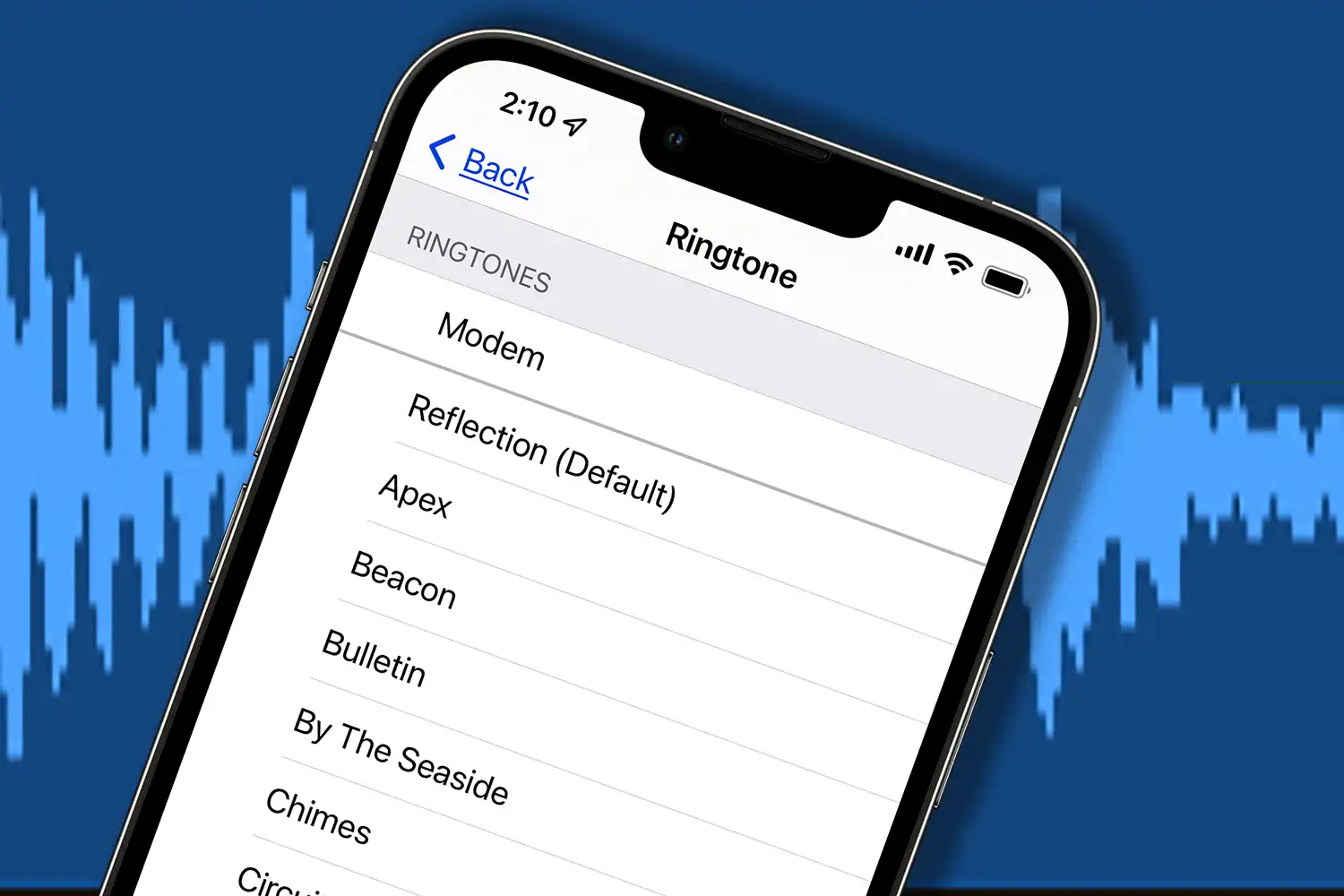
A: To change your ringtone on iPhone, open the Settings app, tap on Sounds & Haptics, then select Ringtone. - Q: Can I Use Any Song as a Ringtone on Iphone?
A: Yes, you can use any song as a ringtone on iPhone, but it must be in a compatible format (such as M4R or AAC). - Q: How do I Create my Own Custom Ringtone on Iphone?
A: You can create your own custom ringtone on iPhone using GarageBand. Simply open the app, select the Song tab, and choose the song you want to use. Trim it to the desired length and save it as a ringtone. - Q: Can I Download Custom Ringtones From Other Apps?
A: Yes, there are several apps available that allow you to download custom ringtones for free. Some popular options include Suonerie For iPhone, Zedge, and Tones7. - Q: How do I Add a Downloaded Ringtone to my Iphone?
A: To add a downloaded ringtone to your iPhone, simply open the Settings app, tap on Sounds & Haptics, then select Ringtone. Choose the new ringtone from the list and it will be added to your device.


