
How to Detect a Keylogger on Your Pc: A Comprehensive Guide
As technology advances, cyber threats are becoming increasingly sophisticated. One such threat is the keylogger, a malicious software that captures sensitive information, including login credentials, credit card numbers, and personal data. In this article, we will guide you through the process of detecting a keylogger on your PC, using built-in instruments and third-party solutions.
What is a Keylogger?
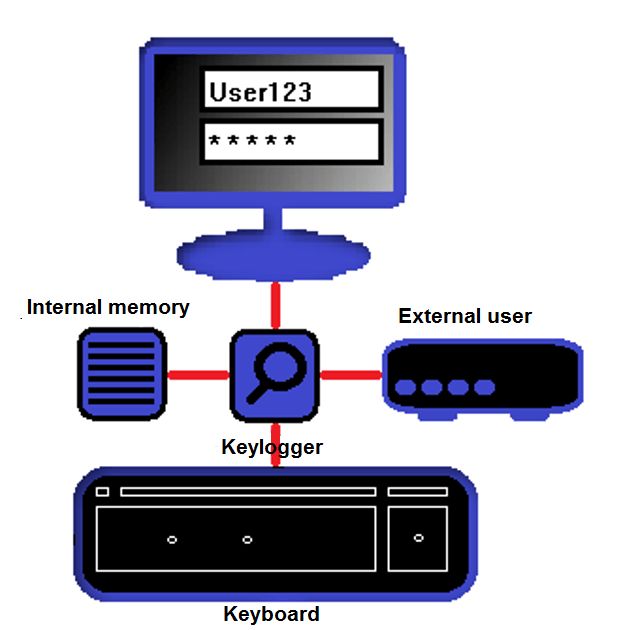
A keylogger is a type of malware that intercepts and records keystrokes, sending the stolen information to a remote server controlled by hackers. This can include login credentials, passwords, credit card numbers, and other sensitive data. Keyloggers are often used for identity theft, financial fraud, and other malicious activities.
Symptoms of a Keylogger
Before we dive into the detection process, it’s essential to recognize the symptoms of a keylogger:
- Slow computer performance
- Unexplained crashes or freezes
- Strange pop-ups or notifications
- Repeated requests for password resets
Detecting a Keylogger: Instruments of The System
To detect a keylogger on your PC, you can use built-in instruments and third-party solutions. Here are some steps to follow:
Analysis of Programs in Automatic Execution
- Open the Task Manager (Windows) or Activity Monitor (macOS).
- Look for suspicious programs running in the background.
- Right-click on the program and select “Disable” to stop its execution.
Analysis of Processes in Execution
- Press Ctrl+Shift+Esc (Windows) or Command+Option+Escape (macOS) to open the Task Manager or Activity Monitor.
- Look for processes consuming high CPU, memory, or network resources.
- Right-click on the process and select “End task” to terminate it.
Analysis of Installed Programs
- Press Win+I (Windows) or Command+Shift+I (macOS) to open the Settings app.
- Look for installed programs that you don’t recognize.
- Uninstall any suspicious programs using the built-in uninstaller or a third-party tool.
Using Third-party Solutions
If you’re not comfortable with the built-in instruments, you can use third-party solutions specifically designed to detect keyloggers. Some popular options include:
- Process Explorer (Windows): A free utility that provides detailed information about running processes.
- Norton Power Eraser (Windows): A powerful tool that scans your PC for malware and other threats.
- Cleanmymac X (macOS): A comprehensive cleaning and security app that includes a keylogger detection feature.
Conclusion
Detecting a keylogger on your PC requires vigilance and the right tools. By following these steps and using built-in instruments or third-party solutions, you can protect yourself from cyber threats and keep your sensitive information safe.
Frequently Asked Questions (FAQs)
- Q: How do I know if my computer is infected with a keylogger?
- A: Look for symptoms such as slow performance, strange pop-ups, or repeated password reset requests.
- Q: Can I use built-in instruments to detect a keylogger?
- A: Yes, you can use Task Manager (Windows) or Activity Monitor (macOS) to analyze running processes and programs.
- Q: What are some third-party solutions for detecting keyloggers?
- A: Some popular options include Process Explorer (Windows), Norton Power Eraser (Windows), and CleanMyMac X (macOS).
- Q: How often should I scan my PC for malware?
- A: It’s recommended to perform regular scans using built-in instruments or third-party solutions to stay protected.
- Q: Can keyloggers be used for identity theft?
- A: Yes, keyloggers can be used to steal sensitive information, including login credentials, credit card numbers, and personal data.
By following these guidelines and staying informed about cyber threats, you can protect yourself from keyloggers and other malicious activities.


