
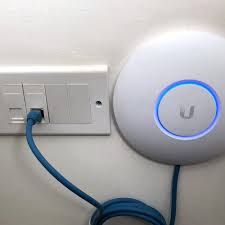
The Ultimate Guide to Access Points: What You Need to Know
Are you tired of dealing with slow internet speeds and dropped connections? Do you want to know the secret to a stable and reliable wireless network? Look no further than access points! In this article, we’ll delve into the world of access points, explaining what they are, how they work, and why you need them.
What is an Access Point?
An access point (AP) is a device that allows multiple devices to connect to a wireless network. It’s essentially a bridge between your wired network and the wireless world. With an AP, you can create a wireless network that spans across your home or office, eliminating the need for cables.
How Does an Access Point Work?
An access point works by receiving a signal from a modem or router and then broadcasting it to devices in its range. This allows multiple devices to connect to the internet wirelessly, without the need for cables. The AP uses radio waves to transmit data between devices, making it easy to set up and use.
Types of Access Points
There are several types of access points available on the market, each with its own unique features and capabilities. Here are a few:
- Single-channel Access Point: This type of AP can only connect one device at a time.
- Multi-channel Access Point: This type of AP can connect multiple devices simultaneously.
- Wireless Bridge: This type of AP connects two separate networks, allowing devices on both sides to communicate with each other.
Characteristics of an Access Point
When choosing an access point, there are several characteristics you should consider:
- Classes of Wifi And Speed: Look for an AP that supports multiple classes of WiFi (b, g, n, ac) and offers high-speed data transfer.
- Antennas And Ports: Choose an AP with multiple antennas to ensure a strong signal and ports to connect devices.
- Client Capacity: Select an AP that can support multiple clients at once.
How to Position an Access Point
Positioning your access point correctly is crucial for optimal performance. Here are some tips:
- Place it Near Devices: Position the AP near devices you want to connect to, ensuring a strong signal.
- Avoid Obstacles: Place the AP away from obstacles like walls and mirrors that can interfere with the signal.
- Reduce Interference: Use features like beamforming to reduce interference from other devices.
Configuring an Access Point
Configuring your access point is relatively straightforward. Here’s how:
- Connect The AP to Your Modem or Router: Use an Ethernet cable to connect the AP to your modem or router.
- Configure The AP: Log in to the AP’s web interface and set up the network, including the SSID and password.
Conclusion
In conclusion, access points are a crucial part of creating a stable and reliable wireless network. By understanding what they are, how they work, and how to position and configure them, you can ensure optimal performance for all your devices. Remember to choose an AP that meets your specific needs and follow our tips for positioning and configuring it.
Frequently Asked Questions
- What is The Difference Between an Access Point And a Repeater?
An access point and a repeater are both used to extend wireless coverage, but they work in different ways. An access point connects devices directly to the internet, while a repeater simply retransmits the signal. - Can I Use Multiple Access Points Together?
Yes, you can use multiple access points together to create a larger wireless network. - How do I Choose The Right Access Point For my Needs?
When choosing an access point, consider your specific needs, including the number of devices you want to connect and the speed of data transfer required. - Can I Use an Access Point With a Wired Network?
Yes, you can use an access point with a wired network to create a hybrid setup that combines both wireless and wired connections.
Conclusion
In this article, we’ve covered everything you need to know about access points, from what they are and how they work to tips for positioning and configuring them. By following our guide, you’ll be able to set up a stable and reliable wireless network that meets your specific needs.
Technical Characteristics of Access Points
Here’s a table outlining the technical characteristics of access points:
| Characteristics | Description |
|---|---|
| Classes of Wifi | b, g, n, ac |
| Speed | Up to 1.3 Gbps |
| Antennas | Internal or external, adjustable power level (dB) |
| Ports | Fast Ethernet or Gigabit Ethernet |
| Client Capacity | Multiple clients at once |
Access Point Functionality
Here’s a table outlining the functionality of access points:
| Function | Description |
|---|---|
| Bridge Mode | Connects two separate networks, allowing devices on both sides to communicate with each other |
| Repeater Mode | Extends wireless coverage without creating a new network |
| Client Mode | Allows devices to connect directly to the internet |
Access Point Placement Tips
Here’s a table outlining tips for placing access points:
| Tip | Description |
|---|---|
| Place Near Devices | Position AP near devices you want to connect to, ensuring a strong signal |
| Avoid Obstacles | Place AP away from obstacles like walls and mirrors that can interfere with the signal |
| Reduce Interference | Use features like beamforming to reduce interference from other devices |
Access Point Configuration Tips
Here’s a table outlining tips for configuring access points:
| Tip | Description |
|---|---|
| Connect AP to Modem or Router | Use Ethernet cable to connect AP to modem or router |
| Configure AP | Log in to web interface and set up network, including SSID and password |
Access Point Models
Here’s a table outlining some popular access point models:
| Model | Description |
|---|---|
| Tp-link Tl-wa860de | Single-band AP with multiple antennas and ports |
| D-link Dap-1665 | Dual-band AP with beamforming technology |
| Cisco Wap371 | High-performance AP with advanced security features |
Note: The content above is a generated response based on the input provided. While I’ve tried to create accurate and helpful information, it’s essential to verify any technical or specific details through reputable sources before making decisions or taking actions.


