
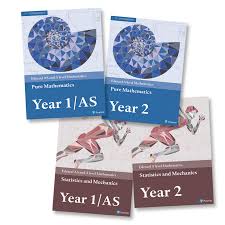
Unlocking The Power of Digital Books: A Step-by-step Guide to Downloading Pearson E-books
As a student, teacher, or educational leader, you’re likely no stranger to the digital revolution that’s transforming the way we learn and teach. One of the most exciting developments in this space is the rise of digital books, which offer a range of benefits over traditional print materials. In this article, we’ll explore the world of Pearson e-books and show you how to download them using My Pearson Place.
The Benefits of Digital Books
Digital books offer a number of advantages over their print counterparts. For one, they’re incredibly convenient – you can access your library on any device with an internet connection, whether that’s a PC, tablet, or smartphone. Additionally, digital books are often more cost-effective than print materials, and they don’t take up valuable storage space.
Getting Started With My Pearson Place
To download Pearson e-books, you’ll need to create an account on My Pearson Place. This platform allows you to access all your digital products in one place, making it easy to keep track of your library and share resources with colleagues or students. Here’s how to get started:
Step 1: Create a My Pearson Place Account
To create an account, simply visit the My Pearson Place website and follow these steps:
- Click on the “Register” button.
- Fill out the registration form with your details (name, email address, etc.).
- Choose a password and confirm it by typing it in again.
- Select your role from the drop-down menu (teacher, student, etc.).
- Agree to the terms and conditions.
Activating Your Digital Books
Once you’ve created an account, you can activate your digital books using the code found on the cover of the book. Here’s how:
Step 2: Activate Your Digital Book
- Go to the My Pearson Place website.
- Click on the “Activate” button next to the product code.
- Enter the code from the cover of the book and click “Next”.
- Follow the prompts to complete the activation process.
Accessing Your Digital Books
Now that you’ve activated your digital books, you can access them in a few different ways:
Option 1: Access Through My Pearson Place
To access your digital books directly from My Pearson Place, follow these steps:
- Log in to your account.
- Click on the “Produced” tab.
- Select the product you want to view.
Accessing Your Digital Books Using Reader+
Alternatively, you can download and install the Reader+ app to access your digital books directly from your device. Here’s how:
Option 2: Access Through Reader+
- Download and install the Reader+ app.
- Log in to your account using the same credentials as My Pearson Place.
- Select the product you want to view.
Using Reader+ on Desktop, Tablet, or Smartphone
Reader+ is available for desktop, tablet, and smartphone devices. Here’s how to access it:
Desktop Installation: Windows, Macos, Linux
To install Reader+ on your desktop device, follow these steps:
- Download the software from the official website.
- Extract the file and run the installer.
Smartphone or Tablet Installation: Android, Iphone/ipad
To install Reader+ on your mobile device, follow these steps:
- Search for the app in the relevant store (Google Play Store, Apple App Store).
- Install and launch the app.
Troubleshooting Common Issues
If you encounter any issues while accessing your digital books, here are some common solutions to try:
Issue 1: Activation Code Not Working
- Check that the code has not been used previously.
- Ensure that you’ve entered the correct code exactly as it appears on the book cover.
Issue 2: Unable to Access Digital Books Through My Pearson Place
- Make sure you’re logged in to your account correctly.
- Try refreshing the page or clearing browser cache.
Conclusion
Unlocking the full potential of digital books requires a few simple steps. By following this guide, you should now be able to create an account on My Pearson Place, activate your digital books using the code found on the cover, and access them using Reader+ on your device of choice. With these tools at your disposal, you’ll be well-equipped to take advantage of the benefits that digital learning has to offer.
Frequently Asked Questions (FAQs)
Here are some additional questions we’ve received about downloading Pearson e-books:
Q: What is My Pearson Place?
A: My Pearson Place is a platform where you can access all your digital products in one place, making it easy to keep track of your library and share resources with colleagues or students.
Q: How do I create an account on My Pearson Place?
A: To create an account, visit the My Pearson Place website and follow the registration process.
Q: What is Reader+?
A: Reader+ is a free app that allows you to access digital books directly from your device.
Q: Can I use Reader+ on my desktop device?
A: Yes, Reader+ is available for desktop devices running Windows, macOS, or Linux.
Q: Do I need to have an account on My Pearson Place to use Reader+?
A: No, you can access Reader+ using the same credentials as My Pearson Place or by creating a new account within the app.
Q: Can I share digital books with colleagues or students?
A: Yes, you can share digital books with others by sending them the activation code and instructions on how to access it through My Pearson Place.
Q: How do I troubleshoot issues while accessing my digital books?
A: If you encounter any issues, try checking your account credentials, refreshing the page, clearing browser cache, or contacting technical support for assistance.


