
How to Transfer a Profile on Netflix: A Step-by-step Guide
Are you looking for a way to transfer your profile on Netflix from one account to another? Well, you’ve come to the right place! In this article, we’ll guide you through the process of transferring a profile on Netflix, including the requirements and steps involved.
What is Profile Transfer on Netflix?
Before we dive into the details, let’s understand what profile transfer on Netflix is. Profile transfer allows you to move your viewing history, personalized recommendations, saved games, added titles, and other settings from one account to another. This feature was introduced globally in July 2023.
Requirements For Profile Transfer
To initiate a profile transfer, you’ll need to meet the following requirements:
- Both accounts must be active (i.E., Have an ongoing subscription).
- The profile being transferred cannot be protected by a PIN.
- The profile being transferred does not have an associated email address.
- You must be accessing Netflix using a computer or device with a web browser (not the mobile app).
Step 1: Accessing The Settings
To transfer a profile, you’ll need to access your account settings on one of the accounts involved.
- Log in to your Netflix account on the official website.
- Click on “Account” at the top right corner of the page.
- Select “Settings” from the dropdown menu.
- Scroll down to the “Safety” section and click on “View safety options.”
Step 2: Initiating Profile Transfer
From the Safety settings, select the option to initiate a profile transfer.
- Choose whether you want to transfer your profile to a new account or an existing one.
- If transferring to a new account, create a new account during the transfer process.
- Select the profile you want to transfer from the dropdown menu.
- Click on “Start transfer” and follow the prompts to complete the process.
Transferring a Profile to a New Account
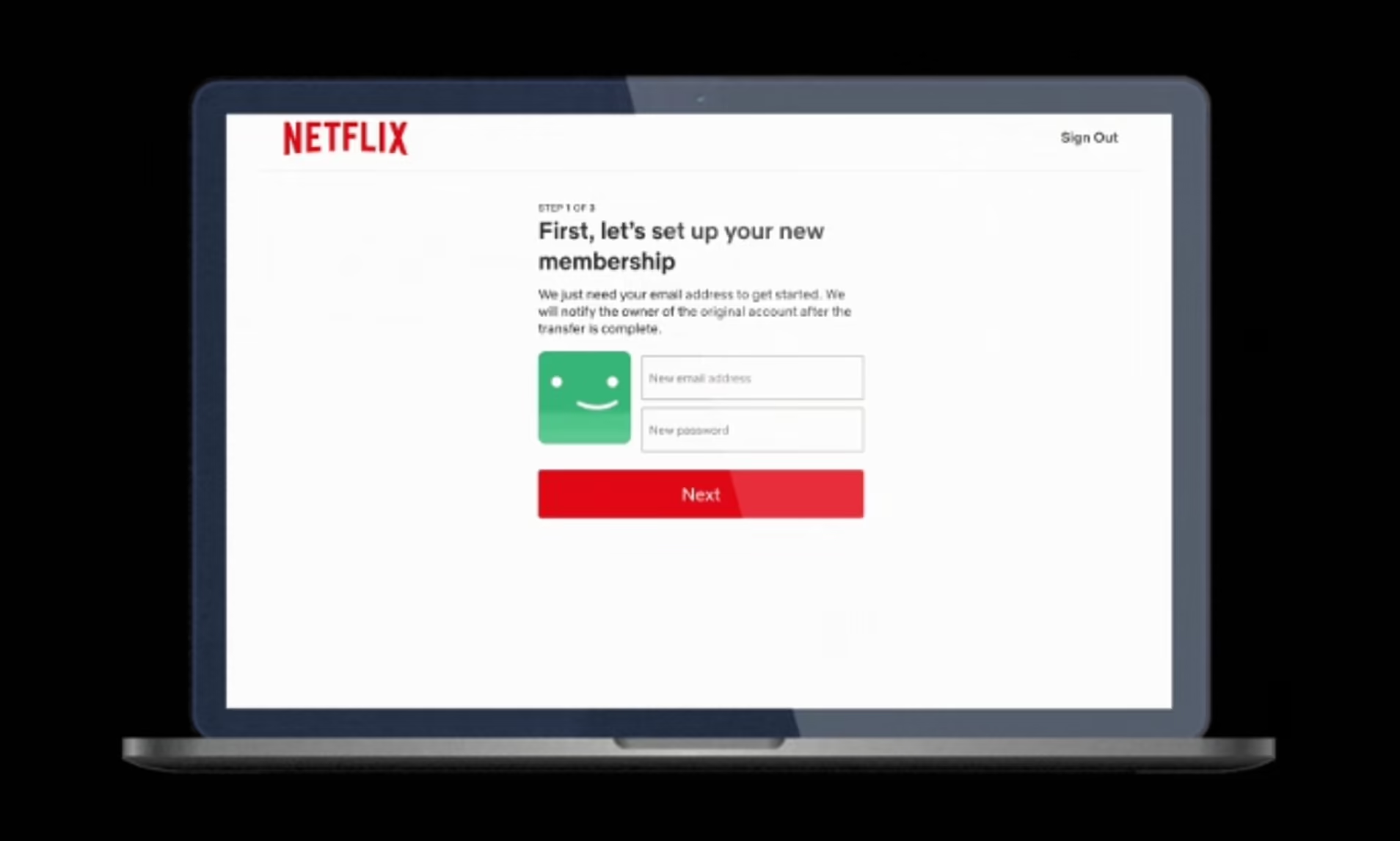
If you’re creating a new account, you’ll need to provide an email address and password for the new account.
- Enter your preferred email address and password for the new account.
- Choose a subscription plan (if not already active).
- Select your payment method (PayPal, credit/debit card, or Satispay/Netflix code).
- Complete the payment process to activate the new account.
- Once activated, you’ll be logged in automatically.
Transferring a Profile to an Existing Account
If you’re transferring your profile to an existing account, enter the login credentials for that account:
- Enter the email address and password associated with the target account.
- Click on “Transfer” to initiate the transfer process.
Troubleshooting: Can’t Transfer a Profile?
If you encounter issues during the transfer process, don’t worry! Our guide provides additional troubleshooting steps and solutions.
Conclusion
Transferring a profile on Netflix is a straightforward process that can save you time and effort. By following these step-by-step instructions, you’ll be able to move your viewing history, recommendations, and other settings from one account to another with ease.
Frequently Asked Questions (FAQs)
- Q: Can I transfer a profile on Netflix to any account?
A: Yes, but the target account must have an active subscription. - Q: Do I need to create a new account before transferring a profile?
A: No, you can create a new account during the transfer process or use an existing one. - Q: Can I transfer a profile with a PIN-protected profile?
A: No, profiles protected by a PIN cannot be transferred using this method. - Q: How do I delete my profile on Netflix after transferring it to another account?
A: Log in to the original account and follow our step-by-step guide on deleting profiles.
Additional Resources
For more information on how to transfer a profile on Netflix, visit our blog for additional resources:
- How to Delete a Profile on Netflix
- Understanding Profile Transfer Requirements
- Troubleshooting Common Issues with Profile Transfer


