
Mastering Adobe Illustrator: A Comprehensive Guide
Are you ready to unleash your creativity with one of the most powerful graphic design software in the industry? Look no further than Adobe Illustrator! In this comprehensive guide, we’ll take you on a journey through the world of vector graphics, showing you how to harness the full potential of this incredible tool.
Getting Started With Illustrator
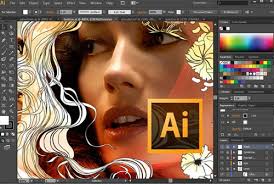
Before diving into the nitty-gritty, let’s get familiar with the interface. When you open Illustrator for the first time, you’ll notice a plethora of panels and tools at your disposal. Don’t worry; we’ll break it down for you!
Understanding The Interface
- The top toolbar houses essential tools like pencils, pens, and shapes.
- The left sidebar features panels for layers, swatches, and other useful functions.
- The workspace area is where the magic happens – this is where you’ll create your masterpieces!
Creating a New Document
To get started, simply click on the “New” button in the top toolbar. Choose the desired dimensions, resolution, and color mode for your project.
Understanding Artboards
Artboards are the canvases within Illustrator where you can work on multiple designs at once. Think of them as separate workspaces that help keep your projects organized.
Importing Assets
Need to bring in external assets? No problem! Use the “Open” button or drag and drop files from your computer into Illustrator.
Mastering Essential Tools
Now that we’ve covered the basics, it’s time to explore some of Illustrator’s most powerful tools. We’ll delve into:
Shape Tools
- Rectangles: Create perfect squares, rectangles, or any other shape you can imagine.
- Ellipses: Draw circles, ellipses, or even custom shapes with precision.
Drawing And Painting
- Pencils: Sketch freely with various line widths and styles.
- Brushes: Unlock a world of textures, patterns, and effects with Illustrator’s brush library.
Unlocking Advanced Features
As you become more comfortable with the basics, it’s time to explore some advanced features that’ll take your designs to the next level. We’ll cover:
Layer Management
- Understand how layers work and learn to organize them for seamless collaboration.
- Master the art of layer blending modes to create stunning visual effects.
Typography
- Discover the power of Illustrator’s text tools, including advanced formatting options and typographic features.
- Learn how to use fonts from other programs within Illustrator.
Mastering Effects And Filters
Now that we’ve explored the basics and some advanced features, let’s talk about adding those finishing touches to your designs. We’ll cover:
Gradient And Patterns
- Create stunning gradients and patterns with ease using Illustrator’s built-in tools.
- Learn how to apply these effects to shapes, text, or even entire layers.
Drop Shadows And Glows
- Master the art of creating realistic drop shadows and glows to give your designs a 3D feel.
- Understand how to use these effects in conjunction with other design elements.
Working With Gradients And Patterns
In this section, we’ll explore some advanced techniques for working with gradients and patterns within Illustrator. You’ll learn:
Gradient Tools
- Discover the power of Illustrator’s gradient tools, including radial, linear, and mesh gradients.
- Learn how to blend colors seamlessly using various gradient modes.
Pattern Creation
- Unlock the secrets of creating stunning patterns within Illustrator.
- Master the art of repeating shapes or graphics to create unique textures.
Conclusion
Mastering Adobe Illustrator takes time and practice, but with this comprehensive guide, you’ll be well on your way to becoming a vector graphics rockstar! Remember to experiment, play around, and don’t be afraid to try new things. Happy designing!
Frequently Asked Questions (FAQs)
-
What’s The Difference Between Illustrator And Photoshop?
Illustrator is primarily used for creating vector graphics, while Photoshop excels at image editing and raster graphics. -
Can I Use Illustrator on my Ipad?
Yes! Adobe Illustrator has a dedicated app for iPad users that offers many of the same features as its desktop counterpart. -
How do I Get Started With Illustrator’s Tutorials?
To access Illustrator’s built-in tutorials, go to the top menu bar and select “Help” > “Tutorials.” -
What’s The Best Way to Share my Designs With Others?
Use the “Save As” function within Illustrator to export your files in various formats (e.G., PDF, JPEG, PNG). -
Can I Use Fonts From Other Programs Within Illustrator?
Yes! Use the font manager panel or import external fonts by selecting “Type” > “Font Manager.” -
How do I Undo Actions Within Illustrator?
PressCtrl + Z(Windows) orCmd + Z(Mac) to quickly undo recent changes. -
What’s The Best Way to Get Help With Illustrator?
Consult Adobe’s official documentation, watch YouTube tutorials, or join online communities and forums for assistance. -
How do I Stay Up-to-date With New Features And Updates in Illustrator?
-
Subscribe to Adobe’s Creative Cloud updates.
- Follow Adobe on social media platforms (Twitter, Instagram, Facebook).
- Check out the official Adobe website for news and announcements.


