
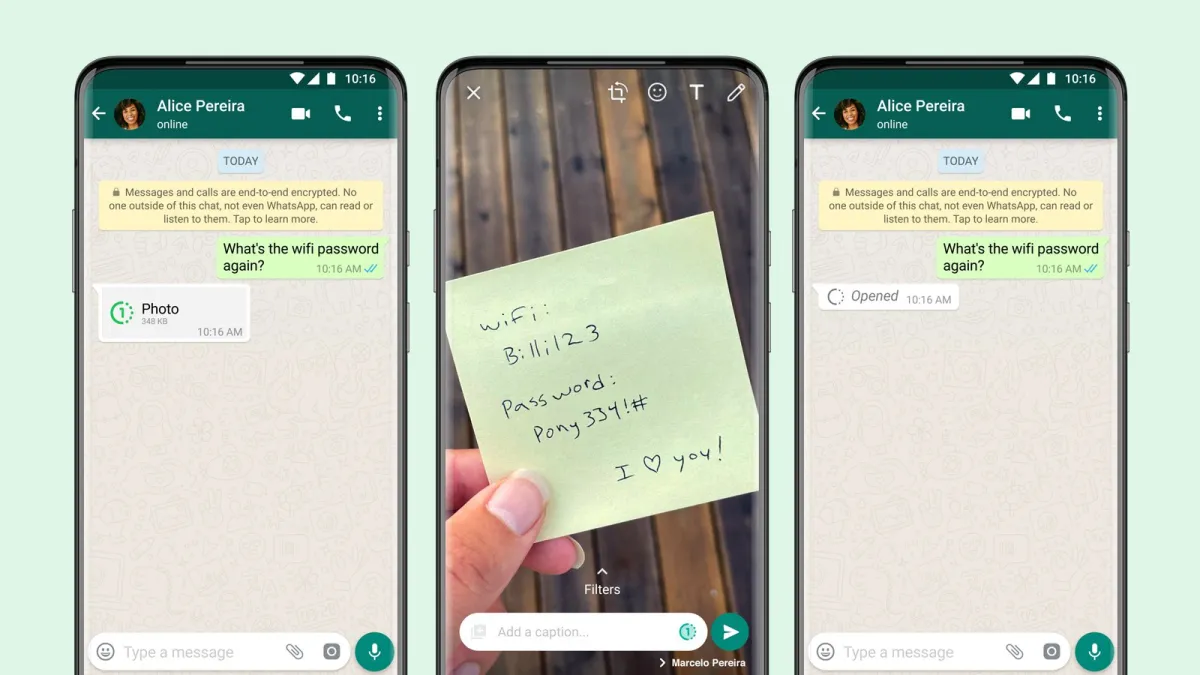
How to Re-view Temporarily Received Photos on Whatsapp
Are you tired of wondering how to re-view temporarily received photos on WhatsApp? Look no further! In this article, we will explore the various ways to access these photos, even after they have been deleted.
Why Can’t I Just Take a Screenshot or Record The Screen?
If you’re using an Android device, you may be familiar with the issue of not being able to take a screenshot or record the screen while viewing temporary photos on WhatsApp. This is because the app has been updated to prevent this very thing from happening.
Solution 1: Take a Photo of The Screen With Another Device
One simple solution is to use another device (such as a smartphone, tablet, or camera) to take a photo of the screen displaying the temporary photo. This way, you can capture the image even though it’s not saved on your device.
Solution 2: Make a Backup of The Message
Another option is to make a backup of the message that contains the temporary photo. If you haven’t opened the photo yet, it will be stored in the backup, and you can restore it at any time to view it again.
How to Make a Backup on Whatsapp (Android)
To make a backup on Android, follow these steps:
- Open WhatsApp and go to Settings
- Select Chats > Chat Backup
- Choose whether you want to back up now or set up automatic backups
- If you’ve already opened the temporary photo, it won’t be included in the backup. You’ll need to restore the backup from a previous date when the photo was still available.
How to Restore a Backup on Whatsapp (Android)
To restore a backup on Android, follow these steps:
- Open WhatsApp and go to Settings
- Select Chats > Chat Backup
- Choose to restore the latest or a specific backup date
- Wait for the restoration process to complete
- Once restored, you can re-view the temporary photo
Solution 3: Use Whatsapp Web or Desktop (PC)
If you’re using WhatsApp Web or the desktop client on PC, you have an advantage over mobile users. You can take a screenshot of the screen with the temporary photo open.
How to Take a Screenshot on Windows
To take a screenshot on Windows:
- Press the Win+PrintScreen key combination (Windows 10 and above)
- Open File Explorer and go to This PC > Pictures > Screenshots
- Your screenshot will be saved here
How to Take a Screenshot on Mac
To take a screenshot on Mac:
- Press the Command + Shift + 4 keys
- Click and drag the crosshair pointer to select the area you want to capture (you can also press the Space bar to toggle between full-screen and selected area)
- Release the mouse button or trackpad to take the screenshot
Conclusion
Re-viewing temporarily received photos on WhatsApp may seem impossible at first, but with these solutions, you should be able to access them even after they’ve been deleted. Remember to always respect other users’ privacy and only use these methods for your own purposes.
Faqs
- Can I Take a Screenshot or Record The Screen While Viewing Temporary Photos on Whatsapp?
Unfortunately not on Android devices, but you can try using another device or making a backup. - How do I Make a Backup of my Whatsapp Messages?
On Android, go to Settings > Chats > Chat Backup and choose whether to back up now or set up automatic backups. - Can I Restore a Previous Backup on Whatsapp?
Yes, you can restore a previous backup on Android by going to Settings > Chats > Chat Backup and choosing the desired date. - How do I Take a Screenshot on Windows?
Press Win+PrintScreen key combination (Windows 10 and above) or use the Snipping Tool. - Can I Take a Screenshot on Mac?
Yes, press Command + Shift + 4 keys to select an area or full-screen. - Why Can’t I Just View The Temporary Photos Again?
These photos are meant to be viewed once and then deleted for your own privacy and security. - Are These Solutions Permanent?
Some methods may not work forever, but they should give you access to the temporary photos at least once more.
Hope this article was helpful in clarifying how to re-view temporarily received photos on WhatsApp!


