
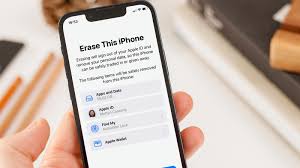
How to Erase Everything on Your Iphone: A Step-by-step Guide
Are you looking to sell your old iPhone or simply want to start fresh with a new device? Before doing so, it’s essential to erase all your personal data from the device. In this article, we’ll guide you through the process of erasing everything on your iPhone, whether you’re using iTunes or not.
Why Erase Everything on Your Iphone?
Erasing everything on your iPhone is crucial before selling or giving away your device. This ensures that your personal data, including photos, messages, and other sensitive information, are completely removed from the device. Failing to do so can lead to security risks and potential identity theft.
Preparing For Erasure: Backing Up Your Data
Before erasing everything on your iPhone, it’s essential to back up your data to prevent losing any important files or information. You can back up your data using:
- Icloud: Go to Settings > [your name] > iCloud > iCloud Backup and toggle the switch to turn it on.
- Itunes: Connect your iPhone to your computer, launch iTunes, and select your device from the top left corner. Click “Summary” and then click “Backup Now.”
Erasing Everything on Your Iphone Without Itunes
If you don’t want to use iTunes, you can erase everything on your iPhone directly from the device:
- Access Settings: Go to Settings > [your name] > iCloud.
- Disable Find My Iphone: Tap on “Find My” and toggle the switch to turn it off.
- Transfer or Initialize Iphone: Tap on “General” > “Reset” > “Erase All Content and Settings.”
- Confirm Erasure: Enter your Apple ID password and confirm that you want to erase everything.
Erasing Everything on Your Iphone With Itunes
If you prefer using iTunes, follow these steps:
- Connect Iphone to Computer: Connect your iPhone to your computer and launch iTunes.
- Select Iphone: Select your iPhone from the top left corner of the iTunes window.
- Click “Summary”: Click on the “Summary” tab at the top of the iTunes window.
- Click “Backup Now”: Click on “Backup Now.”
- Click “Restore Iphone”: Click on “Restore iPhone.”
Erasing Everything on Your Iphone For Selling
If you’re selling your iPhone, it’s essential to erase everything and restore it to its factory settings:
- Erase All Content And Settings: Go to Settings > [your name] > iCloud.
- Disable Find My Iphone: Tap on “Find My” and toggle the switch to turn it off.
- Transfer or Initialize Iphone: Tap on “General” > “Reset” > “Erase All Content and Settings.”
- Confirm Erasure: Enter your Apple ID password and confirm that you want to erase everything.
Erasing Everything on Your Iphone Manually
If you prefer erasing everything manually, without using iTunes or the built-in feature, you can delete individual data types, such as:
- Applications: Delete individual apps by tapping and holding on them until they jiggle.
- Photos And Videos: Delete photos and videos by going to Settings > [your name] > iCloud > iCloud Photos.
- Music And Other Data: Delete music and other data by going to Settings > [your name] > iCloud.
Troubleshooting And Support
If you encounter any issues or have doubts during the erasure process, consult Apple’s official support resources:
- Apple Support Website: Visit Apple’s official support website for detailed guides and troubleshooting steps.
- Contacting Apple: Contact Apple directly through their customer support hotline or online chat.
Conclusion
Erasing everything on your iPhone is a crucial step before selling or giving away your device. By following these step-by-step guides, you can ensure that all your personal data are completely removed from the device, protecting your security and identity.
Faqs:
- Q: How do I Erase my Iphone if It’s Locked?
A: If your iPhone is locked, try using the “Find My iPhone” feature to locate it and then use the built-in “Erase All Content and Settings” option. - Q: Can I Erase my Iphone Without a Computer?
A: Yes, you can erase your iPhone directly from the device by following the steps outlined in this guide. - Q: How do I Restore my Iphone to Its Factory Settings?
A: To restore your iPhone to its factory settings, follow the steps outlined in this guide or use iTunes to perform a full restore. - Q: Can I Erase Individual Data Types on my Iphone?
A: Yes, you can delete individual data types, such as apps, photos, and videos, by following the steps outlined in this guide. - Q: What if I Encounter Issues During Erasure?
A: Consult Apple’s official support resources or contact their customer support hotline for assistance. - Q: How do I Back up my Iphone Data Before Erasing It?
A: You can back up your iPhone data using iCloud or iTunes by following the steps outlined in this guide. - Q: Can I Sell my Iphone Without Erasing Everything?
A: No, it’s essential to erase all content and settings on your iPhone before selling it to protect your personal data and security.
References:
- Apple Support Website
- Apple Customer Support Hotline
- ITunes User Guide
Note: This guide is for informational purposes only and should not be considered as professional advice. If you’re unsure about any aspect of erasing your iPhone, consult Apple’s official support resources or contact their customer support hotline for assistance.


