
How to Personalize Your Airpods Settings: A Step-by-step Guide
Are you one of the millions of people who have bought Apple’s iconic wireless earbuds, AirPods? While they’re incredibly convenient and easy to use, many users don’t know that they can customize their settings to get the most out of their listening experience. In this article, we’ll show you how to personalize your AirPods settings on various devices, including iPhone, iPad, Mac, and even Android.
Why Personalize Your Airpods Settings?
Before we dive into the nitty-gritty, let’s talk about why personalizing your AirPods settings is a good idea. By customizing your settings, you can:
- Improve sound quality
- Enhance battery life
- Get more out of your AirPods’ features, such as Siri and spatial audio
Personalizing Your Airpods Settings on Iphone/ipad
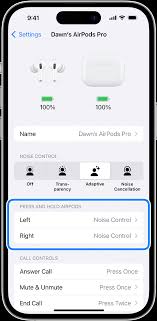
To personalize your AirPods settings on an iPhone or iPad, follow these steps:
- Access The Bluetooth Section: Go to Settings > Bluetooth.
- Select Your Airpods: Tap on the name of your AirPods (e.G., “AirPods Pro”) to access its settings page.
- Customize Your Settings: On this page, you can customize various settings, such as:
- Double-tap actions: Choose what happens when you double-tap an earbud (e.G., Play/pause music or activate Siri).
- Microphone setting: Select which earbud is used for phone calls and voice commands.
- Automatic Ear Detection: Enable or disable the feature that pauses your audio when you remove one earbud.
Personalizing Your Airpods Settings on Mac
To personalize your AirPods settings on a Mac, follow these steps:
- Access The Bluetooth Section: Go to System Preferences > Bluetooth.
- Select Your Airpods: Click on the name of your AirPods (e.G., “AirPods Pro”) to access its settings page.
- Customize Your Settings: On this page, you can customize various settings, such as:
- Double-click actions: Choose what happens when you double-click an earbud (e.G., Play/pause music or activate Siri).
- Microphone setting: Select which earbud is used for phone calls and voice commands.
- Automatic Ear Detection: Enable or disable the feature that pauses your audio when you remove one earbud.
Personalizing Your Airpods Settings on Android
To personalize your AirPods settings on an Android device, follow these steps:
- Access The Bluetooth Section: Go to Settings > Connections > Bluetooth.
- Select Your Airpods: Tap on the name of your AirPods (e.G., “AirPods Pro”) to access its settings page.
- Customize Your Settings: On this page, you can customize various settings, such as:
- Double-tap actions: Choose what happens when you double-tap an earbud (e.G., Play/pause music or activate Siri).
- Microphone setting: Select which earbud is used for phone calls and voice commands.
- Automatic Ear Detection: Enable or disable the feature that pauses your audio when you remove one earbud.
Additional Tips And Settings
In addition to customizing the settings mentioned above, here are some additional tips and settings to keep in mind:
- Airpods 3-specific Settings: If you have AirPods 3, you can access special features like spatial audio and sound pressure settings.
- Airpods Pro-specific Settings: If you have AirPods Pro, you can access features like noise cancellation and transparency mode.
- Battery Life Optimization: To get the most out of your AirPods’ battery life, enable the “Automatic Ear Detection” feature on your iPhone or iPad.
Conclusion
Personalizing your AirPods settings is a simple yet effective way to enhance your listening experience. By following these step-by-step guides for iPhone/iPad, Mac, and Android devices, you can customize various settings to suit your preferences. Remember to explore additional tips and settings mentioned in this article to get the most out of your AirPods.
Frequently Asked Questions (FAQs)
- Q: How do I Reset my Airpods?
A: To reset your AirPods, put them in their case, close the lid, and press and hold the setup button until the light on the front flashes. - Q: Can I Use my Airpods With Multiple Devices at Once?
A: Yes, you can use your AirPods with multiple devices simultaneously by enabling the “Automatic Ear Detection” feature on your iPhone or iPad. - Q: How do I Know When my Airpods Need Charging?
A: When your AirPods’ battery is low, the light on the front will flash to indicate that it’s time to charge them. - Q: Can I Use my Airpods With Non-apple Devices?
A: Yes, you can use your AirPods with non-Apple devices like Android smartphones and Mac computers, but some features may not work as intended. - Q: How do I Troubleshoot Issues With my Airpods?
A: If you’re experiencing issues with your AirPods, try restarting them or resetting the device to its factory settings. If the problem persists, contact Apple Support for further assistance.


