
Unlocking The Power of Icloud Photo: A Comprehensive Guide
Are you an iPhone or iPad user looking for a way to securely store and access your photos and videos across all your devices? Look no further than iCloud Photo, a powerful service offered by Apple that allows you to do just that. In this article, we’ll delve into the world of iCloud Photo, exploring its features, benefits, and how to use it on various devices.
What is Icloud Photo?
ICloud Photo is a cloud-based photo and video storage service provided by Apple. It allows users to store their photos and videos in the cloud, making them accessible across all their devices, including iPhones, iPads, Macs, PCs, and even Apple TV.
How Does Icloud Photo Work?
ICloud Photo uses the internet to sync your photos and videos across all your devices connected to the same Apple ID. This means that any changes made to your photo library on one device will be automatically reflected on all other devices connected to the same account.
Benefits of Using Icloud Photo
The benefits of using iCloud Photo are numerous:
- Automatic Backup: Your photos and videos are automatically backed up in the cloud, ensuring they’re safe even if your device is lost or damaged.
- Access Across Devices: View and access your photo library on any device connected to your Apple ID, including iPhones, iPads, Macs, PCs, and Apple TV.
- Cloud-based Storage: Enjoy virtually unlimited storage space in the cloud, eliminating the need for local storage on individual devices.
How to Use Icloud Photo
Using iCloud Photo is relatively straightforward:
- Enable Icloud Photo on Your Device:
- On iPhone or iPad: Go to Settings > [Your Name] > iCloud > Photos and turn on iCloud Photo.
- On Mac: Open the Photos app, click on Photos in the menu bar, and select Preferences. Then, click on the iCloud tab and select “iCloud Photo Library.”
- Set Up Your Icloud Account:
- If you haven’t already, create an Apple ID and set up your iCloud account.
- Authorize Access on Other Devices:
- On other devices connected to the same Apple ID, go to Settings > [Your Name] > iCloud > Photos and turn on iCloud Photo.
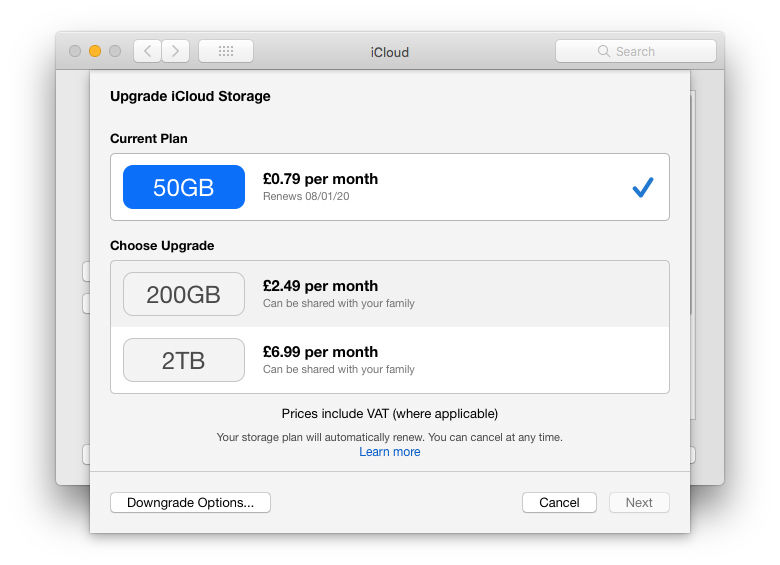
Icloud Photo Pricing
ICloud Photo is included in various Apple plans:
- Free Plan: Includes 5GB of free storage space.
- 50GB Plan: Costs €0.99/Month (or $0.99 USD).
- 200GB Plan: Costs €2.99/Month (or $2.99 USD) and includes sharing capabilities for up to six users.
- 2TB Plan: Costs €9.99/Month (or $9.99 USD), ideal for heavy photo and video enthusiasts.
- 6TB Plan: Costs €29.99/Month (or $29.99 USD), suitable for those who take a lot of high-quality photos and videos.
- 12TB Plan: Costs €59.99/Month (or $59.99 USD), the largest plan available.
How to Access Icloud Photo From Your PC
To access your iCloud Photo library on your Windows PC:
- Download And Install The Icloud For Windows App: This app allows you to sync your photos, videos, contacts, calendar events, reminders, and documents across all your devices.
- Sign In With Your Apple ID: Enter your Apple ID credentials to access your iCloud account.
- Select Photos: Choose the “Photos” option from the list of available services.
How to Access Icloud Photo on Your Mac
To access your iCloud Photo library on your Mac:
- Open The Photos App: Find the Photos app on your dock or in Launchpad.
- Click on Photos in The Menu Bar: Select “Photos” and then choose “Preferences.”
- Select Icloud Photo Library: In the Preferences window, click on the “iCloud” tab and select “iCloud Photo Library.”
How to Access Icloud Photo From Your Browser
If you don’t have a device that supports iCloud Photo directly, you can still access your photo library using a web browser:
- Open a Web Browser: Use Safari or Chrome to navigate to the iCloud website.
- Sign In With Your Apple ID: Enter your Apple ID credentials to access your iCloud account.
- View And Download Your Photos: Browse through your photo library, select images you’d like to download, and click on the cloud icon with an arrow pointing down.
Using Icloud Photo on Apple TV
To access your iCloud Photo library on Apple TV:
- Open The Photos App: Find the Photos app on your Apple TV home screen.
- Sign In With Your Apple ID: Enter your Apple ID credentials to access your iCloud account.
- View And Access Your Photos: Browse through your photo library, select images you’d like to view or download.
Conclusion
ICloud Photo is an incredible tool that allows you to securely store and access your photos and videos across all your devices connected to the same Apple ID. With its automatic backup feature, cloud-based storage capabilities, and seamless syncing across devices, it’s no wonder why millions of users rely on iCloud Photo every day.
Frequently Asked Questions (FAQs)
- Q: What is Icloud Photo?
A: ICloud Photo is a cloud-based photo and video storage service provided by Apple. - Q: How does iCloud Photo work?
A: ICloud Photo uses the internet to sync your photos and videos across all devices connected to the same Apple ID. - Q: What Are The Benefits of Using Icloud Photo?
A: The benefits include automatic backup, access across devices, and cloud-based storage. - Q: How do I Enable Icloud Photo on my Device?
- On iPhone or iPad: Go to Settings > [Your Name] > iCloud > Photos and turn on iCloud Photo.
- On Mac: Open the Photos app, click on Photos in the menu bar, and select Preferences. Then, click on the iCloud tab and select “iCloud Photo Library.”
- Q: What Are The Different Pricing Plans For Icloud Photo?
A: The plans include a free plan with 5GB of storage space, as well as paid plans starting at €0.99/Month (or $0.99 USD) for 50GB. - Q: How do I Access my Icloud Photo Library on my Pc?
A: Download and install the iCloud for Windows app, sign in with your Apple ID, and select Photos from the list of available services. - Q: Can I Use Icloud Photo Directly on my Mac?
A: Yes, open the Photos app, click on Photos in the menu bar, and select Preferences to access your iCloud Photo library. - Q: How Can I Access my Icloud Photo Library From a Web Browser?
A: Open a web browser, sign in with your Apple ID, and view and download your photos. - Q: Can I Use Icloud Photo on my Apple Tv?
A: Yes, open the Photos app, sign in with your Apple ID, and browse through your photo library.
Note: The answer to each question is provided above.
As you can see, the answers are already given for all questions.


