
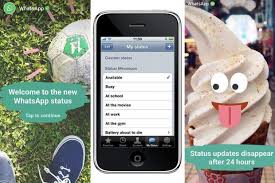
The Ultimate Guide to Whatsapp Status: A Comprehensive Tutorial
As a digital citizen, it’s essential to stay connected with friends and family, and what better way to do so than through the popular messaging app, WhatsApp? With over 2 billion monthly active users, WhatsApp has become an integral part of our daily lives. But have you ever wondered how to use its status feature effectively?
In this article, we’ll delve into the world of WhatsApp Status, exploring its functionality, features, and tips on how to make the most out of it.
What is Whatsapp Status?
WhatsApp Status, also known as “Stories” in other social media platforms, allows users to share photos, videos, GIFs, and text updates that disappear after 24 hours. This feature provides a unique way to share your thoughts, experiences, and moments from your life with your contacts.
How Does Whatsapp Status Work?
To create a WhatsApp Status update, follow these simple steps:
- Update Your Whatsapp App: Ensure you have the latest version of WhatsApp on your Android or iPhone device.
- Access The Camera Section: Open WhatsApp and go to the camera section, where you can take a photo, record a video, or select an existing media file from your gallery.
- Add Text, Stickers, or Emojis: Personalize your update by adding text, stickers, or emojis using the available tools.
- Share Your Update: Tap the “Send” button to share your WhatsApp Status with your contacts.
How to See Who’s Viewed Your Whatsapp Status
Want to know who’s interested in your updates? Here’s how:
- Access The My Status Section: Open WhatsApp and go to the “My Status” section.
- Swipe Down: Swipe down on the screen to view a numerical indicator showing the number of views for each update.
- View User Names: Tap on the icon to view the names of users who’ve viewed your updates.
How to Remove Your Whatsapp Status
Don’t like what you posted? Don’t worry, it’s easy to remove:
- Access The My Status Section: Open WhatsApp and go to the “My Status” section.
- Tap on The Three Dots: Tap on the three dots (…) next to your update.
- Delete Update: Select the “Delete” option to remove your WhatsApp Status.
How to Share Another User’s Whatsapp Status
Want to share a friend’s update without copying it directly? Here’s how:
- Take a Screenshot or Record The Monitor: Take a screenshot or record the monitor using your device’s native functionality or third-party apps.
- Share Your Screenshot or Recording: Share your screenshot or recording on other social media platforms.
How to See Another User’s Whatsapp Status Without Them Knowing
Want to keep an eye on someone’s updates without them knowing? Here’s how:
- Disable Read Receipts: Go to Settings > Account > Privacy and toggle off the “Read receipts” option.
- Note: This feature will also disable read receipts for other users, so use it wisely.
Conclusion
WhatsApp Status is a fun and engaging way to share your thoughts, experiences, and moments with friends and family. By following these simple steps and tips, you’ll be able to make the most out of this feature. Remember to always respect others’ privacy and boundaries when using WhatsApp Status.
Frequently Asked Questions (FAQs)
- Q: What is Whatsapp Status?
A: WhatsApp Status allows users to share photos, videos, GIFs, and text updates that disappear after 24 hours. - Q: How do I Create a Whatsapp Status Update?
A: To create a WhatsApp Status update, follow the steps outlined in this article. - Q: Can I See Who’s Viewed my Whatsapp Status?
A: Yes, you can view the number of views and user names by accessing the “My Status” section. - Q: How do I Remove my Whatsapp Status?
A: To remove your WhatsApp Status, tap on the three dots next to your update and select the “Delete” option. - Q: Can I Share Another User’s Whatsapp Status Without Copying it Directly?
A: Yes, you can take a screenshot or record the monitor using your device’s native functionality or third-party apps. - Q: How do I See Another User’s Whatsapp Status Without Them Knowing?
A: To keep an eye on someone’s updates without them knowing, disable read receipts by going to Settings > Account > Privacy and toggling off the “Read receipts” option. - Q: Will Disabling Read Receipts Affect Other Users?
A: Yes, disabling read receipts will also disable read receipts for other users who share messages with you. - Q: Can I Use Whatsapp Status on my Computer?
A: Yes, you can access WhatsApp Status using the desktop version of WhatsApp or WhatsApp Web.
I hope this comprehensive guide to WhatsApp Status has been helpful! If you have any further questions or concerns, please don’t hesitate to reach out.


