
The Ultimate Guide to Defragmenting Your Pc’s Hard Drive
Are you tired of your computer taking forever to load programs and files? Do you want to know the secret to making your PC run like new again? Look no further than defragmenting your hard drive! In this article, we’ll show you how to defragment your PC’s hard drive using the built-in tools in Windows, as well as some amazing third-party software.
What is Defragmentation?
Defragmentation is a process that rearranges the files on your hard drive so that they’re stored in contiguous blocks of space. This makes it easier for your computer to access and load programs and files quickly. Over time, as you save and delete files, your hard drive can become fragmented, leading to slow performance.
Why Defragment Your Hard Drive?
Defragmenting your hard drive is essential for maintaining good PC health. Here are just a few reasons why:
- Improved Performance: By rearranging files on your hard drive, defragmentation makes it easier for your computer to access and load programs and files quickly.
- Increased Storage Capacity: Defragmentation can help free up space on your hard drive by removing duplicate or redundant files.
- Reduced Risk of Data Loss: By organizing your files in a logical and coherent way, defragmentation reduces the risk of data loss due to file corruption.
How to Defragment Your Hard Drive Using Windows Built-in Tools
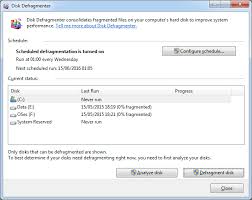
Fortunately, Microsoft has made it easy to defragment your hard drive using built-in tools. Here’s how:
Windows 10/8/7: Using The Optimize Drives Utility
- Click on the Start menu and type “Optimize Drives” in the search bar.
- Select the drive you want to optimize from the list of available drives.
- Click on the “Optimize” button to begin the defragmentation process.
Windows Xp: Using The Disk Defragmenter Utility
- Click on Start and select “Programs” > “Accessories” > “System Tools” > “Disk Defragmenter”.
- Select the drive you want to defragment from the list of available drives.
- Click on the “Defragment” button to begin the defragmentation process.
Third-party Software For Defragmenting Your Hard Drive
While Windows’ built-in tools are great, there are some amazing third-party software options that can take your PC’s performance to the next level. Here are a few of our favorites:
- Auslogics Disk Defrag: This free software is one of the most effective and user-friendly defragmentation tools available.
- Disk Speed Up: This free software not only defragments your hard drive but also optimizes file allocation for maximum performance.
- Mydefragmenter: This free software offers advanced features like disk analysis, defragmentation, and optimization.
How to Use Auslogics Disk Defrag
- Download and install the software from the official website.
- Launch the software and select the drive you want to defragment from the list of available drives.
- Click on the “Defrag” button to begin the defragmentation process.
How to Use Disk Speed Up
- Download and install the software from the official website.
- Launch the software and select the drive you want to optimize from the list of available drives.
- Click on the “Optimize” button to begin the optimization process.
Can I Defragment My Ssd?
Unlike traditional hard drives, solid-state drives (SSDs) don’t require defragmentation. In fact, attempting to defragment an SSD can actually cause more harm than good! Instead, use the TRIM command to delete unnecessary blocks on your SSD and maintain optimal performance.
How Do I Check if Trim is Active on My Windows Pc?
- Press the Windows key + X to open the Command Prompt as administrator.
- Type “fsutil behavior query DisableDeleteNotify” and press Enter.
- If the command returns 0, TRIM is active and you’re good to go!
Conclusion
Defragmenting your hard drive is a simple yet effective way to improve your PC’s performance and maintain optimal storage capacity. Whether you use Windows’ built-in tools or third-party software like Auslogics Disk Defrag or Disk Speed Up, the benefits are clear: Faster loading times, increased storage space, and reduced risk of data loss.
Frequently Asked Questions
Q: What is defragmentation?
A: Defragmentation is a process that rearranges files on your hard drive so that they’re stored in contiguous blocks of space.
Q: Why should I defragment my hard drive?
A: Defragmenting your hard drive improves performance, increases storage capacity, and reduces the risk of data loss.
Q: Can I defragment my SSD?
A: No! Defragmentation can actually cause more harm than good on an SSD. Instead, use the TRIM command to delete unnecessary blocks and maintain optimal performance.
Q: How do I check if TRIM is active on my Windows PC?
A: Press the Windows key + X to open the Command Prompt as administrator and type “fsutil behavior query DisableDeleteNotify”.
Q: What are some good third-party software options for defragmenting my hard drive?
A: Some popular options include Auslogics Disk Defrag, Disk Speed Up, and MyDefragmenter.
Q: How often should I defragment my hard drive?
A: It’s a good idea to defragment your hard drive every 2-3 months or whenever you notice a significant decrease in performance.


