
How to Watch Sky in 4K: A Step-by-step Guide
Are you tired of watching your favorite TV shows and movies on a standard definition screen? Do you want to experience the latest technology and enjoy crystal-clear visuals? Look no further! In this article, we will guide you through the process of watching Sky in 4K, the ultimate resolution for an immersive viewing experience.
What is 4K Resolution?
Before we dive into the details, let’s first understand what 4K resolution means. The term “4K” refers to a display resolution of 3840 x 2160 pixels, which is four times the resolution of Full HD (1080p). This higher resolution provides an incredibly detailed and sharp picture, making it perfect for watching movies, TV shows, sports, and other content.
System Requirements
To watch Sky in 4K, you will need a few essential components:
- Sky Q Black, Sky Q Platinum, or Sky Glass: You’ll need one of these devices to access the 4K resolution.
- 4K-compatible TV: Ensure your television is compatible with the 4K resolution (3840 x 2160 pixels) and HDR (High Dynamic Range).
- Hdmi Cable: Use a high-quality HDMI cable to connect your Sky device to your TV.
Step-by-step Guide
Now that you have the necessary equipment, follow these steps:
- Activate Sky Ultra HD on Your Subscription: Log in to your Sky account and activate the Sky Ultra HD option (available for an extra €5/month).
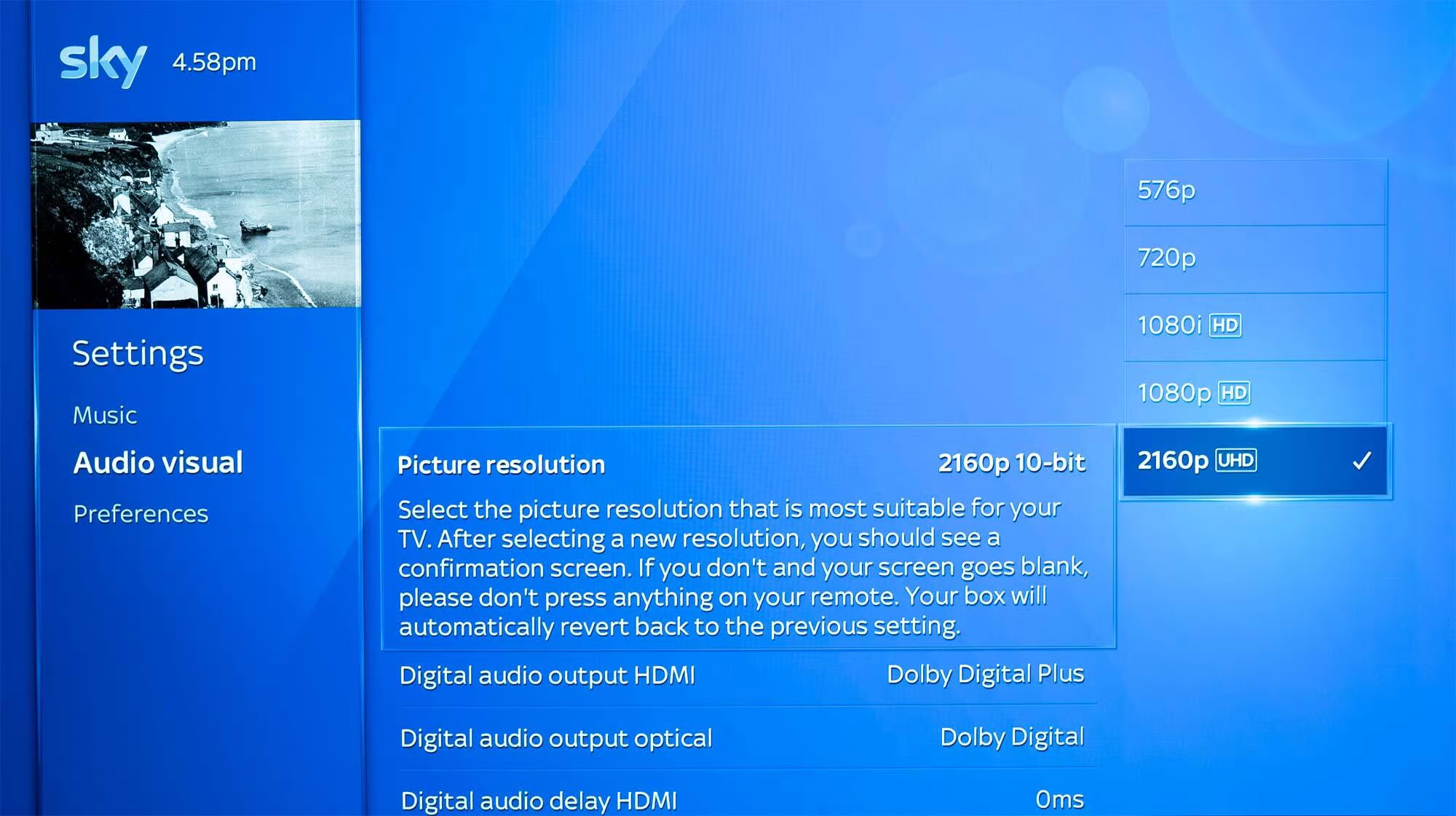
- Configure Your Decoder: Access the settings menu on your Sky Q device and select Configure. Choose Audio and Video, then Resolution video, and select 2160p 4K or 2160p 4K HDR.
- Set Up Automatic Configuration: Once you’ve selected the resolution, follow the prompts to configure your decoder for automatic configuration.
Troubleshooting Common Issues
If you’re experiencing problems watching Sky in 4K, don’t worry! We’ve got some troubleshooting tips:
- Error: Uh020 – Not Possible to Configure The Video Resolution in 4K Hdr: Check if your TV supports 4K HDR by consulting its manual.
- Error: Uh011 – The Hdmi Input of Your TV Does Not Support 4K: Ensure you’re using the correct HDMI port on your TV and that it’s set to the right mode (HDMI 2.0 Or HDCP 2.2).
Frequently Asked Questions
Here are some additional questions and answers:
- Q: What is The Difference Between Sky Q And Sky Glass?
A: Sky Q refers to the satellite decoder, while Sky Glass is a newer device that offers more features and a sleeker design. - Q: Can I Watch 4K Content on my Sky Q Mini?
A: No, Sky Q Minis do not support 4K resolution, but you can use them to access other Sky content. - Q: Do I Need to Have a Subscription to Sky Q or Sky Glass to Watch 4K Content?
A: Yes, you’ll need an active subscription and one of the supported devices (Sky Q Black, Sky Q Platinum, or Sky Glass) to access 4K content.
Conclusion
Watching Sky in 4K is now easier than ever! With this step-by-step guide, you should be able to enjoy crystal-clear visuals on your favorite TV shows, movies, and sports events. Don’t hesitate to reach out if you have any further questions or encounter any issues during the setup process. Happy viewing!
Frequently Asked Questions (FAQs)
- Q: What is 4K Resolution?
A: 4K resolution refers to a display resolution of 3840 x 2160 pixels, four times the resolution of Full HD. - Q: Do I Need a Specific Device to Watch Sky in 4K?
A: Yes, you’ll need one of the following devices: Sky Q Black, Sky Q Platinum, or Sky Glass. - Q: Can I Use my Sky Q Mini to Access 4K Content?
A: No, Sky Q Minis do not support 4K resolution. - Q: What is The Cost of Activating The Sky Ultra HD Option?
A: The cost of activating Sky Ultra HD is €5/month extra. - Q: Can I Watch 4K Content on my TV if It’s Not Connected to a Sky Device?
A: No, you’ll need one of the supported devices (Sky Q Black, Sky Q Platinum, or Sky Glass) to access 4K content. - Q: How do I Configure my Decoder For Automatic Configuration?
A: Access the settings menu on your Sky Q device and select Configure, then choose Audio and Video, Resolution video, and select 2160p 4K or 2160p 4K HDR. - Q: What Should I do if I Encounter Problems Watching Sky in 4K?
A: Check our troubleshooting guide for solutions to common issues. - Q: Do I Need a Subscription to Sky Q or Sky Glass to Watch 4K Content?
A: Yes, you’ll need an active subscription and one of the supported devices (Sky Q Black, Sky Q Platinum, or Sky Glass) to access 4K content.


