
How to Insert a Video in Powerpoint: A Step-by-step Guide
Are you tired of using static images in your presentations? Do you want to make them more engaging and interactive? Inserting videos into PowerPoint is a great way to do so. In this article, we will guide you through the process of inserting a video in PowerPoint, including how to add a video from YouTube, other online platforms, and even how to record a video directly within PowerPoint.
The Benefits of Using Videos in Presentations
Videos can be a powerful tool in presentations, allowing you to convey complex information in an engaging and interactive way. They can help to capture your audience’s attention, make your presentation more memorable, and even increase the chances of retaining information. With the rise of online video platforms like YouTube, Vimeo, and TikTok, it’s easier than ever to find high-quality videos that can enhance your presentations.
Inserting a Video in Powerpoint: A Step-by-step Guide
Powerpoint Version 2021
To insert a video in PowerPoint 2021:
- Open the presentation you want to work on.
- Click on the slide where you want to add the video.
- Go to the “Insert” tab and click on “Video”.
- Select “This device” if you want to add a video from your computer or choose “Video of file” if you have a video file saved on your device.
- Browse for the video file you want to insert and select it.
- Click “Insert” to add the video to your presentation.
Powerpoint Version 2013 And Earlier
To insert a video in PowerPoint 2013 or earlier:
- Open the presentation you want to work on.
- Click on the slide where you want to add the video.
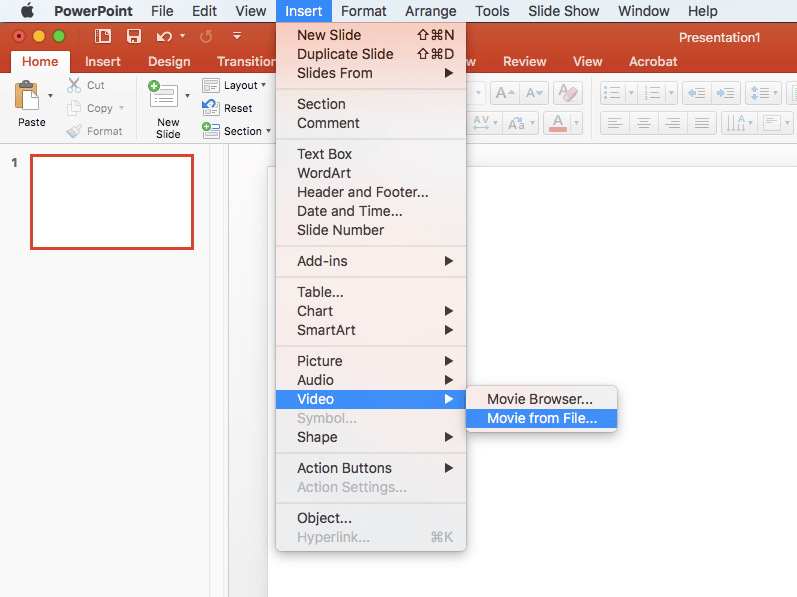
- Go to the “Insert” tab and click on “Video”.
- Select “Video in personal PC” if you have a video file saved on your device.
- Browse for the video file you want to insert and select it.
Adding a Video From Youtube
To add a video from YouTube:
- Open the presentation you want to work on.
- Click on the slide where you want to add the video.
- Go to the “Insert” tab and click on “Video”.
- Select “Video online” if you want to add a video from YouTube or another online platform.
- Copy the link of the video you want to insert and paste it into the box provided.
- Click “Insert” to add the video to your presentation.
Recording a Video Within Powerpoint
To record a video directly within PowerPoint:
- Open the presentation you want to work on.
- Click on the slide where you want to add the video.
- Go to the “Insert” tab and click on “Video”.
- Select “Record video” if you want to record a new video directly within PowerPoint.
Adding Effects And Transitions
Once you have inserted your video, you can enhance it by adding effects and transitions. To do so:
- Click on the video in your presentation.
- Go to the “Format” tab and select the effect or transition you want to apply.
- Adjust the settings as needed.
Tips And Tricks
- Make sure your video is compatible with PowerPoint before trying to insert it.
- Use high-quality videos that are relevant to your content.
- Experiment with different effects and transitions to enhance your video.
- Consider using a tripod to stabilize your camera when recording a video directly within PowerPoint.
Conclusion
Inserting a video in PowerPoint can be a simple yet effective way to make your presentations more engaging and interactive. By following the steps outlined in this article, you can add videos from YouTube, other online platforms, and even record new videos directly within PowerPoint. Remember to experiment with different effects and transitions to enhance your video and make it stand out.
Frequently Asked Questions
- Q: What Formats of Videos Are Compatible With Powerpoint?
A: PowerPoint supports a wide range of video formats, including MP4, AVI, MOV, and WMV. - Q: How do I Add a Video From Youtube to my Presentation?
A: To add a video from YouTube, copy the link of the video you want to insert and paste it into the box provided in PowerPoint’s “Insert” tab. - Q: Can I Record a Video Directly Within Powerpoint?
A: Yes, you can record a new video directly within PowerPoint by going to the “Insert” tab and selecting “Record video”. - Q: How do I Add Effects And Transitions to my Video in Powerpoint?
A: To add effects and transitions, click on the video in your presentation, go to the “Format” tab, and select the effect or transition you want to apply. - Q: What Are Some Tips For Using Videos Effectively in Presentations?
A: Consider using high-quality videos that are relevant to your content, experiment with different effects and transitions, and use a tripod to stabilize your camera when recording a video directly within PowerPoint.
Inserting a Video in Powerpoint: A Step-by-step Guide
- H1. How to Insert a Video in Powerpoint
- H2. Powerpoint Version 2021
- H3. Inserting a Video from Your Computer
- H4. Adding Effects and Transitions
- H3. Inserting a Video from Your Computer
- H2. Powerpoint Version 2013 And Earlier
- H3. Inserting a Video from YouTube
- H4. Recording a Video within PowerPoint
- H3. Inserting a Video from YouTube
- H2. Tips And Tricks
- H3. Experiment with Different Effects and Transitions
- H4. Consider Using a Tripod for Better Quality
- H3. Experiment with Different Effects and Transitions


