
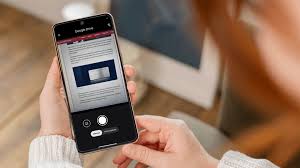
How to Use Your Mobile Camera as a Scanner: A Step-by-step Guide
Are you tired of struggling with physical documents, trying to scan them using an old-fashioned scanner or photocopier? Look no further! In this article, we will show you how to use your mobile camera as a scanner, making it easier than ever to digitize your papers and go green.
What You Need to Know
Before we dive into the nitty-gritty of using your mobile camera as a scanner, let’s take a look at what you’ll need:
- A smartphone with a good camera (we recommend using the latest models)
- An internet connection (for some apps, not all)
- A few minutes of your time to learn how to use these tools
Using Your Mobile Camera as a Scanner: The Basics
To start scanning documents using your mobile camera, follow these simple steps:
- Choose an App: First things first, you’ll need to choose the right app for the job. We recommend starting with Google Drive or Microsoft Lens.
- Open The App: Once you’ve chosen your app, simply open it up and select the “Scanner” or “Scan Document” option.
- Position Your Camera: Next, position your camera over the document you want to scan. Make sure the camera is steady and the lighting is good.
- Take a Photo: Tap the shutter button to take a photo of the document. You can adjust the brightness and contrast as needed.
- Save Your Scan: Once you’ve taken your photo, save it to your phone’s gallery or cloud storage.
Using Google Drive to Scan Documents
Google Drive is an excellent option for scanning documents using your mobile camera. Here’s how to do it:
- Download The App: First, make sure you have the Google Drive app installed on your smartphone.
- Open The App: Next, open up the app and select the “Scanner” or “Scan Document” option.
- Position Your Camera: Place your camera over the document you want to scan, making sure it’s steady and well-lit.
- Take a Photo: Tap the shutter button to take a photo of the document. You can adjust the brightness and contrast as needed.
- Save Your Scan: Once you’ve taken your photo, save it to Google Drive.
Using Microsoft Lens to Scan Documents
Microsoft Lens is another excellent option for scanning documents using your mobile camera. Here’s how to do it:
- Download The App: First, make sure you have the Microsoft Lens app installed on your smartphone.
- Open The App: Next, open up the app and select the “Scanner” or “Scan Document” option.
- Position Your Camera: Place your camera over the document you want to scan, making sure it’s steady and well-lit.
- Take a Photo: Tap the shutter button to take a photo of the document. You can adjust the brightness and contrast as needed.
- Save Your Scan: Once you’ve taken your photo, save it to Microsoft Lens.
Alternative Apps For Scanning Documents
There are many other apps available that allow you to scan documents using your mobile camera. Some popular options include:
- Microsoft Lens: This app allows you to digitize printed text, whiteboards, and business cards.
- Google Drive: This app allows you to scan documents and save them directly to Google Drive.
- Genius Scan: This app allows you to scan documents using your mobile camera, edit them as needed, and share them with others.
- Swiftscan: This app allows you to scan documents quickly and easily, making it perfect for those who need to digitize a lot of paperwork.
Tips And Tricks
Here are some tips and tricks to keep in mind when scanning documents using your mobile camera:
- Make Sure The Lighting is Good: Natural light or artificial light sources can make a big difference in the quality of your scans.
- Position Your Camera Correctly: Make sure the camera is steady and the document is centered within the frame.
- Adjust The Brightness And Contrast as Needed: You can adjust these settings to get the best possible scan.
- Save Your Scans Regularly: It’s a good idea to save your scans as you go, rather than waiting until later.
Conclusion
Using your mobile camera as a scanner is a simple and effective way to digitize your documents. With the right app and some basic knowledge, you can easily turn physical papers into digital files that are easy to store, share, and access. So why not give it a try today?


