
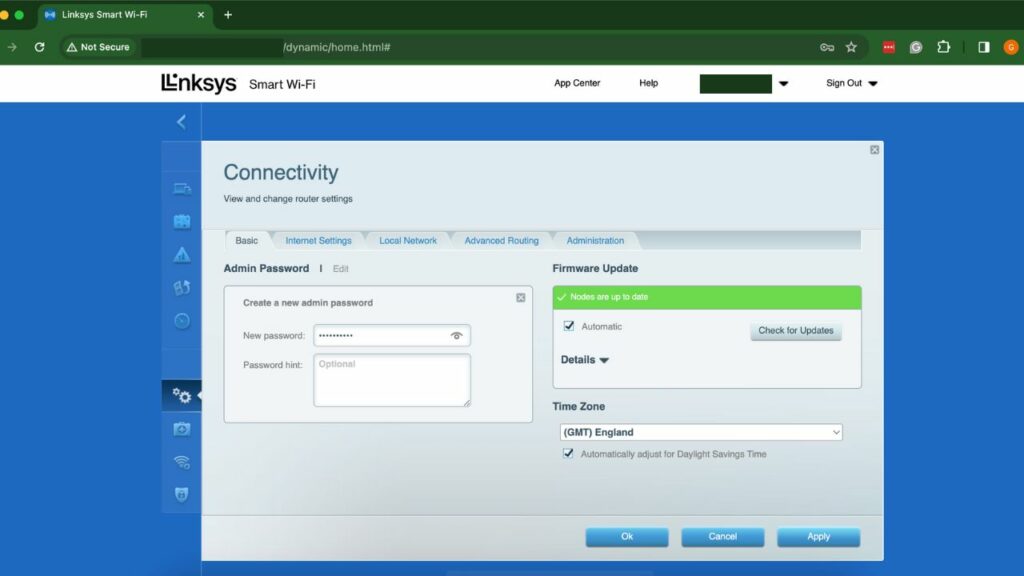
How to Change Your Wifi Password: A Step-by-step Guide
Are you tired of using a default WiFi password that’s easily accessible by others? Do you want to add an extra layer of security to your home network? Look no further! In this article, we’ll guide you through the process of changing your WiFi password on various modem brands, including TIM.
Why Change Your Wifi Password?
Changing your WiFi password is essential for maintaining a secure home network. A default password can be easily guessed or accessed by others, putting your personal data and online activities at risk. By changing your password regularly, you’ll ensure that only authorized devices can access your network.
Preliminary Operations: Accessing The Router
Before we dive into the step-by-step guide, let’s cover some preliminary operations:
- Make sure your computer is connected to the router via WiFi or Ethernet.
- Open a web browser and type in the address bar (usually 192.168.0.1 Or 192.168.1.1).
- Log in using the admin username and password, which are usually printed on the underside of the modem or found in the user manual.
Step-by-step Guide: Changing Your Wifi Password
Tim Hub+ Technicolor Router
- Log in to your router’s administrative panel.
- Click on the “Wireless” icon located at the top of the screen.
- Select the network you want to change (e.G., 2.4 GHz or 5 GHz).
- Click on the “Access Point” section.
- Enter a new password in the “Wireless Password” field.
- Click “OK” to save the changes.
Tim Hub Classic Router
- Log in to your router’s administrative panel.
- Click on the “Wireless” icon located at the top of the screen.
- Select the network you want to change (e.G., 2.4 GHz or 5 GHz).
- Click on the “Configuration” section.
- Enter a new password in the “SSID” field.
- Click “Apply” to save the changes.
Tim Smart Modem
- Log in to your router’s administrative panel using the http://Modemtelecom address.
- Select the network you want to change (e.G., 2.4 GHz or 5 GHz).
- Click on the “Wi-Fi Settings” section.
- Enter a new password in the “Wireless Password” field.
- Click “Save” to save the changes.
Other Modem Brands
If you have a different modem brand, such as FRITZ!Box 7590 or Alice Gate VoIP 2 Plus Wi-Fi, follow these steps:
- FRITZ!Box 7590: Access the router’s administrative panel and click on the “Wi-Fi” section. Select the network you want to change and enter a new password in the “Wireless Password” field.
- Alice Gate VoIP 2 Plus Wi-Fi: You cannot change the WiFi password directly on this modem. You can only use the password associated with the inserted SIM card.
Using The Tim Modem App
If you have a smartphone, you can download the TIM Modem app to change your WiFi password:
- Install the app from the Google Play Store or Apple App Store.
- Log in using your modem’s credentials.
- Select the network you want to change (e.G., 2.4 GHz or 5 GHz).
- Enter a new password in the “Password” field.
- Click “Proceed” to save the changes.
Recovering The Router’s IP Address
If you need to access your router’s administrative panel, follow these steps:
- Android: Go to Settings > Network and Internet > Wi-Fi. Tap on the icon corresponding to the network name and select “Advanced.”
- IOS: Open Settings > Wi-Fi. Tap on the icon corresponding to the network name and select “Router.”
Conclusion
Changing your WiFi password is a simple process that can be completed in just a few steps. By following this guide, you’ll ensure that only authorized devices can access your home network, protecting your personal data and online activities.
Frequently Asked Questions (FAQs)
Q: Why do I need to change my WiFi password?
A: A default password can be easily guessed or accessed by others, putting your personal data and online activities at risk.
Q: How often should I change my WiFi password?
A: It’s recommended to change your password every 3-6 months to maintain maximum security.
Q: Can I use the same password for all devices connected to my network?
A: No, it’s recommended to use a different password for each device or group of devices to maintain maximum security.
Q: What happens if I forget my WiFi password?
A: You can recover your password by accessing your router’s administrative panel and resetting the password.
Q: Can I change my WiFi password using a computer?
A: Yes, you can access your router’s administrative panel using a computer connected to the network via Ethernet or WiFi.
Q: How do I know if my modem is secure?
A: Check if your modem has WPA2 encryption enabled and if your password is strong (at least 12 characters).
Q: Can I use a different type of encryption for my WiFi connection?
A: Yes, you can choose between WPA2-PSK or WEP encryption.
References
- TIM’s official website
- Router manufacturers’ websites
Note: This article provides general information and may not be applicable to all modem brands and models. Always consult the user manual or manufacturer’s website for specific instructions on changing your WiFi password.


