
How to Add Music to Your Snapchat Stories And Snaps
Are you tired of having boring Snapchat stories and snaps? Do you want to make them more engaging and fun? Adding music to your Snapchat content is a great way to do just that! In this article, we’ll show you how to add music to your Snapchat stories and snaps using the app’s built-in features.
What You Need to Know Before Getting Started
Before we dive into the steps, it’s essential to know that adding music to your Snapchat content requires an active internet connection. Also, make sure you have the latest version of the Snapchat app installed on your device.
How to Add Music to Your Snapchat Story
To add music to your Snapchat story, follow these simple steps:
- Open The Snapchat App: Launch the Snapchat app on your device.
- Create a New Story: Tap on the + button at the top left corner of the screen to create a new story.
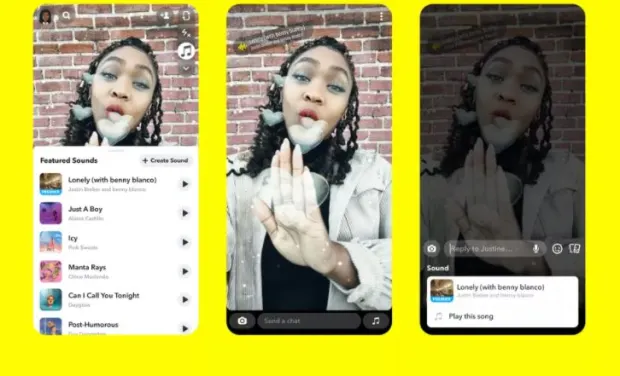
- Access The Sounds Section: Tap on the musical note icon in the bottom right corner of the screen to access the Sounds section.
- Choose a Song: Browse through the available songs and choose one that you like.
- Add The Song to Your Story: Tap on the song you’ve chosen, and it will be added to your story.
How to Add Music to Your Snapchat Snap
Adding music to your Snapchat snap is similar to adding music to your story. Here’s how:
- Open The Snapchat App: Launch the Snapchat app on your device.
- Take a Photo or Record a Video: Take a photo or record a video using the camera feature.
- Access The Sounds Section: Tap on the musical note icon in the bottom right corner of the screen to access the Sounds section.
- Choose a Song: Browse through the available songs and choose one that you like.
- Add The Song to Your Snap: Tap on the song you’ve chosen, and it will be added to your snap.
How to Create a Personalized Sound For Your Snapchat Content
If you want to create a personalized sound for your Snapchat content, follow these steps:
- Access The Sounds Section: Tap on the musical note icon in the bottom right corner of the screen to access the Sounds section.
- Tap on “My Sounds”: Tap on “My sounds” at the top of the screen to access your personal sounds.
- Create a New Sound: Tap on the + button at the top right corner of the screen to create a new sound.
- Record Your Sound: Use the microphone feature to record your sound.
- Save Your Sound: Once you’ve recorded and saved your sound, it will be added to your list of personal sounds.
How to Edit And Adjust Your Sound
If you want to edit or adjust your sound after adding it to your Snapchat content, here’s how:
- Tap on The Sound Icon: Tap on the sound icon in the bottom right corner of the screen.
- Adjust The Volume: Use the two cursors at the top of the screen to adjust the volume and duration of your sound.
- Save Your Changes: Once you’ve made the necessary adjustments, tap on the “Save” button to save your changes.
Frequently Asked Questions
Here are some frequently asked questions about adding music to Snapchat:
- Can I Add my Own Music to Snapchat?
Yes, you can add your own music to Snapchat by creating a personalized sound using the app’s features. - How do I Edit or Adjust my Sound After Adding it to my Snapchat Content?
To edit or adjust your sound, tap on the sound icon and use the two cursors at the top of the screen to adjust the volume and duration. - Can I Add Music to a Snapchat Story or Snap From my History?
Yes, you can add music to a Snapchat story or snap from your history by accessing the Sounds section and choosing a song.
Conclusion
Adding music to your Snapchat content is a great way to make it more engaging and fun. By following these simple steps, you can add music to your stories and snaps using the app’s built-in features. Happy snapping!


