
Accessing The Bios: A Guide For Windows Users
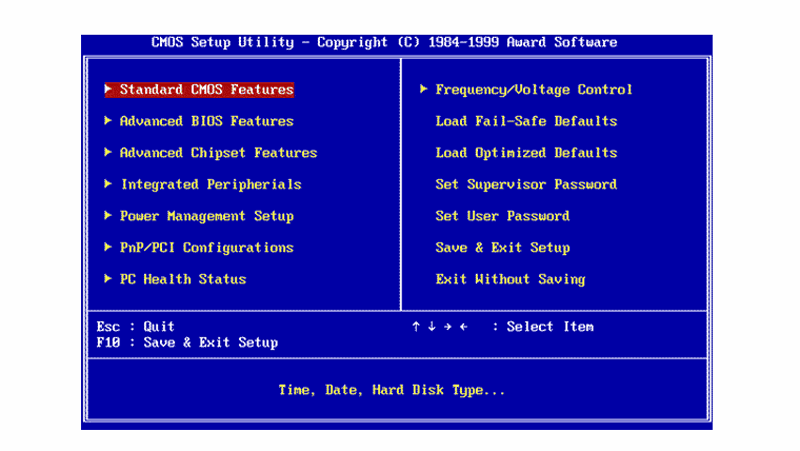
As a computer user, you may have wondered how to access the Basic Input/Output System (BIOS) or Unified Extensible Firmware Interface (UEFI) on your device. The BIOS is a crucial part of your computer’s firmware that controls the interaction between the operating system and hardware components. In this article, we’ll explore the different methods for accessing the BIOS on various Windows platforms.
What is The Bios?
The BIOS is a software program stored in a chip on the motherboard that contains instructions for booting up the computer and interacting with hardware components. It’s responsible for detecting and configuring peripherals, such as keyboards, mice, and monitors. The UEFI, which has replaced traditional BIOS on modern systems, offers improved security features and support for newer technologies like touchscreens and larger storage capacities.
Accessing The Bios on Windows 10
If you’re running Windows 10, accessing the BIOS is relatively straightforward. There are two methods:
Method 1: Using The Settings App
To access the BIOS using the Settings app:
- Click on the Start button (Windows logo) and select Settings.
- In the System tab, click on Update & Security.
- Select Recovery from the left-hand menu.
- Click on Restart now under Advanced startup.
- Your computer will restart and display a menu with options for troubleshooting and recovery.
- Choose Troubleshoot > Advanced Options > UEFI Firmware Settings.
Method 2: Using The Command Prompt
To access the BIOS using the Command Prompt:
- Press the Windows key + R to open the Run dialog box.
- Type “cmd” and press Enter to open the Command Prompt as an administrator.
- Type “shutdown /r /f /t 0” (no quotes) and press Enter.
- Your computer will restart, and you’ll see the BIOS setup screen.
Accessing The Bios on Windows 11
If you’re running Windows 11, accessing the BIOS is similar to Windows 10. However, there’s a slight difference in using the Settings app:
- Click on the Start button (Windows logo) and select Settings.
- In the System tab, click on Recovery.
- Select Restart now under Advanced startup.
- Your computer will restart, and you’ll see the BIOS setup screen.
Accessing The Bios on Other Device Manufacturers
If you’re using a device from another manufacturer, such as HP, Lenovo, ASUS, MSI, or Acer, follow these steps:
- HP: Turn off your device, press the Power button, and immediately press the F1 key. If that doesn’t work, try pressing the F10 key.
- Lenovo: Shut down your device, press the Power button, and hold it for a few seconds until you see the BIOS setup screen.
- Asus: Turn off your device, press the Power button, and immediately press the F2 or Del key. If that doesn’t work, try pressing the F9 or Esc key.
- Msi: Press the Power button, then repeatedly press the Cancel key (usually labeled as Canc).
- Acer: Shut down your device, press the Power button, and hold it for a few seconds until you see the BIOS setup screen.
Conclusion
Accessing the BIOS on Windows devices is relatively straightforward. Whether you’re using Windows 10 or 11, or other manufacturer-specific methods, following these steps will help you configure your computer’s hardware settings. Remember to always save any changes before exiting the BIOS setup screen to avoid potential issues with your device’s configuration.
Faqs
- What is The Difference Between Bios And Uefi?
BIOS (Basic Input/Output System) is an older firmware interface, while UEFI (Unified Extensible Firmware Interface) is a newer standard that offers improved security features and support for modern technologies. - How do I Access The Bios on my Windows 10 Device?
You can use either Method 1 or Method 2 from above to access the BIOS on your Windows 10 device. - I’m Using Windows 11, How do I Access The Bios?
Follow the steps outlined in the “Accessing the BIOS on Windows 11” section for instructions on accessing the BIOS on your Windows 11 device. - What if my Device Doesn’t Have a Uefi Firmware Interface?
If your device still uses traditional BIOS instead of UEFI, you can usually access it by pressing specific keys during startup, such as F2 or Del. - Can I Modify Settings in The Bios or Uefi?
Yes, most modern devices allow you to modify certain settings within the BIOS or UEFI interface, such as boot order, time and date, and other hardware-specific configurations. - Will Accessing The Bios Affect my Operating System?
No, accessing the BIOS will not affect your operating system. However, making changes to the BIOS or UEFI settings can potentially cause issues with your device’s configuration. - How do I Save Changes in The Bios or Uefi Interface?
After making any changes within the BIOS or UEFI interface, be sure to save them by exiting and restarting your computer.


