
Synchronizing Contacts: A Step-by-step Guide
Are you tired of having duplicate contacts across different devices? Do you want to keep your contact list up-to-date without the hassle of manual updates? Look no further! In this article, we will guide you through the process of synchronizing your Google Contacts with other email services and operating systems.
Why Synchronize Your Contacts?
Synchronizing your contacts is an excellent way to ensure that all your devices have access to the same contact list. This means no more duplicates or outdated information. By syncing your contacts, you can:
- Keep your contact list up-to-date across multiple devices
- Avoid duplicate contacts and unnecessary entries
- Simplify the process of managing your contacts
Synchronizing Contacts With Outlook
To sync your Google Contacts with Outlook, follow these steps:
- Export Your Google Contacts: Log in to your Google account and access the Contacts app. Click on the three dots in the top right corner and select “Export”. Choose the CSV format and download the file.
- Import The File Into Outlook: Open Outlook and click on the “File” tab. Select “Open & Export” and then choose “Import from another program or file”. Select the CSV file you downloaded earlier and follow the prompts to import it.
Synchronizing Contacts With Thunderbird
To sync your Google Contacts with Thunderbird, follow these steps:
- Export Your Google Contacts: Log in to your Google account and access the Contacts app. Click on the three dots in the top right corner and select “Export”. Choose the CSV format and download the file.
- Import The File Into Thunderbird: Open Thunderbird and click on the menu icon. Select “Tools” and then choose “Account Settings”. Click on the “Synchronize” tab and select the CSV file you downloaded earlier.
Synchronizing Contacts With Windows
To sync your Google Contacts with Windows, follow these steps:
- Export Your Google Contacts: Log in to your Google account and access the Contacts app. Click on the three dots in the top right corner and select “Export”. Choose the CSV format and download the file.
- Import The File Into Windows: Open the Settings app and click on the “Accounts” icon. Select the account you want to sync with and toggle the switch next to “Contacts” to turn it on.
Synchronizing Contacts With Macos
To sync your Google Contacts with macOS, follow these steps:
- Export Your Google Contacts: Log in to your Google account and access the Contacts app. Click on the three dots in the top right corner and select “Export”. Choose the VCF format and download the file.
- Import The File Into Macos: Open Contacts and click on the menu icon. Select “File” and then choose “Import…”. Select the VCF file you downloaded earlier and follow the prompts to import it.
Synchronizing Contacts With Android
To sync your Google Contacts with Android, follow these steps:
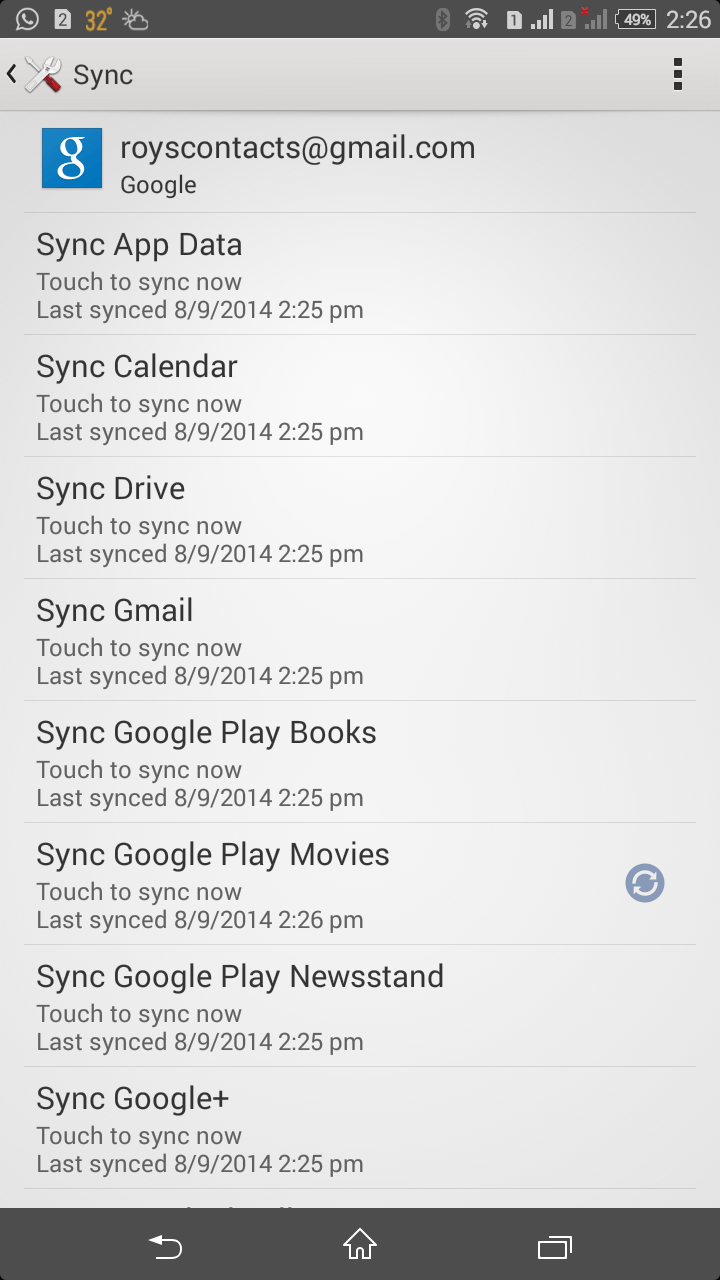
- Check Your Account Settings: Go to Settings > Users & accounts > Google account. Make sure that the switch next to “Contacts” is turned on.
- Export Your Google Contacts: Log in to your Google account and access the Contacts app. Click on the three dots in the top right corner and select “Export”. Choose the CSV format and download the file.
Synchronizing Contacts With Iphone
To sync your Google Contacts with iPhone, follow these steps:
- Add Your Google Account to Iphone: Go to Settings > Contacts > Add account > Google. Log in to your Google account and toggle the switch next to “Contacts” to turn it on.
- Export Your Google Contacts: Log in to your Google account and access the Contacts app. Click on the three dots in the top right corner and select “Export”. Choose the CSV format and download the file.
Synchronizing Contacts With Icloud
To sync your Google Contacts with iCloud, follow these steps:
- Export Your Google Contacts: Log in to your Google account and access the Contacts app. Click on the three dots in the top right corner and select “Export”. Choose the VCF format and download the file.
- Import The File Into Icloud: Open iCloud and click on the Contacts icon. Click on the “+” icon and select “Import contacts”. Select the VCF file you downloaded earlier and follow the prompts to import it.
Conclusion
Synchronizing your Google Contacts with other email services and operating systems is a simple process that can save you time and effort in managing your contact list. By following these steps, you can ensure that all your devices have access to the same up-to-date contact list.
Frequently Asked Questions (FAQs)
- Q: How do I Sync my Google Contacts With Outlook?
A: To sync your Google Contacts with Outlook, export your contacts from Google and import them into Outlook using the CSV format. - Q: Can I Sync my Google Contacts With Multiple Devices?
A: Yes, you can sync your Google Contacts with multiple devices by following the steps outlined in this article. - Q: How do I Remove Duplicate Contacts After Syncing?
A: You can use a dedicated app or service to remove duplicate contacts and keep your contact list up-to-date.


