
Finding a Lost Phone With Google: A Step-by-step Guide
Are you worried about losing your phone or having it stolen? With the help of Google, finding a lost phone can be easier than ever. In this article, we will guide you through the steps to locate and recover your device using various methods.
Getting Started
Before starting the process, make sure that your phone is:
- Lit and connected to the internet
- Associated with a Google account (for Android devices) or has been associated with an Apple ID (for iPhone)
- Has the location services enabled (Settings > Privacy > Location)
If these conditions are met, you can proceed to locate your device using one of the methods outlined below.
Method 1: Using Google Account
To find your phone, go to the Google account website on a computer or another device connected to the internet. Sign in with your Google account credentials and follow these steps:
Step 1: Access The Google Account Website
- Go to the Google account website (myaccount.Google.Com)
- Sign in with your Google account credentials
Step 2: Find Your Device
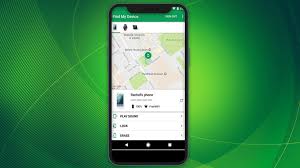
- Click on the “Find my device” option
- Select the device you want to locate from the list of available devices
- You will see the last known location of your device on a map
Step 3: Update Location Information
- Click on the arrow icon next to the device’s name to update its location information
- You can also send a loud beep sound to your phone by clicking on the “Ring” option
Step 4: Block or Reset Your Device (Optional)
- If you cannot locate your device, you may want to block it or reset it remotely
- Click on the “Block this device” option to prevent anyone from accessing your data
- Be cautious when resetting your device, as it will erase all data and settings
Method 2: Using Google Search
You can also use Google search to find your phone by typing in specific keywords. Try searching for:
- “Find my phone”
- “Find my device”
- “Where is my phone?”
Follow the steps outlined above to locate your device.
Method 3: Using Google Assistant
If you have an Android device, you can also use the Google Assistant to find your phone. Say the following phrases to activate the feature:
- “Hey Google, find my phone”
- “Do a loud beep on my phone”
The Google Assistant will locate your device and send a loud beep sound to it.
Conclusion
Finding a lost phone with Google can be easy and convenient. Make sure you follow the steps outlined above and take necessary precautions to prevent unauthorized access to your device. If you have any further questions or concerns, please refer to our FAQs section below.
Faqs:
- Q: What should I do if my phone is lost or stolen?
A: Follow the steps outlined in this article to locate and recover your device. - Q: Do I need a Google account to find my device?
A: Yes, you need a Google account associated with your device to use the “Find my device” feature. - Q: Can I block or reset my device remotely?
A: Yes, you can block or reset your device using the “Find my device” feature on the Google account website. - Q: Is the Google Assistant available on all devices?
A: The Google Assistant is available on Android and iOS devices, but some features may not be compatible with all devices. - Q: How long does it take to locate my device using the “Find my device” feature?
A: The time taken to locate your device depends on various factors, such as network coverage and device settings. - Q: Can I use the Google Assistant to find an iPhone?
A: Yes, you can use the Google Assistant to find an iPhone, but some features may not be compatible with all iOS versions. - Q: What happens if my phone is turned off or out of battery when using the “Find my device” feature?
A: If your phone is turned off or out of battery, it will not be locatable using the “Find my device” feature. - Q: Can I recover data from a lost or stolen device?
A: No, unfortunately, you cannot recover data from a device that has been reset or erased remotely.
Note: The above article is for informational purposes only and may contain affiliate links.


