
How to Clean Your Computer of Viruses And Unnecessary Files
Are you tired of dealing with viruses and unnecessary files on your computer? Look no further! In this article, we will guide you through the process of cleaning your computer of these pesky problems.
The Importance of Cleaning Your Computer
Cleaning your computer is essential for maintaining its performance and security. Viruses and unnecessary files can slow down your computer, cause errors, and even compromise your personal data. By regularly cleaning your computer, you can ensure that it runs smoothly and efficiently.
Using a Good Antivirus
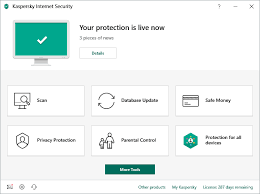
One of the most effective ways to clean your computer is by using a good antivirus program. A good antivirus will scan your computer for viruses and other malware, and remove them if found. There are many antivirus programs available on the market, so be sure to choose one that suits your needs.
Windows Defender: The Built-in Antivirus
If you’re running Windows 7 or later, you may not need to install a separate antivirus program. Windows Defender is the built-in antivirus software that comes with Windows, and it’s quite effective in detecting and removing viruses.
How to Use Windows Defender
To check if Windows Defender is active on your computer:
- Click on the Start button.
- Type “Windows Defender” in the search bar.
- Click on the “Safety of Windows” option.
- Check if Windows Defender is active by looking for a green shield icon.
Using a Rescue Disk
In some cases, your computer may be infected with viruses that can’t be removed by an antivirus program. In such cases, you may need to use a rescue disk to clean your computer.
What is a Rescue Disk?
A rescue disk is a software tool that allows you to boot your computer from a separate device, such as a USB drive or DVD. This allows you to scan and remove viruses without them being able to interfere with the process.
How to Use Kaspersky Rescue Disk
To use Kaspersky Rescue Disk:
- Download the Kaspersky Rescue Disk software from their website.
- Insert a USB drive or DVD into your computer.
- Copy the ISO file onto the USB drive or DVD.
- Boot your computer from the USB drive or DVD.
- Select the English language option and choose Kaspersky Rescue Disk.
- Select the scan option to detect and remove viruses.
Scanning Your Computer Online
If you don’t have access to a rescue disk, you can also use online scanning tools to check for viruses on your computer.
What Are Virustotal And Eset?
VirusTotal is an online service that allows you to upload files for scanning by multiple antivirus engines. This can help you determine if a file is safe or not.
Eset is another online tool that allows you to scan your computer for viruses without the need for software installation.
Restoring Your Computer
If all else fails, and your computer is severely infected with viruses, you may need to restore it to its original state.
How to Restore Your Windows 10 or 11 Computer
To restore your Windows 10 or 11 computer:
- Click on the Start button.
- Select the Settings option.
- Choose System from the menu.
- Select Recovery from the options.
- Follow the prompts to select the restore option.
Cleaning Your Mac
If you have a Mac, you can use CleanMyMac X to clean your computer of viruses and unnecessary files.
What is Cleanmymac X?
CleanMyMac X is a software tool that allows you to scan and remove viruses, as well as other unwanted files from your Mac.
How to Use Cleanmymac X
To use CleanMyMac X:
- Download the software from their website.
- Launch the software and select the scanning option.
- Follow the prompts to select which areas of your Mac you want to scan.
- Review the results and delete any unwanted files or viruses.
Conclusion
Cleaning your computer is an essential task that can help maintain its performance and security. By using a good antivirus, rescue disk, or online scanning tools, you can remove viruses and unnecessary files from your computer. Remember to always backup your data before attempting to clean your computer, and consider seeking professional help if you’re unsure about the process.
Frequently Asked Questions
- What is The Best Antivirus Software?
The best antivirus software depends on your specific needs and preferences. Some popular options include Kaspersky, Norton, and Avast. - How do I Know if my Computer Has a Virus?
You can check for viruses by running a full scan with your antivirus software or using online scanning tools such as VirusTotal. - Can I Use a Rescue Disk to Clean my Computer?
Yes, you can use a rescue disk to clean your computer in case of severe infections. - How do I Restore my Windows 10 or 11 Computer?
To restore your Windows 10 or 11 computer, go to Settings > System > Recovery and follow the prompts. - What is Cleanmymac X?
CleanMyMac X is a software tool that allows you to scan and remove viruses and other unwanted files from your Mac. - How do I Use Cleanmymac X?
To use CleanMyMac X, download the software, launch it, select the scanning option, and follow the prompts. - Can I Use Online Scanning Tools to Check For Viruses on my Computer?
Yes, you can use online scanning tools such as VirusTotal or Eset to check for viruses on your computer. - What Should I do if All Else Fails And my Computer is Severely Infected With Viruses?
If all else fails, consider seeking professional help from a computer technician or IT specialist.


