
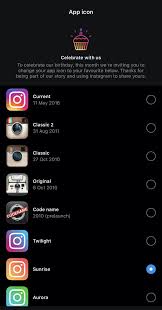
The Ultimate Guide to Customizing Your Instagram Icon on Android And Ios
Are you tired of the same old Instagram icon on your home screen? Do you want to give your social media experience a personalized touch? Look no further! In this article, we’ll show you how to customize your Instagram icon on both Android and iOS devices.
Why Customize Your Instagram Icon?
Before we dive into the steps, let’s talk about why customizing your Instagram icon is a great idea. Not only does it add a personal touch to your social media experience, but it also allows you to differentiate yourself from others who may have the default icon on their home screen.
Android: Customizing Your Instagram Icon
If you’re an Android user, there are several ways to customize your Instagram icon. Here are the steps:
Using Icon Changer Free
One of the easiest ways to change your Instagram icon is by using an app called Icon Changer Free. This app allows you to customize the appearance of all icons on your home screen, including the Instagram icon.
- Download and install Icon Changer Free from the Google Play Store.
- Launch the app and select the icon that you want to change (in this case, the Instagram icon).
- Choose a new icon from the gallery or select one from a pre-made pack of icons.
- Customize the appearance of the icon by adjusting its size, color, and style.
- Save your changes and apply them to the Instagram icon.
Using Nova Launcher
Another way to customize your Instagram icon is by using a custom launcher called Nova Launcher. This launcher allows you to personalize the look and feel of your home screen, including the icons.
- Download and install Nova Launcher from the Google Play Store.
- Launch the app and select the “Appearance” option.
- Choose a new icon pack or select one from a pre-made pack of icons.
- Customize the appearance of the icon by adjusting its size, color, and style.
- Save your changes and apply them to the Instagram icon.
Ios: Customizing Your Instagram Icon
If you’re an iOS user, customizing your Instagram icon is a bit more complicated. However, it’s still possible to do so using a few different methods.
Using The Command App
One way to customize your Instagram icon on iOS is by using an app called Command. This app allows you to create shortcuts and customize the appearance of your home screen icons.
- Download and install Command from the App Store.
- Launch the app and select the “Shortcuts” option.
- Create a new shortcut by selecting the “Add” button.
- Choose the Instagram icon as the target of the shortcut.
- Customize the appearance of the icon by adjusting its size, color, and style.
Using The Bookmarks App
Another way to customize your Instagram icon on iOS is by using the Bookmarks app. This app allows you to customize the appearance of your home screen icons, including the Instagram icon.
- Download and install Bookmarks from the App Store.
- Launch the app and select the “Customize” option.
- Choose the Instagram icon as the target of the customization.
- Customize the appearance of the icon by adjusting its size, color, and style.
Tips And Tricks
Here are a few tips and tricks to keep in mind when customizing your Instagram icon:
- Be Careful Not to Delete The Original Icon: When customizing your Instagram icon, be careful not to delete the original icon. This can cause problems with the app itself.
- Use a High-quality Image: When choosing a new icon, use a high-quality image that is clear and well-defined.
- Experiment With Different Styles: Don’t be afraid to experiment with different styles and designs for your Instagram icon.
Conclusion
Customizing your Instagram icon on Android and iOS devices is a great way to personalize your social media experience. By following the steps outlined in this article, you can give your Instagram icon a unique touch that sets it apart from others. Remember to be careful not to delete the original icon and use high-quality images when choosing a new one.
Frequently Asked Questions (FAQs)
Here are some frequently asked questions about customizing your Instagram icon:
- Q: Can I Customize my Instagram Icon on Both Android And Ios?
A: Yes, you can customize your Instagram icon on both Android and iOS devices. - Q: Do I Need to Download a Third-party App to Customize my Instagram Icon?
A: On Android, yes, you will need to download a third-party app to customize your Instagram icon. On iOS, you can use built-in apps like Command or Bookmarks. - Q: Can I Customize The Appearance of my Instagram Icon?
A: Yes, you can customize the appearance of your Instagram icon by adjusting its size, color, and style.
We hope this article has been helpful in showing you how to customize your Instagram icon on both Android and iOS devices. Happy customizing!


