
How to Restore Whatsapp Backup
Are you a WhatsApp user who has just installed the application on your new smartphone but found that the conversations from your old phone are nowhere to be found? Don’t worry! This article will guide you through the process of restoring your WhatsApp backup.
Why is my Whatsapp Chat Empty?
The first thing you need to understand is why your WhatsApp chat might be empty. The reason could be due to a simple problem that can be solved with just a few taps on your smartphone screen. In this article, we will show you how to restore your WhatsApp backup and retrieve all your conversations.
How to Restore Whatsapp Backup on Android
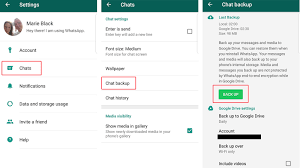
To restore your WhatsApp backup on an Android device, follow these steps:
- First, make sure that the old smartphone has been backed up with Google Drive or iCloud.
- Next, install WhatsApp on the new smartphone and associate it with the same phone number and Google account used for the backup.
- During the initial configuration of WhatsApp, select the option to restore conversations from the backup.
- If prompted, enter your password to access the backup.
How to Restore Whatsapp Backup on Iphone
To restore your WhatsApp backup on an iPhone, follow these steps:
- First, make sure that the old smartphone has been backed up with iCloud.
- Next, install WhatsApp on the new iPhone and associate it with the same phone number and Apple ID used for the backup.
- During the initial configuration of WhatsApp, select the option to restore conversations from the backup.
How to Restore Whatsapp Backup Using Wondershare Mobiletrans
If you want to transfer your WhatsApp data to a new device or computer, you can use Wondershare MobileTrans. This application allows you to transfer data between devices and even create backups on your PC.
Why is My Whatsapp Backup Not Restoring?
If your WhatsApp backup is not restoring, there could be several reasons why this might be happening. Here are some possible causes:
- Incorrect Phone Number or Account: Make sure that the phone number and account associated with your new device match those used for the backup.
- Backup Encryption: If you have encrypted your backup with a password, ensure that you enter it correctly when prompted during the restoration process.
- Data Corruption: Data corruption can occur if there are issues with the backup file itself. Try deleting and reinstalling WhatsApp to see if this resolves the issue.
Frequently Asked Questions
Here are some frequently asked questions about restoring WhatsApp backups:
- Q: Can I transfer my WhatsApp data from an Android device to an iPhone?
A: Yes, you can use Wondershare MobileTrans to transfer your WhatsApp data between devices. - Q: What if I have encrypted my backup with a password?
A: If you have encrypted your backup, ensure that you enter the correct password when prompted during the restoration process. - Q: Why is my WhatsApp chat not restoring?
A: There could be several reasons why this might be happening. Try checking for issues with the phone number or account associated with your new device and see if data corruption has occurred.
Conclusion
Restoring a WhatsApp backup can seem like a daunting task, but it’s actually quite simple once you know how to do it. With these steps, you should now have all your conversations back where they belong.


