
How to Download Whatsapp on Your Mobile Device
Are you tired of using multiple messaging apps on your phone? Do you want to communicate with your friends and family more easily? Look no further than WhatsApp, the most popular messaging app in the world! In this article, we will guide you through the process of downloading WhatsApp on your mobile device.
What is Whatsapp?
WhatsApp is a free messaging app that allows you to send text messages, make voice and video calls, and share media with friends and family. It’s available for both Android and iOS devices, and can be accessed on multiple platforms, including desktop computers and tablets.
Why Download Whatsapp?
There are many reasons why you should download WhatsApp on your mobile device:
- Free Messaging: WhatsApp allows you to send text messages, make voice and video calls, and share media with friends and family without incurring any costs.
- Easy Communication: With WhatsApp, you can communicate with your friends and family more easily than ever before. You can send messages, make voice and video calls, and share media directly from the app.
- Multiple Platforms: WhatsApp is available on multiple platforms, including desktop computers and tablets, so you can access it wherever you go.
How to Download Whatsapp on Android
To download WhatsApp on your Android device, follow these steps:
- Open the Google Play Store app on your device.
- Tap on the search bar at the top of the screen.
- Type “WhatsApp” in the search bar and select the app from the results.
- Tap on the “Install” button to begin the download process.
- Wait for the download to complete before opening the app.
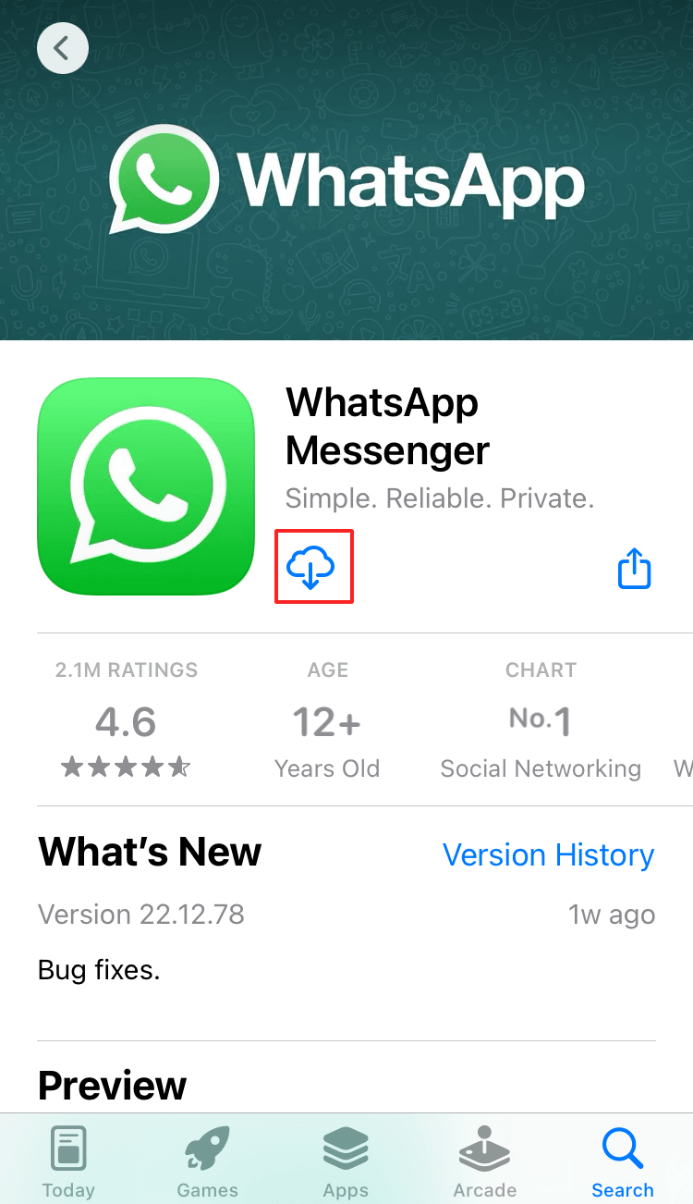
How to Download Whatsapp on Iphone
To download WhatsApp on your iPhone, follow these steps:
- Open the App Store app on your device.
- Tap on the search tab at the bottom of the screen.
- Type “WhatsApp” in the search bar and select the app from the results.
- Tap on the “Get” button to begin the download process.
- Wait for the download to complete before opening the app.
How to Download Whatsapp Web
To download WhatsApp Web, follow these steps:
- Open a web browser on your device (e.G., Google Chrome, Safari).
- Go to the official WhatsApp website (www.Whatsapp.Com).
- Click on the “WhatsApp Web” button at the top of the page.
- Scan the QR code with your phone’s camera to authenticate the connection.
- You will be logged in to WhatsApp Web and can start chatting.
How to Transfer Whatsapp From Android to Iphone
Transferring WhatsApp from Android to iPhone is a relatively straightforward process:
- Backup your WhatsApp chats on your Android device using Google Drive.
- Restore the backup on your new iPhone.
- Open WhatsApp on your iPhone and follow the prompts to set up the app.
- Log in with your phone number and confirm the transfer.
How to Transfer Whatsapp From Iphone to Android
Transferring WhatsApp from iPhone to Android is also a relatively straightforward process:
- Backup your WhatsApp chats on your iPhone using iCloud.
- Restore the backup on your new Android device.
- Open WhatsApp on your Android device and follow the prompts to set up the app.
- Log in with your phone number and confirm the transfer.
Conclusion
Downloading WhatsApp on your mobile device is a simple process that can be completed in just a few minutes. With its free messaging, easy communication, and multiple platforms, WhatsApp is an essential app for anyone who wants to stay connected with friends and family. Whether you’re switching from Android to iPhone or vice versa, transferring WhatsApp chats is also a relatively straightforward process.
Frequently Asked Questions (FAQs)
-
Q: Is Whatsapp Free?
A: Yes, WhatsApp is completely free to use.
2. Q: Can I Download Whatsapp on Multiple Platforms?A: Yes, WhatsApp is available on multiple platforms, including desktop computers and tablets.
3. Q: How do I Transfer Whatsapp From Android to Iphone?A: To transfer WhatsApp from Android to iPhone, backup your chats using Google Drive, restore the backup on your new iPhone, and log in with your phone number.
4. Q: Can I Download Whatsapp Web?A: Yes, you can download WhatsApp Web by scanning a QR code with your phone’s camera.
5. Q: How do I Transfer Whatsapp From Iphone to Android?A: To transfer WhatsApp from iPhone to Android, backup your chats using iCloud, restore the backup on your new device, and log in with your phone number.
Additional Tips And Tricks
- Always update your WhatsApp app to ensure you have the latest features and security patches.
- Use a strong password to protect your account.
- Be cautious when sharing personal information or media through WhatsApp.
- Consider using WhatsApp Web for more convenient messaging on desktop computers.


