
How to Download Movies From Prime Video on Pc, Mac, Smartphone, And Tablet
Are you tired of searching for ways to download movies from Prime Video without an internet connection? Look no further! In this article, we will guide you through the step-by-step process of downloading movies from Prime Video on your PC, Mac, smartphone, and tablet.
What You Need to Know Before Downloading Movies From Prime Video
Before we dive into the instructions, it’s essential to know that downloading content from Prime Video is only possible using their official applications. These apps are available for Windows 10 and macOS, as well as Android and iOS/iPadOS devices. Unfortunately, you cannot download movies from Prime Video using their web version.
Downloading Movies From Prime Video on PC
To download movies from Prime Video on your PC, follow these steps:
Step 1: Install The Prime Video Application
If you don’t have the Prime Video application installed on your Windows 10 or Windows 11 computer, go to the Microsoft Store and search for “Prime Video.” Click on the app icon, then click on the “Get” button to download and install it.
Step 2: Launch The Prime Video Application
Once the installation is complete, launch the Prime Video application. You will be prompted to log in to your Amazon account. If you don’t have an account, create one now.
Step 3: Search For Movies
In the Prime Video application, navigate to the “Home” section and search for movies using the search bar at the top of the screen. You can also browse through categories or use the “Find” feature to quickly locate a specific movie.
Step 4: Select Movie And Choose Quality
Once you find the movie you want to download, click on its poster and select the quality you prefer (SD, HD, or 4K). Then, choose the audio language from the menu options.
Step 5: Initiate Download
Click on the “Download” button to initiate the download process. You will be prompted to confirm your choice before the download begins.
Step 6: Access Downloaded Content
Once the download is complete, you can access the movie by navigating to the “Downloads” section in the Prime Video application.
Downloading Movies From Prime Video on Mac
To download movies from Prime Video on your Mac, follow these steps:
Step 1: Launch The Prime Video Application
Launch the Prime Video application on your macOS device. If you don’t have it installed, go to the App Store and search for “Prime Video.” Click on the app icon, then click on the “Get” button to download and install it.
Step 2: Log in to Amazon Account
Log in to your Amazon account within the Prime Video application. If you don’t have an account, create one now.
Step 3: Search For Movies
In the Prime Video application, navigate to the “Home” section and search for movies using the search bar at the top of the screen. You can also browse through categories or use the “Find” feature to quickly locate a specific movie.
Step 4: Select Movie And Choose Quality
Once you find the movie you want to download, click on its poster and select the quality you prefer (SD, HD, or 4K). Then, choose the audio language from the menu options.
Step 5: Initiate Download
Click on the “Download” button to initiate the download process. You will be prompted to confirm your choice before the download begins.
Step 6: Access Downloaded Content
Once the download is complete, you can access the movie by navigating to the “Downloads” section in the Prime Video application.
Downloading Movies From Prime Video on Smartphone And Tablet
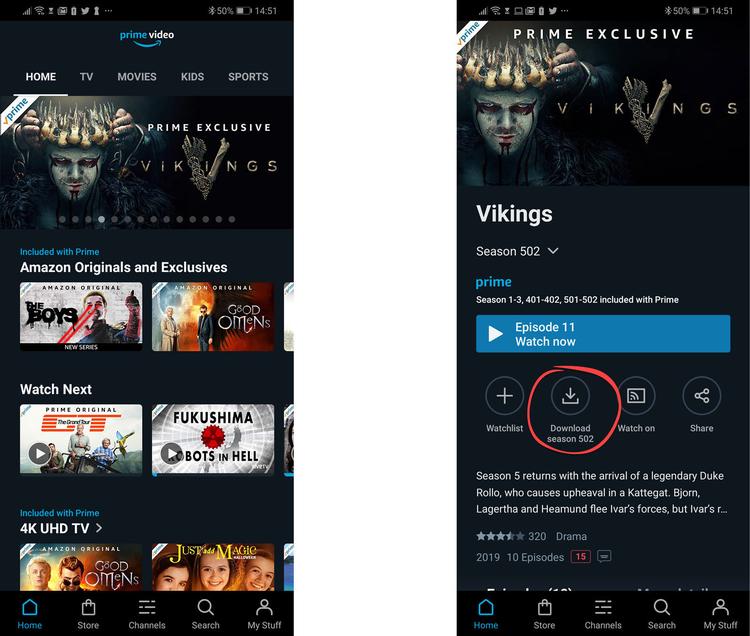
To download movies from Prime Video on your Android or iOS/iPadOS device, follow these steps:
Step 1: Install The Prime Video Application
If you don’t have the Prime Video application installed on your smartphone or tablet, go to the Google Play Store (for Android) or App Store (for iOS/iPadOS). Search for “Prime Video” and click on the app icon, then click on the “Install” button to download and install it.
Step 2: Launch The Prime Video Application
Once the installation is complete, launch the Prime Video application. You will be prompted to log in to your Amazon account. If you don’t have an account, create one now.
Step 3: Search For Movies
In the Prime Video application, navigate to the “Home” section and search for movies using the search bar at the top of the screen. You can also browse through categories or use the “Find” feature to quickly locate a specific movie.
Step 4: Select Movie And Choose Quality
Once you find the movie you want to download, click on its poster and select the quality you prefer (SD, HD, or 4K). Then, choose the audio language from the menu options.
Step 5: Initiate Download
Click on the “Download” button to initiate the download process. You will be prompted to confirm your choice before the download begins.
Step 6: Access Downloaded Content
Once the download is complete, you can access the movie by navigating to the “Downloads” section in the Prime Video application.
Tips And Settings For Downloading Movies From Prime Video
When downloading movies from Prime Video, keep the following tips in mind:
- Make sure to have enough storage space on your device before initiating a download.
- You can adjust the video quality settings within the Prime Video application to optimize your downloads.
- To delete specific downloaded content, navigate to the “Downloads” section and select the movie or TV show you want to remove.
By following these steps and tips, you’ll be able to enjoy your favorite movies from Prime Video without an internet connection. Happy streaming!
Faqs
Q: Can I download movies from Prime Video on my computer?
A: Yes, you can download movies from Prime Video using their official application on Windows 10 or macOS.
Q: Can I download movies from Prime Video on my smartphone and tablet?
A: Yes, you can download movies from Prime Video using their official application on Android and iOS/iPadOS devices.
Q: What video quality settings are available for downloads?
A: You can choose from SD, HD, or 4K video quality options when downloading movies from Prime Video.
Conclusion
Downloading movies from Prime Video is a convenient way to enjoy your favorite content without an internet connection. By following these step-by-step instructions and tips, you’ll be able to download movies on your PC, Mac, smartphone, and tablet in no time!


