
Accessing Microsoft Teams: A Comprehensive Guide
In today’s fast-paced work environment, collaboration is key to success. Microsoft Teams has emerged as a popular platform for teams to connect, share ideas, and work together seamlessly. However, accessing Microsoft Teams can be daunting, especially for those who are new to the service. In this article, we will guide you through the process of accessing Microsoft Teams on various devices, including PC, smartphone, tablet, and more.
Understanding Microsoft Teams
Microsoft Teams is a communication and collaboration platform that allows teams to work together in real-time. It provides features such as group chat, video conferencing, file sharing, and integration with other Microsoft Office tools like Word, Excel, and PowerPoint. With Microsoft Teams, you can create virtual meetings, collaborate on documents, and manage projects with ease.
Costs Associated With Microsoft Teams
Before we dive into the process of accessing Microsoft Teams, it’s essential to understand the costs associated with the service. Microsoft Teams offers a free version that allows users to chat, make video calls, share files (up to 2GB per user and 10GB per team), and work on documents directly within the platform. However, there are limitations to this free version, such as limited storage space and participant capacity.
Paid Plans For Microsoft Teams
Microsoft offers several paid plans for Microsoft Teams, including:
- Microsoft 365 Business Basic: This plan provides all the features of the free version, plus additional functionality like meeting recording and file sharing (up to 1TB). It’s priced at $4.20 Per user/month (annual subscription) + VAT.
- Microsoft 365 Business Standard: This plan offers all the features of Microsoft Teams, including integration with desktop versions of Outlook, Word, Excel, PowerPoint, OneNote, Access, and Publisher. It’s priced at $12.60 Per user/month (annual subscription) + VAT or $10.50 Per user/month (annual subscription) + VAT.
- Office 365 E3: This plan provides additional features like meeting recording, unlimited participant capacity, and file sharing without limits. It’s priced at $19.70 Per user/month + VAT.
Accessing Microsoft Teams on PC
To access Microsoft Teams on your PC, follow these steps:
- Download the Microsoft Teams client from the official website.
- Install the software by following the prompts.
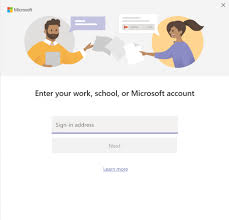
- Sign in to your account using your email address and password.
- Click “Get Started” to begin using Microsoft Teams.
Accessing Microsoft Teams on Smartphone And Tablet
To access Microsoft Teams on your smartphone or tablet, follow these steps:
- Download the Microsoft Teams app from the App Store (for iOS devices) or Google Play Store (for Android devices).
- Launch the app and sign in to your account using your email address and password.
- Tap “Get Started” to begin using Microsoft Teams.
Accessing Microsoft Teams as a Student
If you’re a student, you can access Microsoft Teams through your school’s Office 365 Education subscription. To do so:
- Sign in to the official Microsoft Teams website using your school email address and password.
- Click “Get Started” to begin using Microsoft Teams.
Accessing a Team on Microsoft Teams
To access a team on Microsoft Teams, follow these steps:
- Sign in to your account using your email address and password.
- Click on the “Teams” tab and select the team you want to join.
- Enter the code provided by the team creator or click on the “Join Team” button.
Accessing Microsoft Teams With a Code
To access Microsoft Teams using a code, follow these steps:
- Sign in to your account using your email address and password.
- Click on the “Teams” tab and select the “Take or create a team” option.
- Enter the code provided by the team creator in the “Insert code” field and click “Join Team”.
Accessing Microsoft Teams as a Guest
To access Microsoft Teams as a guest, follow these steps:
- Receive an invitation from a team creator via email.
- Sign in to your account using your email address and password.
- Click on the “Teams” tab and select the team you want to join.
- Enter the code provided by the team creator or click on the “Join Team” button.
Conclusion
Accessing Microsoft Teams is a straightforward process that can be completed on various devices, including PC, smartphone, tablet, and more. By understanding the costs associated with Microsoft Teams and choosing the right plan for your needs, you can unlock the full potential of this powerful collaboration platform. Whether you’re a student, business owner, or individual user, Microsoft Teams has something to offer everyone.
Frequently Asked Questions (FAQs)
- What is Microsoft Teams?
Microsoft Teams is a communication and collaboration platform that allows teams to work together in real-time.
- How do I Access Microsoft Teams?
You can access Microsoft Teams by signing in to the official website or downloading the app on your device.
- What Are The Costs Associated With Microsoft Teams?
Microsoft Teams offers a free version, as well as several paid plans, including Microsoft 365 Business Basic, Microsoft 365 Business Standard, and Office 365 E3.
- Can I Access Microsoft Teams Without an Office 365 Subscription?
Yes, you can access Microsoft Teams without an Office 365 subscription using the free version or a paid plan.
- How do I Join a Team on Microsoft Teams?
To join a team on Microsoft Teams, sign in to your account and click on the “Teams” tab. Select the team you want to join and enter the code provided by the team creator.
- Can I Access Microsoft Teams as a Guest?
Yes, you can access Microsoft Teams as a guest by receiving an invitation from a team creator via email and following the prompts to join the team.
- What Are The System Requirements For Microsoft Teams on Pc?
The system requirements for Microsoft Teams on PC include Windows 10 or later, 2GB RAM, and 4GB free disk space.
- How do I Uninstall Microsoft Teams From my Device?
To uninstall Microsoft Teams from your device, go to Settings > Apps & features > Microsoft Teams and click “Uninstall”.


