
How to Block a Number on Whatsapp: A Step-by-step Guide
Are you tired of receiving unwanted messages from a particular number on WhatsApp? Do you want to know how to block that person without having them disturb you again? Look no further! In this article, we will guide you through the process of blocking a number on WhatsApp using your smartphone and computer.
Why Block a Number on Whatsapp?
Before we dive into the step-by-step guide, let’s first understand why you might want to block a number on WhatsApp. Perhaps someone is sending you unwanted messages or spamming you with ads. Whatever the reason, blocking their number will prevent them from contacting you again, and you can finally have some peace of mind.
Blocking a Number on Whatsapp: A Step-by-step Guide
For Android Users
- Open Whatsapp: First, open the WhatsApp app on your Android smartphone.
- Go to The Chat Section: Next, go to the chat section where you want to block the number.
- Tap And Hold: Tap and hold on the name of the person you want to block until a menu appears.
- Select “Block”: From the menu, select the option that says “Block”.
- Confirm Block: A confirmation message will appear asking if you’re sure you want to block this contact. Tap “OK” to confirm.
For Iphone Users
- Open Whatsapp: First, open the WhatsApp app on your iPhone.
- Go to The Contact: Next, go to the contact whose number you want to block.
- Tap And Hold: Tap and hold on the name of the person until a menu appears.
- Select “Block”: From the menu, select the option that says “Block”.
- Confirm Block: A confirmation message will appear asking if you’re sure you want to block this contact. Tap “OK” to confirm.
For PC Users
- Open Whatsapp Web or Desktop App: First, open WhatsApp Web or the desktop app on your computer.
- Go to The Chat Section: Next, go to the chat section where you want to block the number.
- Click And Hold: Click and hold on the name of the person until a menu appears.
- Select “Block”: From the menu, select the option that says “Block”.
- Confirm Block: A confirmation message will appear asking if you’re sure you want to block this contact. Click “OK” to confirm.
How to Block a Number on Whatsapp Without Opening The Chat
If you don’t want to open the chat with the person whose number you want to block, you can follow these steps:
For Android Users
- Go to Settings: Open the WhatsApp app and go to Settings.
- Select “Account”: From the menu, select “Account”.
- Choose “Privacy”: Next, choose “Privacy”.
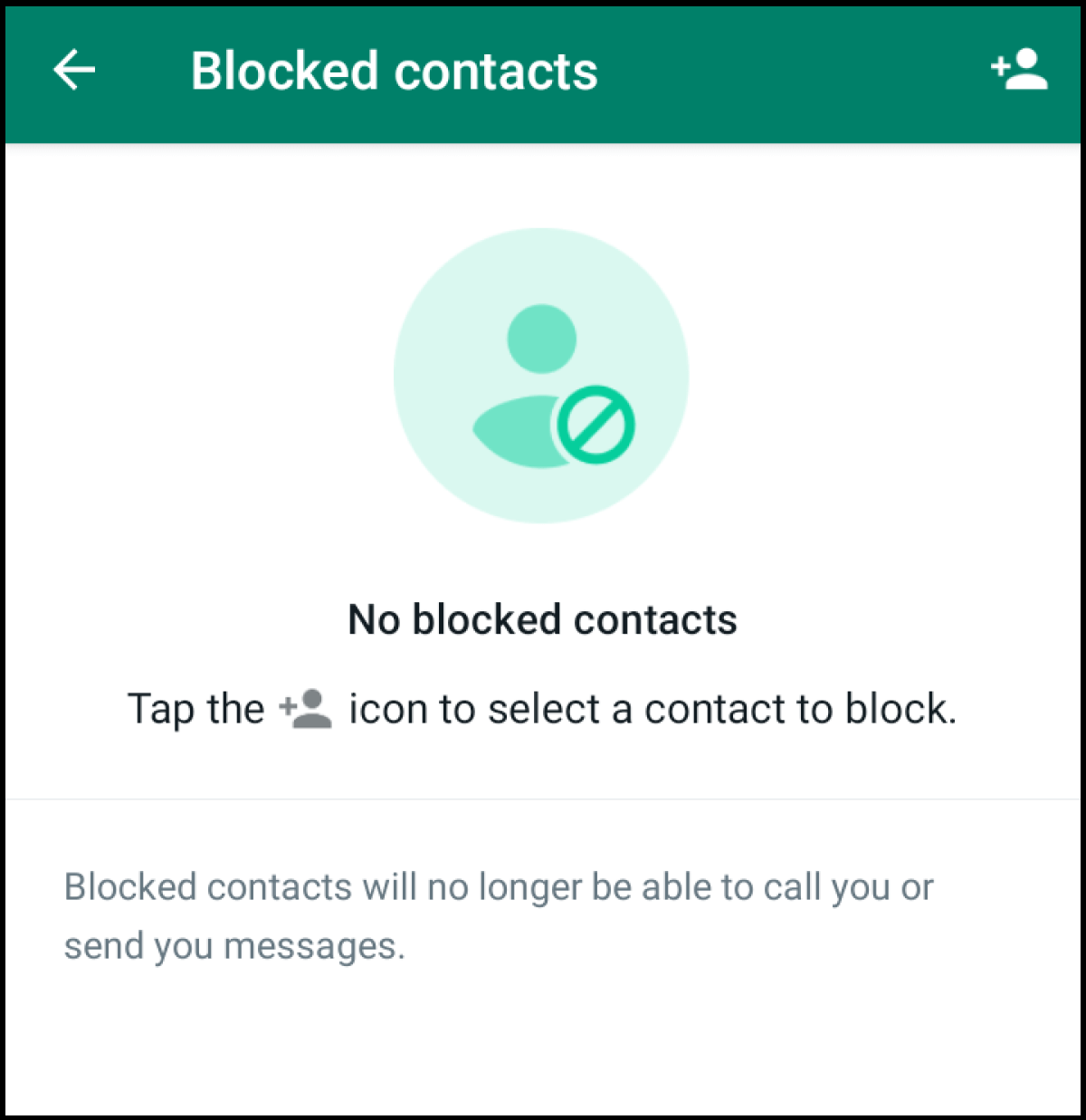
- Select “Contacts Blocked”: From the menu, select “Contacts blocked”.
- Add a Contact: Tap the icon of an omni to add a contact you want to block.
For Iphone Users
- Go to Settings: Open the WhatsApp app and go to Settings.
- Select “Account”: From the menu, select “Account”.
- Choose “Privacy”: Next, choose “Privacy”.
- Select “Blocked”: From the menu, select “Blocked”.
- Add a Contact: Tap the “+” icon to add a contact you want to block.
For PC Users
- Go to Settings: Open WhatsApp Web or desktop app and go to Settings.
- Select “Account”: From the menu, select “Account”.
- Choose “Privacy”: Next, choose “Privacy”.
- Select “Contacts Blocked”: From the menu, select “Contacts blocked”.
- Add a Contact: Click on the “+” icon to add a contact you want to block.
How to Block a Number on Whatsapp in a Group
Unfortunately, it’s not possible to block a single person within a group chat on WhatsApp. However, you can block them individually by following the steps above.
Why Can’t I Block a Number on Whatsapp Without Them Knowing?
While blocking someone on WhatsApp won’t send them a notification that they’ve been blocked, they may still be able to notice that their messages are not being delivered to you. This is because when someone blocks your number, they won’t receive any notifications or message delivery reports.
Conclusion
In this article, we have shown you how to block a number on WhatsApp using your smartphone and computer. Whether you want to avoid unwanted messages or prevent spamming, blocking a number can help you maintain your peace of mind.
Frequently Asked Questions
- Can I block someone in a group chat?
*Unfortunately, no. You can only block them individually. - Will the person know if I block their number?
*They won’t receive a notification that they’ve been blocked, but they may still be able to notice that their messages are not being delivered to you. - Can I unblock someone who has been previously blocked?
*Yes. You can unblock them by following the same steps as before.
Sources
If you want to learn more about WhatsApp and its features, please visit our blog at www.Example.Com.


