
How to Repost a Video on Instagram: A Step-by-step Guide
Are you tired of seeing an amazing video on Instagram and not knowing how to share it with your friends and followers? Look no further! In this article, we will guide you through the process of reposting a video on Instagram using both the official app and third-party apps.
Why Repost on Instagram?
Reposting content on Instagram is a great way to engage with others, show appreciation for creators, and share your favorite moments. It’s also an excellent way to grow your following by sharing content that resonates with you and your audience.
Using The Official App
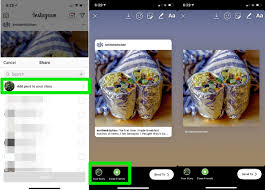
The official Instagram app has made it easy to repost content using the “Add this post to your story” feature. Here’s how:
- Open The Instagram App: Make sure you have the latest version of the app installed on your device.
- Find The Video: Open the video you want to repost and tap on it to enter its page.
- Tap The Three Dots: Tap on the three dots in the top-right corner of the screen.
- Select “Add This Post to Your Story”: Choose this option from the menu.
- Edit The Video (optional): If you want to edit the video before reposting it, tap on the edit button and make your changes.
- Post The Video: Tap on the “Your Story” tab and select “Post” to share the video with your followers.
Using Third-party Apps
If you can’t find the “Add this post to your story” feature or want more control over the reposting process, third-party apps come to the rescue. Here are a few popular options:
- Repost: For Instagram: This app allows you to easily copy and paste videos from one account to another.
- Inshot: A video editing app that also includes a feature to share videos directly to Instagram.
How to Repost on Android
If you’re using an Android device, here’s how to repost a video:
- Take a Screenshot: Open the video you want to repost and take a screenshot of it.
- Edit The Screenshot (optional): Use a photo editing app to trim or edit the screenshot before posting it.
- Post The Screenshot: Tap on the “Your Story” tab and select “Post” to share the screenshot with your followers.
How to Repost on Ios
If you’re using an iOS device, here’s how to repost a video:
- Take a Screenshot or Recording: Open the video you want to repost and take a screenshot or recording of it.
- Edit The Recording (optional): Use iMovie or another video editing app to trim or edit the recording before posting it.
- Post The Recording: Tap on the “Your Story” tab and select “Post” to share the recording with your followers.
Tips And Precautions
- Always ask permission from the original creator before reposting their content.
- Make sure you’re not violating any copyright laws by reposting someone else’s work.
- Be mindful of Instagram’s community guidelines when posting content that may be considered sensitive or explicit.
Conclusion
Reposting videos on Instagram is a great way to engage with others and share your favorite moments. Whether you use the official app or third-party apps, we hope this guide has helped you understand how to repost a video on Instagram. Happy sharing!
Frequently Asked Questions (FAQs)
- Q: Can I Repost Videos From Other Accounts?
A: Yes, but make sure you have permission from the original creator and that you’re not violating any copyright laws. - Q: How do I Edit a Video Before Reposting It?
A: Use a photo or video editing app to trim or edit the video before posting it. - Q: Can I Repost Videos on Both Android And Ios Devices?
A: Yes, but the process may vary slightly depending on your device and operating system. - Q: What Are Some Popular Third-party Apps For Reposting Videos on Instagram?
A: Some popular options include Repost: For Instagram and InShot. - Q: Can I Share a Video Directly to my Story Without Editing It?
A: Yes, you can use the “Add this post to your story” feature in the official app or third-party apps like Repost: For Instagram. - Q: How do I Know if I’m Reposting a Video Correctly?
A: Make sure you’re following the instructions for your device and operating system, and that you have permission from the original creator. - Q: Can I Share Multiple Videos at Once Using a Third-party App?
A: Yes, some apps like Repost: For Instagram allow you to copy and paste multiple videos from one account to another.
Recommended Apps
- Repost: For Instagram
- InShot
- IMovie (for iOS devices)
- Photo editing apps like Adobe Photoshop or Lightroom
Recommended Resources
- Instagram’s official community guidelines
- Third-party app reviews on the App Store or Google Play Store


