
How to Connect Your Huawei Smartphone or Tablet to Tv: A Step-by-step Guide
Are you tired of watching movies, videos, or playing games on your small smartphone screen? Do you want to experience the thrill of entertainment on a bigger canvas? If yes, then connecting your Huawei smartphone or tablet to TV is a great idea. In this article, we will guide you through the process of how to connect your device to TV using both wireless and wired methods.
Why Connect Your Smartphone or Tablet to Tv?
Connecting your Huawei smartphone or tablet to TV offers several benefits:
- Bigger Screen Experience: Enjoy watching movies, videos, playing games, or browsing the internet on a bigger screen.
- Better Sound Quality: Get immersed in the sound experience with a more authentic and louder audio output.
- Improved Gaming Experience: Play games that require precision and speed with ease using a larger screen.
Method 1: Wireless Connection Using Miracast
Huawei devices support wireless connectivity to TV using Miracast technology. Here’s how to do it:
Step-by-step Guide to Connect Huawei Device to TV Wirelessly
- Ensure your device and TV are connected to the same Wi-Fi network.
- Open Settings on your device.
- Search for “Easy Projection” or “Miracast” in the search bar.
- Select the option that matches your TV model.
- Tap on the “Projection” button and wait for the device to connect to your TV.
- Select the icon of your TV from the list of compatible devices.
- Once connected, you can start casting content from your device to TV.
Method 2: Wired Connection Using Chromecast
Chromecast is a popular device that allows users to stream content from their smartphone or tablet to TV using a wired connection. Here’s how to set it up:
Step-by-step Guide to Connect Huawei Device to TV With Chromecast
- Acquire the Chromecast device and plug it into your TV’s HDMI port.
- Download and install the Google Home app on your device.
- Follow the in-app instructions to connect your Chromecast device to your device.
- Select the icon of your Chromecast device from the list of available devices.
- Once connected, you can start casting content from your device to TV.
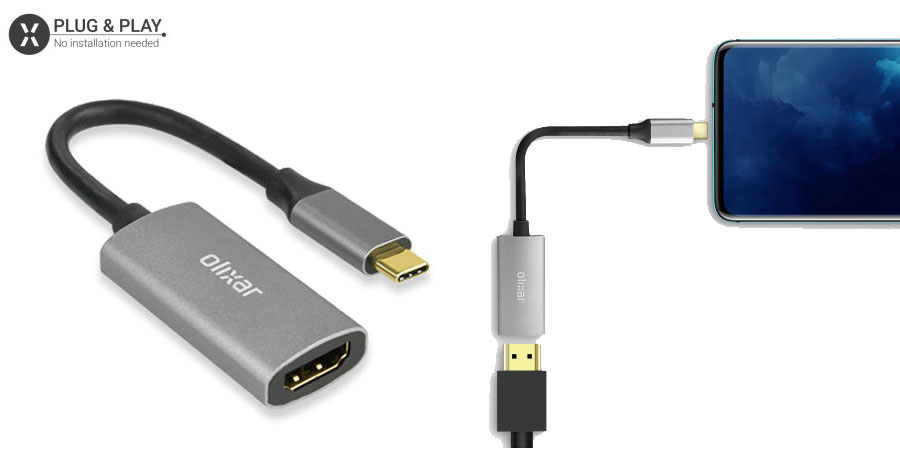
Method 3: Wired Connection Using a Usb-c or Micro-usb Hdmi Adapter
If your Huawei device supports MHL (Mobile High-Definition Link) technology, you can use an HDMI adapter to connect it to TV using a wired connection. Here’s how:
Step-by-step Guide to Connect Huawei Device to TV With a Usb-c or Micro-usb Hdmi Adapter
- Ensure your device supports MHL technology.
- Purchase the required HDMI adapter for your device model.
- Plug the adapter into your device’s micro-USB port.
- Connect the other end of the adapter to an HDMI cable and plug it into your TV’s HDMI port.
- Select the correct input on your TV to start casting content from your device.
Why Choose Wireless Connection Over Wired?
Wireless connection offers several advantages over wired:
- Convenience: No need to worry about cables or adapters.
- Flexibility: Move around freely while streaming content.
- Space-saving: No clutter or mess caused by cables.
However, wireless connection may experience some lag or delay in video transmission, especially when playing high-resolution games.
Conclusion
Connecting your Huawei smartphone or tablet to TV offers an enhanced entertainment experience. With the three methods described above, you can choose the one that suits your needs best. Remember to ensure your device and TV are connected to the same Wi-Fi network for wireless connection, and use the correct HDMI adapter for wired connection.
Frequently Asked Questions (FAQs)
- Q: Do All Huawei Devices Support Miracast Technology?
A: Yes, most recent Huawei devices support Miracast technology. - Q: What is Mhl Technology?
A: MHL stands for Mobile High-Definition Link, which allows users to stream content from their device to TV using a wired connection. - Q: Can I Connect my Huawei Device to TV Without Internet?
A: Yes, you can use Chromecast or an HDMI adapter for wired connection without internet. - Q: What is The Price Range of Wireless Devices Like Chromecast?
A: Prices vary depending on the model and features, but generally fall between 20-70 euros. - Q: Can I Connect Multiple Devices to my TV Using Chromecast or Miracast?
A: Yes, you can connect multiple devices to your TV using a single Chromecast or Miracast device. - Q: What Are The System Requirements For Wireless Connection Using Miracast or Chromecast?
A: Ensure your device and TV are running on compatible operating systems and meet specific hardware requirements.
References


