
How to Transfer Contacts From Iphone to Samsung: A Step-by-step Guide
Are you looking to switch from an iPhone to a Samsung smartphone? Congratulations on taking the first step towards a new mobile experience! One of the most important things to consider when switching phones is transferring your contacts from your old iPhone to your new Samsung device. In this article, we will guide you through four different methods to transfer contacts from iPhone to Samsung.
Method 1: Transferring Contacts Using Gmail
Transferring contacts from an iPhone to a Samsung smartphone using Gmail is a simple and straightforward process. Here’s how to do it:
- Export Your Iphone Contacts: Open the “Contacts” app on your iPhone and go to Settings > Contacts > Accounts > Add Account. Tap on Google, then sign in with your Gmail account. Make sure that your contacts are synchronized with your Google account.
- Open Gmail on Your Samsung Smartphone: Go to the Gmail website or open the Gmail app on your new Samsung device.
- Select “Contacts” From The Menu: Click on the three horizontal lines at the top left corner of the screen and select “Contacts” from the menu.
- Merge With Existing Contacts: If you already have contacts in your Samsung’s Google account, tap on the “Merge with existing contacts” option.
Method 2: Transferring Contacts Using Smart Switch
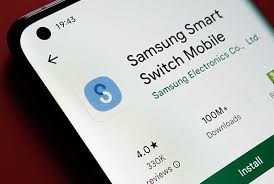
Smart Switch is a feature offered by Samsung that allows for seamless data transfer between devices. Here’s how to use it:
- Download And Install Smart Switch: Get the Smart Switch app from the Google Play Store or download it from Samsung’s official website.
- Open Smart Switch on Your Iphone: Tap on the “Get” button in the top right corner of the screen and select “iCloud Drive” as the transfer method.
- Select Contacts to Transfer: Choose the contacts you want to transfer, and tap on the “Transfer” button.
Method 3: Transferring Contacts Using Vcard (VCF)
The vCard file format is a universal standard for exchanging contact information. Here’s how to export your iPhone contacts as a VCF file:
- Open The Contacts App: Tap on the “Contacts” app icon to open it.
- Tap on The Three Dots in The Top Right Corner: Select “Export vCard”.
- Choose The Export Method: You can choose to save the VCF file directly to your iPhone or export it via email.
Method 4: Transferring Contacts Using Bluetooth
This method requires a third-party app called Snapdrop, which allows for easy data transfer between devices. Here’s how to use it:
- Download And Install Snapdrop: Get the Snapdrop app from the Google Play Store.
- Open Snapdrop on Both Phones: Launch the app on both your iPhone and Samsung smartphone.
- Tap on “Share” on One Device: Select the contacts you want to transfer, tap on “Share”, and choose the Snapdrop option.
Frequently Asked Questions (FAQs)
- How long will it take to transfer my contacts?
- Can I transfer all my data at once, or do I need to select individual contacts?
- Will my contacts be lost if I don’t complete the transfer process?
- Can I use any of these methods to transfer other types of data, such as photos and videos?
Conclusion
Transferring your contacts from an iPhone to a Samsung smartphone is relatively easy, regardless of which method you choose. Just remember to follow the steps outlined in each guide carefully, and make sure that both phones are connected to the same Wi-Fi network for smooth transfer.
By choosing one of these methods, you can ensure that all your important contact information is safely transferred to your new Samsung device, ready for you to use right away!


