
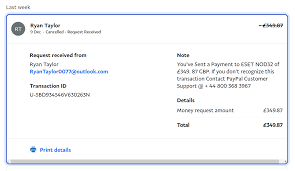
How to Cancel a Paypal Transaction: A Step-by-step Guide
Are you wondering how to cancel a PayPal transaction? You’re not alone! Many people have found themselves in situations where they need to cancel a payment, but aren’t sure where to start. In this article, we’ll guide you through the process of canceling a PayPal transaction, whether it’s in suspended status or has already been completed.
Understanding Paypal Transaction Statuses
Before we dive into the steps, let’s quickly understand the different statuses that a PayPal transaction can have:
- Suspended: This is when the payment has not been confirmed by the recipient.
- Completed: This is when the payment has been successfully transferred to the recipient.
Canceling a Suspended Paypal Transaction
If your PayPal transaction is in suspended status, you can cancel it easily. Here’s how:
- Log in to Your Paypal Account: Go to the PayPal website and log in with your email address and password.
- Click on “Activity”: In the top right corner of the page, click on “Activity”.
- Find The Suspended Transaction: Scroll down to find the suspended transaction you want to cancel.
- Click on The Three Dots: Next to the transaction, click on the three dots and select “Cancel”.
- Confirm Cancellation: Confirm that you want to cancel the transaction.
That’s it! If you’ve followed these steps correctly, your PayPal transaction should now be canceled.
Canceling a Completed Paypal Transaction
If your PayPal transaction has already been completed, things get a bit more complicated. Here’s what you need to do:
- Contact The Recipient: Reach out to the recipient and ask them to refund the payment.
- Open a Dispute Case: If the recipient doesn’t respond or refuses to refund the payment, you can open a dispute case with PayPal.
To open a dispute case, follow these steps:
- Log in to Your Paypal Account: Go to the PayPal website and log in with your email address and password.
- Click on “Activity”: In the top right corner of the page, click on “Activity”.
- Find The Completed Transaction: Scroll down to find the completed transaction you want to dispute.
- Click on The Three Dots: Next to the transaction, click on the three dots and select “Dispute case”.
- Fill Out The Form: Fill out the form with your details and explain why you’re disputing the payment.
Canceling a Paypal Transaction as a Family or Friend
If you’ve sent money to a family member or friend using PayPal’s “Send Money” feature, you can cancel the transaction if it’s been completed. Here’s how:
- Log in to Your Paypal Account: Go to the PayPal website and log in with your email address and password.
- Click on “Activity”: In the top right corner of the page, click on “Activity”.
- Find The Completed Transaction: Scroll down to find the completed transaction you want to cancel.
- Click on The Three Dots: Next to the transaction, click on the three dots and select “Cancel”.
- Confirm Cancellation: Confirm that you want to cancel the transaction.
Canceling a Paypal Transaction For Goods or Services
If you’ve sent money using PayPal’s “Goods and Services” feature, you can cancel the transaction if it’s been completed. Here’s how:
- Log in to Your Paypal Account: Go to the PayPal website and log in with your email address and password.
- Click on “Activity”: In the top right corner of the page, click on “Activity”.
- Find The Completed Transaction: Scroll down to find the completed transaction you want to cancel.
- Click on The Three Dots: Next to the transaction, click on the three dots and select “Point a problem”.
- Fill Out The Form: Fill out the form with your details and explain why you’re disputing the payment.
Frequently Asked Questions
Here are some frequently asked questions about canceling a PayPal transaction:
- Can I Cancel a Paypal Transaction After 30 Days?
Yes, you can cancel a PayPal transaction even after 30 days if it’s still in suspended status. - How Long Does it Take For a Refund to be Processed?
Refunds are typically processed within 24-48 hours of the cancellation request being approved. - Can I Cancel a Paypal Transaction That Has Been Sent as a Gift?
Unfortunately, no. PayPal transactions that have been sent as gifts cannot be canceled or refunded. - How do I Contact Paypal Customer Support?
You can contact PayPal customer support by calling their toll-free number (1-888-221-1161) or by submitting a request through their website.
Conclusion
Canceling a PayPal transaction can seem daunting, but it’s actually quite straightforward. Whether your transaction is in suspended status or has already been completed, following the steps outlined above should help you get the desired result. Remember to always keep records of your transactions and communications with PayPal, as this may be necessary for dispute resolution purposes.
Faqs
- Q: Can I Cancel a Paypal Transaction if It’s Been Sent Using my Credit Card?
A: Yes, you can cancel a PayPal transaction even if it was sent using your credit card. - Q: How do I Know if a Paypal Transaction Has Been Canceled or Refunded?
A: You will receive an email from PayPal confirming the cancellation or refund of the transaction. - Q: Can I Dispute a Paypal Transaction That Was Sent as a Gift?
A: Unfortunately, no. PayPal transactions that have been sent as gifts cannot be disputed or refunded.
I hope this article has helped you understand how to cancel a PayPal transaction! If you have any further questions or need help with something else, don’t hesitate to ask.


