
Protecting Your Digital Life: A Guide to Password-protected Folders
As we navigate the digital world, it’s essential to protect our personal data from prying eyes. In this article, we’ll explore how to create password-protected folders on your PC, Mac, smartphone, and tablet.
Why Protect Your Folders?
In today’s interconnected world, it’s not uncommon for multiple people to access the same computer or device. However, this can compromise your privacy and security. By protecting your folders with a password, you can ensure that only authorized individuals have access to sensitive information.
Protecting Folders on PC (Windows)
To protect folders on your Windows PC, we recommend using VeraCrypt, a free and open-source software tool. Here’s how to do it:
- Download And Install Veracrypt: Go to the official website and download the setup file for Windows.
- Create a New Volume: Launch VeraCrypt, select “Volumes” from the menu, and click on “Create a new volume.”
- Choose The File System: Select the desired file system (NTFS, FAT, or exFAT) and format the volume.
- Set Password: Choose a strong password for your folder, and confirm it in the next field.
- Mount The Volume: Once created, mount the volume by selecting it from the VeraCrypt menu.
Protecting Folders on Mac
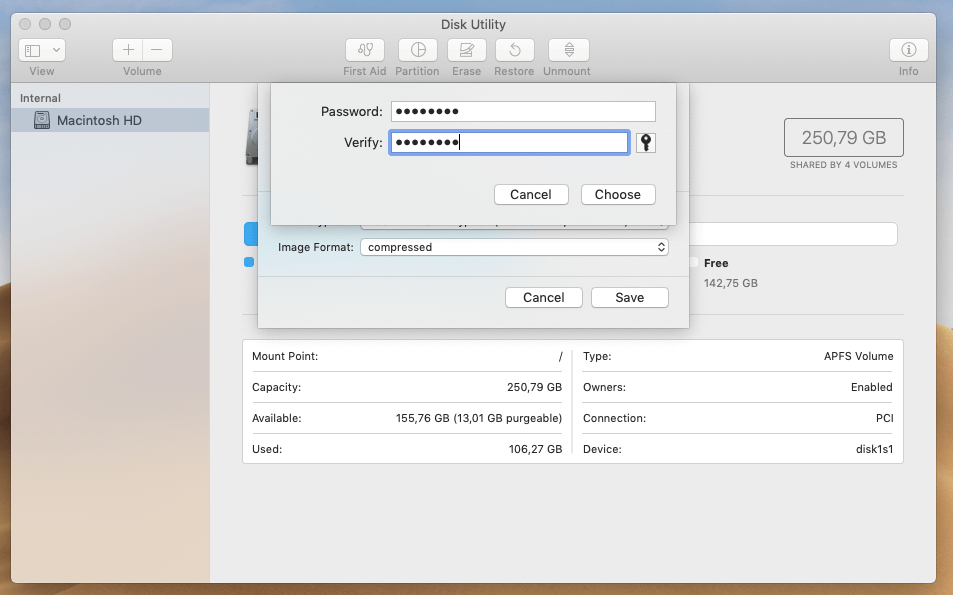
On a Mac, you can use the built-in “Disk Utility” app to create an encrypted image that can serve as a password-protected folder. Here’s how:
- Launch Disk Utility: Go to Applications > Utilities > Disk Utility.
- Create a New Image: Select “New Image” from the menu and choose the desired file system (Journaled or Sparse Bundle).
- Set Password: Choose a strong password for your folder, and confirm it in the next field.
- Mount The Volume: Once created, mount the volume by selecting it from the Disk Utility menu.
Protecting Folders on Smartphone And Tablet
On Android devices, you can use Google Files to create a password-protected folder. Here’s how:
- Launch Google Files: Go to your app drawer and open Google Files.
- Create a New Folder: Tap the “+” icon and select “Folder” from the menu.
- Set Password: Choose a strong password for your folder, and confirm it in the next field.
On iOS devices, you can use Private Photo Vault or other third-party apps to create password-protected folders.
Protecting Folders on Iphone/ipad
To protect folders on an iPhone or iPad, you can use Private Photo Vault or create a new album with a password. Here’s how:
- Launch Private Photo Vault: Go to your app drawer and open Private Photo Vault.
- Create a New Album: Tap the “+” icon and select “Album” from the menu.
- Set Password: Choose a strong password for your album, and confirm it in the next field.
Tips And Tricks
- Use a strong and unique password for each folder to ensure maximum security.
- Consider using two-factor authentication (2FA) to add an extra layer of protection.
- Keep your folders organized by creating clear labels and categorizing them accordingly.
- Regularly update your operating system, browser, and other software to prevent vulnerabilities.
Conclusion
Protecting your digital life is crucial in today’s connected world. By following these simple steps, you can create password-protected folders on your PC, Mac, smartphone, and tablet. Remember to always use strong passwords and keep your devices up-to-date to ensure maximum security.
Frequently Asked Questions (FAQs)
- Q: How do I Protect a Folder on my Windows Pc?
A: Use VeraCrypt to create an encrypted volume and set a password. - Q: Can I Protect Folders on my Mac Without Software?
A: Yes, use Disk Utility to create an encrypted image that serves as a password-protected folder. - Q: How do I Protect Folders on my Android Device?
A: Use Google Files or other third-party apps to create a password-protected folder. - Q: Can I Protect Folders on my Iphone/ipad Without Software?
A: Yes, use Private Photo Vault or create a new album with a password. - Q: What’s The Best Way to Store Sensitive Information?
A: Use a password manager like LastPass or 1Password to securely store passwords and other sensitive data. - Q: How Often Should I Update my Operating System, Browser, And Software?
A: Regularly check for updates and install them as soon as possible to prevent vulnerabilities. - Q: Can I Share a Password-protected Folder With Others?
A: Yes, but make sure to share the password with only authorized individuals and consider using 2FA for added security.
Conclusion
Protecting your digital life is essential in today’s interconnected world. By following these simple steps and tips, you can safeguard your sensitive information and ensure maximum security.


