
How to Create a Cover For Youtube: A Step-by-step Guide
Are you looking to create a cover for your YouTube channel or video? Look no further! In this article, we will guide you through the process of creating an effective cover that represents your brand and engages your audience.
What is a Youtube Cover?
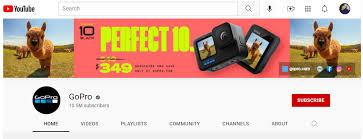
A YouTube cover is the image that appears on your channel’s page and in search results. It should be eye-catching, informative, and representative of your brand. A well-designed cover can help increase your views, engagement, and subscribers.
Choosing The Right Elements For Your Cover
Before creating your cover, it’s essential to choose the right elements that represent your brand. Consider the following:
- Channel Name: Choose a name that reflects your brand’s identity.
- Colors: Select colors that are consistent with your brand’s color scheme.
- Logos: Use logos or graphics that align with your brand’s visual identity.
- Images: Choose images that are relevant to your content and engage your audience.
Technical Requirements For Your Cover
To ensure your cover appears correctly on all devices, follow these technical guidelines:
- Dimensions: For a channel banner, use 2560 x 1440 pixels (for display TV) or 2560 x 423 pixels (for desktop). For a video cover, use 1280 x 720 pixels (minimum width 640 pixels).
- File Type: Use JPG, GIF, BMP, or PNG format.
- File Size: Ensure the file size is under 6 MB.
How to Apply Your Cover on Youtube
To apply your cover on YouTube, follow these steps:
- Log in to your YouTube account and navigate to your channel page.
- Click on “Edit” next to your profile picture and select “Channel”.
- Scroll down to the “Branding” section and click on “Change banner”.
- Select the image you want to use as your cover and click on “Save”.
How to Create a Cover For a Youtube Video
To create a cover for a YouTube video, follow these steps:
- Log in to your YouTube account and navigate to the video’s page.
- Click on the three vertical dots next to the video title and select “Edit”.
- Scroll down to the “Thumbnails” section and click on “Change thumbnail”.
- Select the image you want to use as your cover and click on “Save”.
Using Programs to Create a Youtube Cover
There are various programs that can help you create a YouTube cover, including:
- Photoshop: A professional-grade photo editing software.
- Gimp: A free alternative to Photoshop.
- Inkscape: A vector graphics editor.
- Coreldraw: A professional-grade graphic design software.
Using Online Services to Create a Youtube Cover
If you’re not familiar with graphic design programs, there are online services that can help you create a YouTube cover, including:
- Canva: A free graphic design platform.
- Adobe Express: A free service offered by Adobe.
- Vistacreate: A free online service for creating graphics and designs.
Conclusion
Creating a cover for your YouTube channel or video requires some technical knowledge and creativity. By following the guidelines outlined in this article, you can create an effective cover that represents your brand and engages your audience. Remember to experiment with different elements, colors, and images until you find the perfect combination that works for you.
Faqs
- What is The Ideal Size For a Youtube Cover?
The ideal size for a YouTube cover is 2560 x 1440 pixels (for display TV) or 2560 x 423 pixels (for desktop). - How do I Apply my Cover on Youtube?
To apply your cover on YouTube, follow the steps outlined in this article. - Can I Use Any Image as a Youtube Cover?
No, you cannot use any image as a YouTube cover. The image must be 1280 x 720 pixels (minimum width 640 pixels) and under 6 MB. - What Programs Can I Use to Create a Youtube Cover?
You can use various programs such as Photoshop, GIMP, Inkscape, CorelDRAW, Canva, Adobe Express, and VistaCreate. - How do I Upload my Cover on Youtube?
To upload your cover on YouTube, follow the steps outlined in this article. - Can I Change my Youtube Cover at Any Time?
Yes, you can change your YouTube cover at any time by following the steps outlined in this article. - What is The Best Way to Create a Youtube Cover?
The best way to create a YouTube cover is to experiment with different elements, colors, and images until you find the perfect combination that works for you.
Best Practices
- Use consistent branding across all your social media platforms.
- Experiment with different elements, colors, and images until you find the perfect combination that works for you.
- Ensure your cover is eye-catching and informative.
- Follow YouTube’s guidelines for channel banners and video thumbnails.


