
How to Fix Unresponsive Usb Ports on Your PC
Are you tired of dealing with unresponsive USB ports on your computer? Do you find yourself struggling to connect devices, only to have them not recognized by your system? You’re not alone! Many users face this frustrating issue, but fortunately, it’s often an easy fix. In this article, we’ll guide you through the steps to troubleshoot and resolve unresponsive USB ports on your Windows PC.
What Causes Unresponsive Usb Ports?
Before we dive into the solutions, let’s quickly discuss what might be causing this issue. There are several reasons why your USB ports might not be responding:
- Driver Issues: Outdated or corrupted drivers can prevent your system from recognizing USB devices.
- Hardware Problems: Faulty USB controllers or port damage can lead to unresponsive ports.
- Software Conflicts: Conflicting software or malware can cause issues with USB connectivity.
Step 1: Check Your Device Manager
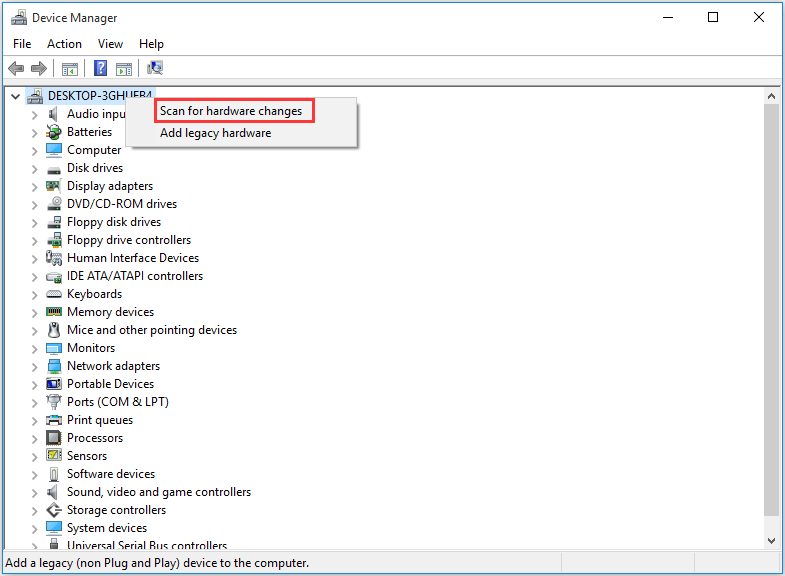
To identify the root of the problem, we’ll start by checking your device manager. Here’s how:
- Press the Windows key + X and select Device Manager from the menu.
- In the device manager, expand the “Universal Serial Bus Controllers” section.
- Look for any devices with a red X or a yellow exclamation mark.
- Right-click on these devices and select “Update driver” to ensure you have the latest drivers installed.
Step 2: Disable And Re-enable Usb Devices
Sometimes, disabling and re-enabling USB devices can resolve connectivity issues. Here’s how:
- Go to the device manager and expand the “Universal Serial Bus Controllers” section.
- Right-click on each USB controller and select “Disable device.”
- Wait for a few seconds, then enable the device again.
Step 3: Run a System File Checker
A System File Checker (SFC) scan can help identify and replace any corrupted system files that might be causing issues with your USB ports.
- Press the Windows key + S to open the search bar.
- Type “System File Checker” and select the result.
- Follow the prompts to run the SFC scan.
Step 4: Update Your Bios
If you’re using an older BIOS version, it might be causing compatibility issues with your USB ports. Here’s how to update your BIOS:
- Visit your computer manufacturer’s website for instructions on updating your BIOS.
- Download and save the BIOS update file to a USB drive or a folder on your computer.
- Restart your computer and enter the BIOS setup by pressing the key indicated on your screen (usually F2, F12, or Del).
- Save the changes and exit the BIOS setup.
Step 5: Reset Your Smc (System Management Controller)
If you’re using a Mac, resetting your System Management Controller (SMC) can resolve issues with USB ports. Here’s how:
- Shut down your Mac.
- Unplug the power cord for at least 15 seconds on iMacs and 5 seconds on MacBook Pros.
- Press the Power button while holding the Command + Option + Shift keys.
- Release all the keys and press the Power button again to turn it back on.
Conclusion
Fixing unresponsive USB ports on your PC is often a straightforward process that can be completed in just a few steps. By checking your device manager, disabling and re-enabling USB devices, running a system file checker, updating your BIOS, or resetting your SMC, you should be able to resolve connectivity issues with your USB ports.
Faqs
Here are some frequently asked questions about fixing unresponsive USB ports:
- Q: Why do my USB ports not work after installing new drivers?
A: Sometimes, new drivers can conflict with existing ones. Try uninstalling the latest driver and see if it resolves the issue. - Q: How do I reset my SMC on a MacBook Pro without losing data?
A: To avoid losing data, disconnect all external devices before resetting your SMC. Also, make sure to save any unsaved work and close all applications. - Q: Why do my USB ports not work after updating my BIOS?
A: If you’ve updated your BIOS and still encounter issues with your USB ports, try reinstalling the previous version of the BIOS. - Q: What should I do if resetting my SMC doesn’t resolve the issue?
A: If resetting your SMC doesn’t help, consider seeking professional assistance or visiting an authorized Apple service center.


