
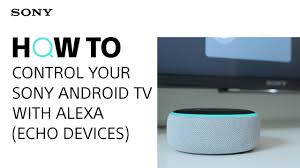
How to Command Your TV With Alexa: A Step-by-step Guide
Are you tired of getting up from your couch to change the channel or adjust the volume on your TV? Do you want to experience the convenience of voice control without sacrificing the quality of your viewing experience? Look no further than Amazon’s Alexa! With this intelligent virtual assistant, you can command your TV with ease and enjoy a more immersive viewing experience.
Understanding The Basics
Before we dive into the specifics, it’s essential to understand the basics of commanding your TV with Alexa. There are several ways to do this, but the most common method is by using an Amazon device, such as an Echo or Fire TV Stick, and linking it to your TV via a smart app.
Using Alexa on Your Smart TV
If you have a smart TV that supports Alexa, you can use voice commands to control various aspects of your viewing experience. This includes changing channels, adjusting the volume, and even launching content from popular streaming services like Netflix or Hulu.
To get started, simply say “Alexa” followed by your desired command, such as “change channel to ESPN” or “turn off the TV.” If you’re using an Echo device, you can also use voice commands to control other smart devices in your home, such as lights or thermostats.
Using a Universal Remote With Alexa
If your smart TV doesn’t support Alexa natively, don’t worry! You can still use a universal remote with Alexa integration. These remotes allow you to control various aspects of your viewing experience using voice commands, including changing channels and adjusting the volume.
To get started, simply download the Alexa app on your smartphone or tablet and link it to your TV via Bluetooth or Wi-Fi. Then, say “Alexa” followed by your desired command, such as “change channel to ESPN” or “turn off the TV.”
Using a Fire TV Stick With Alexa
If you have a Fire TV Stick, you can use voice commands to control various aspects of your viewing experience using an integrated remote with Alexa integration. This includes changing channels, adjusting the volume, and even launching content from popular streaming services like Netflix or Hulu.
To get started, simply say “Alexa” followed by your desired command, such as “change channel to ESPN” or “turn off the TV.”
Tips And Tricks
Here are some tips and tricks to help you get the most out of commanding your TV with Alexa:
- Make sure your smart TV is connected to Wi-Fi before attempting to use voice commands.
- Use a universal remote with Alexa integration if your smart TV doesn’t support Alexa natively.
- Experiment with different voice commands to see what works best for you and your viewing experience.
- Consider investing in an Amazon Echo device for seamless integration with other smart devices in your home.
Compatibility Issues
If you’re experiencing compatibility issues with your smart TV or universal remote, don’t worry! Here are some solutions:
- Check the manufacturer’s website for software updates that may resolve any compatibility issues.
- Contact customer support for assistance with troubleshooting and resolving any technical issues.
- Consider purchasing a new device that is compatible with Alexa.
Conclusion
In conclusion, commanding your TV with Alexa is easier than you think! With the right device and some simple voice commands, you can enjoy a more immersive viewing experience without sacrificing quality. Whether you’re using an Echo device, Fire TV Stick, or universal remote with Alexa integration, there’s no excuse not to try it out.
Frequently Asked Questions (FAQs)
Here are eight frequently asked questions about commanding your TV with Alexa:
- Q: What Devices Support Alexa Voice Control?
A: Amazon Echo, Fire TV Stick, and universal remotes with Alexa integration. - Q: How do I Get Started With Commanding my TV With Alexa?
A: Simply say “Alexa” followed by your desired command. - Q: Can I Use Voice Commands to Control Other Smart Devices in my Home?
A: Yes, using an Echo device or Fire TV Stick. - Q: What if my Smart TV Doesn’t Support Alexa Natively?
A: Use a universal remote with Alexa integration. - Q: How do I Troubleshoot Compatibility Issues With my Smart TV or Universal Remote?
A: Check manufacturer’s website for software updates, contact customer support, and consider purchasing a new device. - Q: What Are Some Tips And Tricks For Getting The Most Out of Commanding my TV With Alexa?
A: Make sure your smart TV is connected to Wi-Fi, use a universal remote with Alexa integration if necessary, experiment with different voice commands, and invest in an Amazon Echo device. - Q: Can I Use Alexa Voice Control on Other Streaming Services Like Netflix or Hulu?
A: Yes, using the Fire TV Stick or other compatible devices. - Q: What Are Some Potential Issues to Consider When Commanding my TV With Alexa?
A: Compatibility issues, audio lag, and connectivity problems.
Conclusion
In conclusion, commanding your TV with Alexa is a great way to enhance your viewing experience without sacrificing quality. With the right device and some simple voice commands, you can enjoy a more immersive experience. Whether you’re using an Echo device, Fire TV Stick, or universal remote with Alexa integration, there’s no excuse not to try it out!


