
How to Scan a Document And Forward it Via Email
Are you tired of having to physically go back to your office or workspace just to scan an important document and send it to your boss? Well, you’re in luck because this guide will show you how to do exactly that! With the help of modern technology, scanning a document and forwarding it via email has never been easier.
Preparation is Key
Before we dive into the nitty-gritty of scanning and emailing, let’s make sure you have everything ready. If you don’t already have your scanner or printer set up at home, now’s the perfect time to do so. And if you’re not tech-savvy, don’t worry – this guide is designed to be easy to follow, even for those who aren’t familiar with technology.
Windows: Scanning And Emailing Made Easy
If you use a Windows computer, scanning a document and emailing it is a breeze. You can use the built-in application called Scan & Share, which allows you to scan documents directly from your computer and share them via email or other methods. Simply install the app from the Microsoft Store, launch it, and follow the on-screen instructions.
Microsoft Outlook: A Seamless Emailing Experience
If you’re using Microsoft Outlook as your email client, scanning a document and emailing it is just as easy. Open Outlook, compose a new email message, and then click on the “Attach” button to add the scanned document to the email. You can also use the “Scan & Share” app mentioned earlier in conjunction with Outlook for an even smoother experience.
Gmail: Scanning And Emailing Made Simple
If you’re using Gmail as your email client, scanning a document and emailing it is straightforward. Simply open Gmail, compose a new message, and then click on the paperclip icon to add the scanned document to the email. You can also use the “Scan & Share” app in conjunction with Gmail for an even more streamlined experience.
Macos: Scanning And Emailing Made Easy
If you’re using a Mac, scanning a document and emailing it is just as easy. Use the built-in application called Image Capture to scan your document, and then share it via email or other methods using Apple Mail.
Smartphone Scanning: A Convenient Option
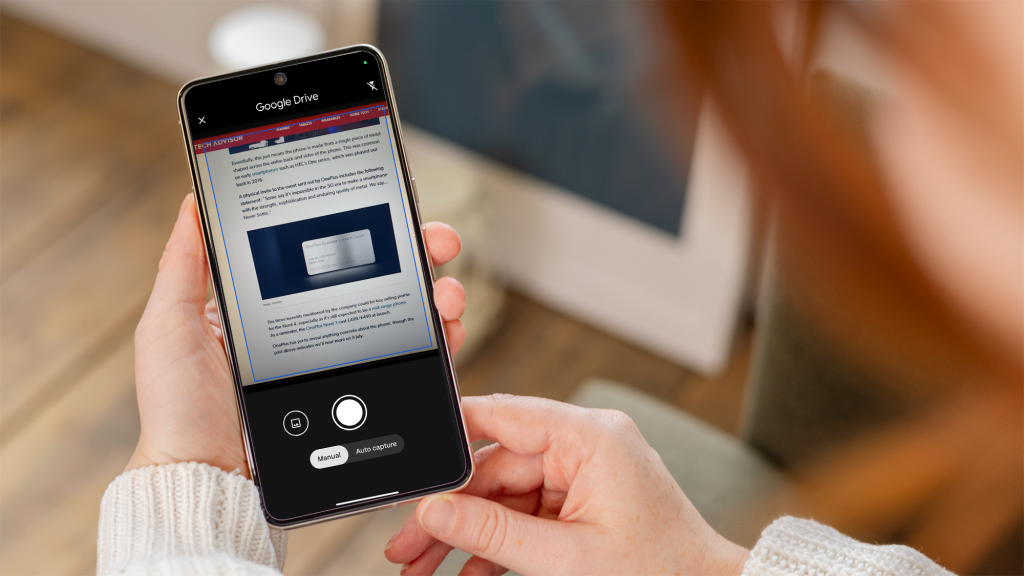
But what if you don’t have access to a computer? No worries! You can use your smartphone’s camera app to scan documents and send them via email. This is especially useful when you’re on-the-go and need to quickly scan an important document. For Android users, the Google Drive app has a built-in scanning feature that makes it easy to scan documents and share them via email.
Iphone Scanning: A Smooth Experience
For iPhone users, the process is just as smooth. Use the Notes app to scan documents, and then share them via email or other methods using Apple Mail.
Tips And Variations
Of course, there are a few variations and tips you might want to keep in mind depending on your specific situation:
- If you’re scanning a document with multiple pages, use the “Scan & Share” app’s batch scanning feature to scan all the pages at once.
- If you need to edit or annotate a scanned document, use an image editing app like Adobe Photoshop to make any necessary changes.
- If you’re using a smartphone to scan documents, consider using a third-party app specifically designed for this purpose.


