
Unblocking The Mouse: A Step-by-step Guide
Are you tired of dealing with a mouse that’s as useful as a brick? Do you find yourself constantly frustrated by its refusal to work properly? Well, you’re in luck! In this article, we’ll guide you through the process of unblocking your mouse, whether it’s on Windows or Mac.
Why Does My Mouse Keep Blocking?
Before we dive into the solutions, let’s talk about why your mouse might be blocking in the first place. There are several reasons for this:
- A low battery level (if your mouse is wireless)
- A faulty USB connection (if your mouse is connected via cable or USB receiver)
- Software issues, such as driver problems or malware
- Hardware issues, such as a broken mouse
Windows Mouse Unblocking Guide
Now that we’ve covered the possible reasons for your mouse’s blocking, let’s move on to the solutions. Here are some steps you can take to unblock your Windows mouse:
Check The Battery Level of Your Wireless Mouse
If your mouse is wireless, it might be due to a low battery level. Check the charge level by looking at the indicator light on the mouse or by using the Battery Indicator in Windows 10.
- Click on the Start button and select Settings
- Go to Devices and find your mouse in the list of connected devices
- Check the battery level beside your mouse’s name
Check The Usb Port Connection of Your Mouse
If your mouse is connected via cable or USB receiver, it might be due to a faulty connection. Check that the mouse is properly inserted into the USB port and that the receiver is working correctly.
- Click on the Start button and select Settings
- Go to Devices and find your mouse in the list of connected devices
- Check if there are any notices about missing drivers or incorrectly configured devices
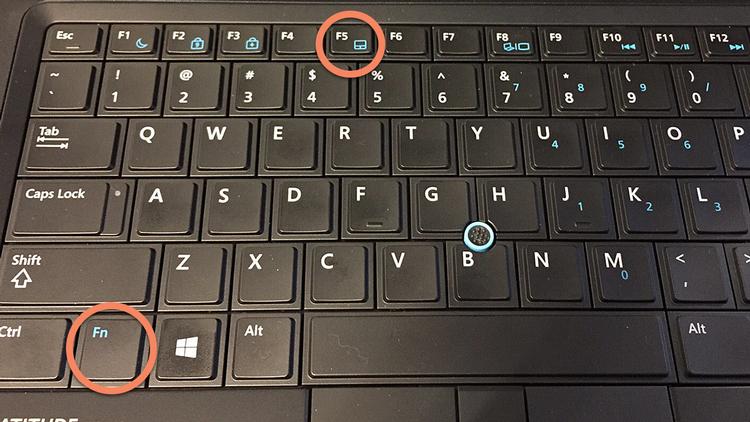
Disable The Touchpad (if You’re Using a Laptop)
If you’re using a laptop, it’s possible that the touchpad is interfering with your mouse. Try disabling the touchpad by pressing the corresponding key on your keyboard.
Mac Mouse Unblocking Guide
Now that we’ve covered the Windows solutions, let’s move on to the Mac-specific steps:
Check The Battery Level of Your Wireless Mouse
Just like on Windows, if your mouse is wireless, it might be due to a low battery level. Check the charge level by looking at the indicator light on the mouse or by using the System Information window.
- Click on the Apple icon and select About This Mac
- Go to System Report and find your mouse in the list of connected devices
- Check the battery level beside your mouse’s name
Check The Usb Port Connection of Your Mouse
Just like on Windows, if your mouse is connected via cable or USB receiver, it might be due to a faulty connection. Check that the mouse is properly inserted into the USB port and that the receiver is working correctly.
- Click on the Apple icon and select About This Mac
- Go to System Report and find your mouse in the list of connected devices
- Check if there are any notices about missing drivers or incorrectly configured devices
Disable The Trackpad (if You’re Using a Macbook)
If you’re using a MacBook, it’s possible that the trackpad is interfering with your mouse. Try disabling the trackpad by going to System Preferences > Accessibility.
Other Solutions
If none of these solutions work for you, don’t worry! There are other options you can try:
- Restarting your computer in safe mode
- Scanning for malware and viruses
- Restoring your operating system to a previous version
Conclusion
Unblocking your mouse is easier than you think. By following the steps outlined in this article, you should be able to get your mouse working properly again. Remember to always check for software or hardware issues before trying more drastic solutions.
Faqs
Q: Why does my mouse keep blocking?
A: Your mouse might be blocking due to a low battery level, faulty USB connection, software issues, or hardware issues.
Q: How can I check the battery level of my wireless mouse?
A: You can check the battery level by looking at the indicator light on the mouse or using the Battery Indicator in Windows 10.
Q: Why is my laptop’s touchpad interfering with my mouse?
A: It’s possible that your touchpad is interfering with your mouse. Try disabling the touchpad by pressing the corresponding key on your keyboard.
Q: How can I check for software issues affecting my mouse?
A: You can check for software issues by looking at the notices in the Device Manager or System Report window.
Q: What should I do if none of these solutions work for me?
A: If none of these solutions work, try restarting your computer in safe mode, scanning for malware and viruses, or restoring your operating system to a previous version.


