
Parental Control: A Guide to Safe Digital Experience For Children
As a parent, it’s natural to feel concerned about the digital activities of your children. With the increasing access to devices and online platforms, it’s essential to ensure that they have a safe and enjoyable experience. Parental control is a crucial aspect of maintaining a healthy digital balance in your household.
Why Do We Need Parental Control?
In today’s digital age, children are exposed to various forms of content on the internet, including websites, apps, and streaming services. While these platforms can be educational and entertaining, they also pose risks such as:
- Access to explicit or mature content
- Exposure to cyberbullying or online harassment
- Risk of encountering malicious websites or ads
- Overexposure to screens and potential health issues
How to Activate Parental Control on PC (Windows)
To activate parental control on your Windows PC, follow these steps:
- Ensure you have a Microsoft account.
- Access the settings panel and click on “Account.”
- Select “Family and other users” from the menu.
- Click on “Add member of the family” and create a new account for your child.
- Set up the parental control features, including time limits, content filters, and app restrictions.
How to Activate Parental Control on PC (macOS)
To activate parental control on your macOS device, follow these steps:
- Create a user profile for your child.
- Access the System Preferences panel and click on “Users & Groups.”
- Select “Parental Controls” from the menu.
- Set up the parental control features, including time limits, content filters, and app restrictions.
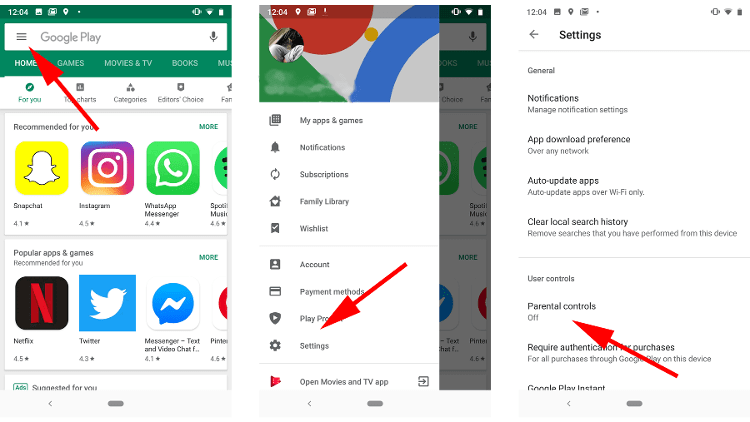
How to Activate Parental Control on Tablet And Mobile Devices (Android)
To activate parental control on your Android device, follow these steps:
- Access the Google Play Store settings and click on “Settings.”
- Select “Family” from the menu.
- Choose “Parental Controls” and set up the desired restrictions.
How to Activate Parental Control on TV
To activate parental control on your TV, follow these steps:
- Access the TV settings menu.
- Select “Safety” or a similar option.
- Set up the parental control features, including channel blocking and content filters.
How to Activate Parental Control on Youtube
To activate parental control on YouTube, follow these steps:
- Access your YouTube account settings.
- Select “Settings” from the menu.
- Choose “Restricted mode” and set it to “On.”
How to Activate Parental Control on Google (SafeSearch)
To activate SafeSearch on Google, follow these steps:
- Access your Google account settings.
- Select “Settings” from the menu.
- Choose “Filtering” and select the desired level of filtering.
Additional Tips And Resources
- Consider using parental control software or apps to supplement the built-in features on your devices.
- Set clear rules and boundaries for digital device use in your household.
- Educate your children about online safety and etiquette.
Conclusion
Parental control is an essential aspect of maintaining a healthy digital balance in your household. By following these steps and tips, you can ensure that your children have a safe and enjoyable experience while using digital devices. Remember to stay informed and adapt to the ever-changing digital landscape.
Frequently Asked Questions (FAQs)
- What is Parental Control?
Parental control refers to the set of features and tools used to limit access to certain content, apps, or websites on digital devices. - Why do I Need Parental Control?
You need parental control to ensure that your children have a safe and healthy digital experience while minimizing exposure to explicit or mature content. - How do I Activate Parental Control on my PC (Windows)?
To activate parental control on Windows, follow the steps outlined in this guide, including creating a Microsoft account and setting up the family features. - Can I Use Parental Control Software or Apps?
Yes, you can consider using parental control software or apps to supplement the built-in features on your devices. - How do I Set Clear Rules For Digital Device Use in my Household?
Set clear rules and boundaries for digital device use, including screen time limits, content filters, and app restrictions. - What is Safesearch on Google?
SafeSearch is a feature that filters search results to prevent access to explicit or mature content. - How do I Report Online Harassment or Cyberbullying?
Report online harassment or cyberbullying to the relevant authorities or platforms.
Sources:
- [Your URL]


