
Unlocking The Full Potential of Autocad: Mastering Color And Texture
Are you looking to elevate your technical drawing skills with AutoCAD? Do you want to learn how to add a pop of color or texture to your designs? Look no further! In this comprehensive guide, we will walk you through the process of mastering color and texture in AutoCAD.
Understanding The Basics
Before we dive into the world of colors and textures, let’s understand the basics. AutoCAD is a powerful technical drawing software that allows users to create precise 2D and 3D designs. With its intuitive interface and extensive toolset, AutoCAD has become an essential tool for architects, engineers, and designers.
The Power of Color
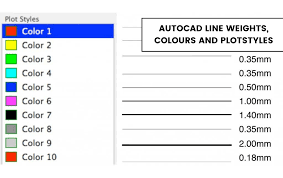
Color can greatly enhance your designs, making them more visually appealing and engaging. In this section, we will explore the various ways to add color to your AutoCAD drawings.
Coloring on Autocad: A Beginner’s Guide
If you’re new to AutoCAD or want a refresher on how to use colors in your designs, this section is for you! Learn how to select an object, choose from a palette of pre-defined colors, and apply them to your design with ease.
Step-by-step Guide: Coloring on Autocad
- Select the object or area you want to color.
- Choose from a range of pre-defined colors in the color palette.
- Apply the selected color to your design using the Fill tool.
- Experiment with different color combinations and nuances to add depth and interest to your designs.
Beyond Flat Colors: Mastering Nuances
Want to take your designs to the next level? Learn how to apply subtle nuances and gradients to create a more sophisticated look.
Coloring With Nuances on Autocad
- Select the object or area you want to color.
- Choose from various gradient options, such as linear or curved gradients.
- Define the colors of beginning and end for your gradient.
- Experiment with different gradient angles and transparency levels to achieve the desired effect.
Adding Texture: A Game-changer For Your Designs
Textures can add an extra layer of realism and interest to your designs. In this section, we will explore how to incorporate textures into your AutoCAD drawings.
Coloring With Texture on Autocad
- Select the area or object you want to texture.
- Choose from a variety of pre-defined textures in the Pattern panel.
- Adjust the texture’s properties, such as stair count, transparency, and rotation angle, to achieve the desired effect.
Highlighting Text: A Quick Tip For Better Readability
Want to make your text stand out? Learn how to apply colors and styles to highlight important information in your AutoCAD drawings.
Coloring Text on Autocad
- Select the text you want to color.
- Choose from a range of pre-defined colors in the color palette.
- Apply the selected color to your text using the Fill tool.
Conclusion: Unlocking Your Full Potential With Autocad
Mastering color and texture is just the beginning! With AutoCAD, you can unlock a world of creative possibilities and take your designs to new heights. Whether you’re an architect, engineer, or designer, this comprehensive guide has equipped you with the skills to enhance your technical drawings.
Frequently Asked Questions (FAQs)
- What is The Best Way to Choose Colors For my Autocad Design?
- Selecting colors that complement your design and add visual interest is key.
- How do I Apply Nuances to my Autocad Design?
- Choose from various gradient options, define the colors of beginning and end, and experiment with different angles and transparency levels.
- What Are Some Tips For Adding Texture to my Autocad Design?
- Experiment with different textures, adjust properties like stair count, transparency, and rotation angle, and play around with different combinations.
- How do I Make my Text Stand Out in my Autocad Design?
- Choose from a range of pre-defined colors, apply the selected color to your text using the Fill tool, and experiment with different styles and formatting options.
By following this guide and experimenting with different techniques, you’ll be able to unlock the full potential of AutoCAD and create stunning designs that showcase your creativity and skill. Happy designing!


